Blog

Apple

Practical guides to running your business on Mac, iPad and iPhone: invoicing, projects, time tracking and working with the AI assistant.

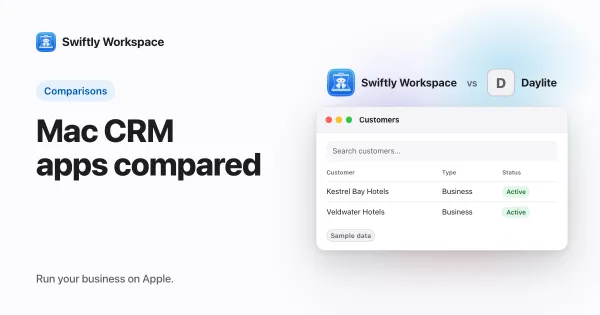
  1. Daylite alternatives: native CRM for Mac, iPhone and iPad

    Daylite is a strong pick for an Apple-based team that wants mail, calendar and CRM in one native app. If you also need invoices, projects and approved timesheets, Swiftly Workspace is the closest native alternative; HubSpot, Pipedrive and Zoho CRM suit sales-led teams.
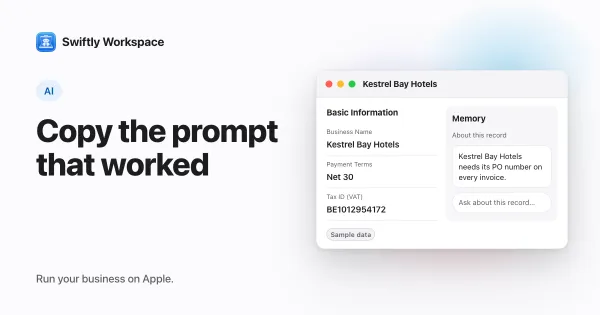
  2. Reusing a good prompt on Mac: copy any message you sent

    On a Mac, each message you sent in Swiftly Workspace's Conversations has a small copy button next to its time. One click puts the exact text on the clipboard, ready to paste into a new conversation, a note or a message to a colleague.

  3. No ads and no cross-app tracking: what that means

    Swiftly Workspace shows no advertising and does not track you across other companies' apps or websites. Its privacy manifests on iPhone, iPad and Mac declare no tracking, and the app never asks for tracking permission. A few named services still receive data so the app can work.
  4. Using Swiftly Workspace in 14 languages

    Swiftly Workspace can run in 14 languages and regional variants, including Dutch, French, German, Spanish, Italian, Portuguese and Polish. Each person picks their own under My Account, then Profile, then Language, on iPhone, iPad or Mac.

  5. How to explore the demo workspace on Mac

    To explore the demo on a Mac, open the app, click Try the demo in the sign-in window, type a name and click Start exploring. The sample company opens in its own window; when you want your own, choose Create Real Account from the company menu.

  6. How to explore the demo workspace on iPhone or iPad

    To explore the demo on iPhone or iPad, open the app, tap Try the demo on the sign-in screen, type a name and tap Start exploring. Browse the sample customers, invoices and projects from the menu, then tap Sign up to keep Workspace when you want your own company.

  7. Try a business app without signing up: our demo company

    To try Swiftly Workspace without an account, tap Try the demo on the sign-in screen, type a name and tap Start exploring. You join a shared sample company with customers, projects and invoices for up to seven days, and you can sign up for your own company.

  8. How to import customers, items or invoices on iPhone or iPad

    To import on iPhone or iPad, open Administration, then Data Import, and tap + for a new session. Pick a source and a record type, upload your CSV or XLSX file from Files, choose Validate from the ⋯ menu, match any lookups, then choose Commit.

  9. How to export your data to CSV on iPhone or iPad

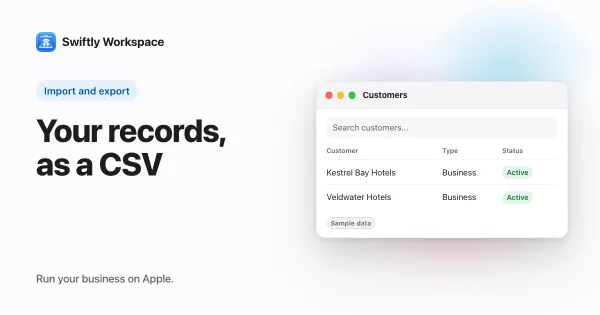
    To export data on iPhone or iPad, open Administration, then Data Export, and tap + for a new session. Tick a record type under Entities, tap Continue, then choose Generate from the ⋯ menu. When the session shows Finished, save the CSV file to a folder in Files.

  10. Address autocomplete for faster customer entry

    In Swiftly Workspace, the magnifying glass in a customer or vendor address form opens Search Address. Type part of an address, a business name or a place, pick a suggestion, and the street, city, state or province, postal code and country fill in for you to check and save.

  11. Quick Create and keyboard shortcuts on Mac

    On a Mac, press ⌘N for a new record in the area you are in, or pick any record type from File → New. Return saves, Escape cancels in the customer and address windows, and in the Customers list, Return or a double-click opens a customer in its own window.

  12. Large customer lists on iPhone, iPad and Mac

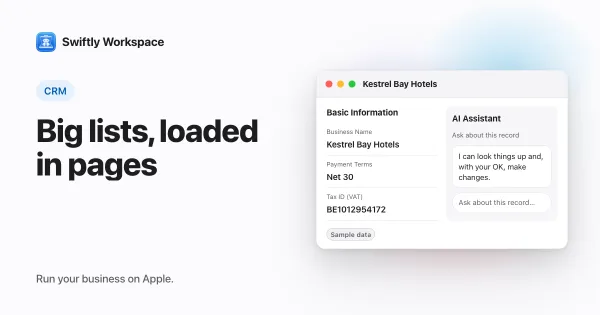
    Swiftly Workspace loads a long customer list in pages of 100 and shows the rows as each page arrives, with a Loaded 300 of 2,400… counter until the list is complete. Search by name, VAT number or phone, sort the columns, and filter by type, lifecycle stage or status.

  13. Asking about your business from the car with CarPlay

    With CarPlay you can ask Swiftly Workspace about your business while driving: tap Talk on the car's screen, ask your question, and the answer is read aloud. It is Main Chat by voice, so it answers from your own customers, invoices, projects and hours.

  14. How to add a customer with contacts and addresses on Mac

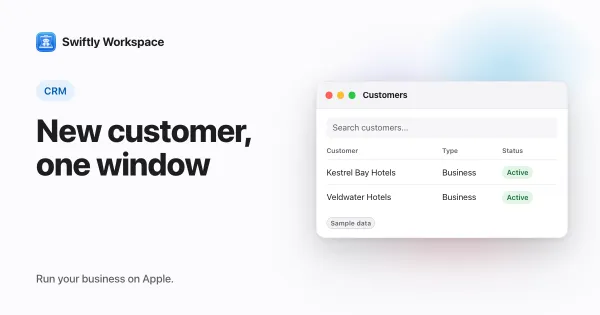
    On a Mac, open CRM, then Customers, and click + (or press ⌘N). Fill in the New Customer window and click the checkmark; the window becomes the customer's own, where Addresses and Contacts in its sidebar let you add an address and a contact person.

  15. How to add a customer with contacts on iPhone or iPad

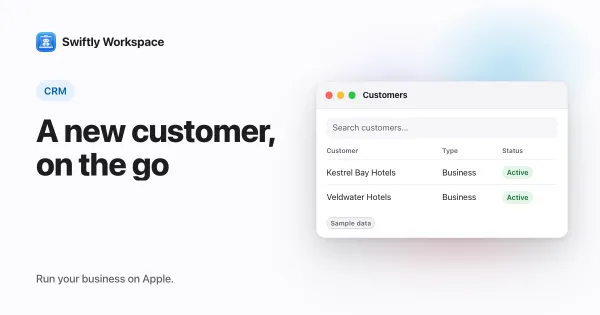
    On iPhone or iPad, open CRM, then Customers, and tap +. Fill in the New Customer form, tap the checkmark to save, then add an address on the Addresses tab and a contact person on the Contacts tab of the same sheet.

  16. Your business on iPhone: what to do between meetings

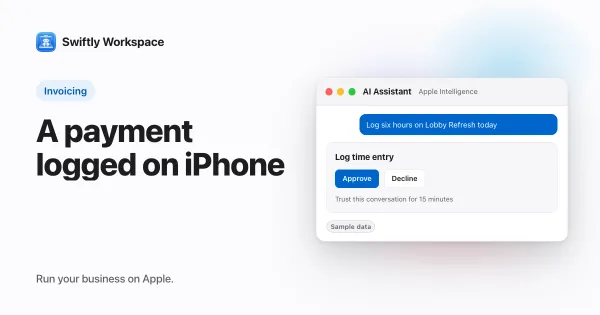
    An iPhone handles the short jobs that keep a small business moving: send an invoice, record a payment, log hours, add a customer or ask a quick question about your figures. In Swiftly Workspace each of those takes a minute or two; long admin sessions still suit a Mac.

  17. Talking to your business app: dictation and spoken replies

    In Swiftly Workspace you can speak to Main Chat instead of typing: tap the microphone, talk, and your words are transcribed on the device, tidied by Apple Intelligence and sent. Replies can be read aloud, one at a time or every time.

  18. Change your invoice layout and brand color on Mac

    On a Mac, click Administration in the sidebar, then Document Theme. Choose a theme, a brand color, a Default Document Language and the Invoices layout, then click Save as Company Default. The PDF Preview window lets you compare layouts before you save.

  19. How to connect your own AI provider key on Mac

    On a Mac, an admin clicks Capabilities in the sidebar, selects the AI provider, pastes the API key under Configure Custom Key, clicks Save and selects Enable this provider. The provider then appears in the menu below the message field in Conversations.

  20. How to connect your own AI provider key on iPhone or iPad

    To connect your own AI provider key on iPhone or iPad, an admin opens Capabilities, taps the provider, pastes the API key under Configure Custom Key, taps Save API Key and turns on Enable this provider. A short question in Conversations is the quickest check that it works.

  21. How to record a payment and allocate it on Mac

    On a Mac, open the invoice and click its Payments tab. Paid In Full records a payment for the exact amount still owed. For other payments, record the payment under Customer Payments, then click Record Payment on the invoice and pick it.

  22. How to record a payment and allocate it on iPhone or iPad

    On iPhone or iPad, open Finance, then Customer Payments, tap + and enter the customer, payment type, amount and date. Then open the payment, choose Allocate from the ⋯ menu, check the invoice Auto-Match suggests and save.

  23. How to export your data to CSV on Mac

    To export data on a Mac, open Administration, then Data Export, and click + for a new session. Tick one record type under Entities, leave the mode on Data, click Generate, and when the session shows Finished, click Download to save the CSV file.

  24. Running your business from an iPad

    You can run much of a small business from an iPad, provided your apps are built for it: they should use the wide screen for side-by-side columns, open records without losing your place, and answer to a keyboard. With a keyboard case, an iPad covers much of the daily admin.

  25. How to use on-device Apple Intelligence on Mac

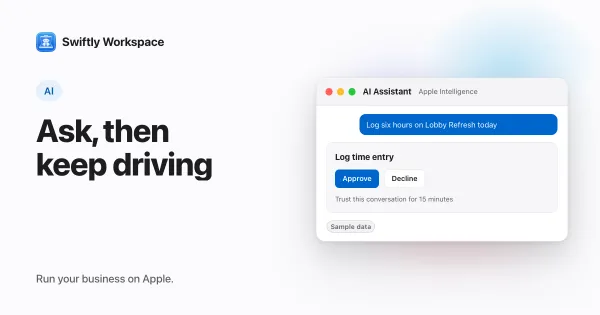
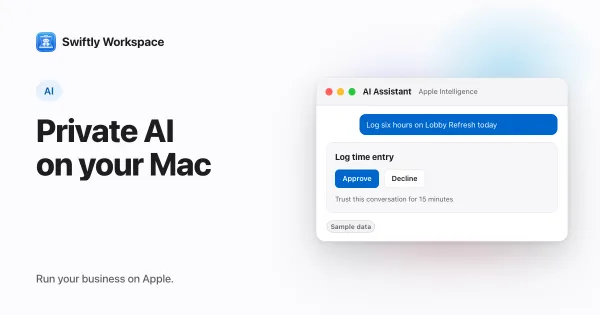
    To use on-device Apple Intelligence in Swiftly Workspace on a Mac, click Conversations in the sidebar, click + for a new conversation, make sure the menu below the message field says Apple Intelligence, and ask. The model runs on your Mac, and any change waits for your approval.

  26. How to import customers from a CSV or XLSX file on Mac

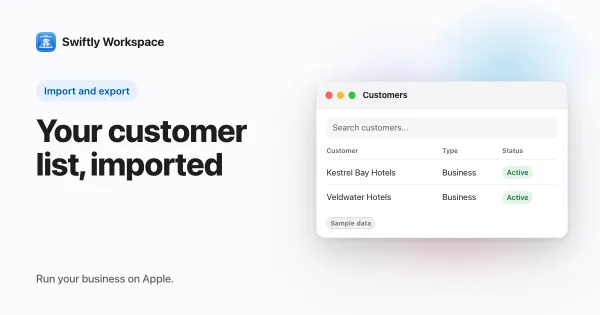
    To import customers on a Mac, an admin opens Administration, then Data Import, starts a New Session and ticks Customer. Download the CSV template, fill it in, click Upload, then Validate to check the rows and Commit to save them.

  27. How to use on-device Apple Intelligence on iPhone or iPad

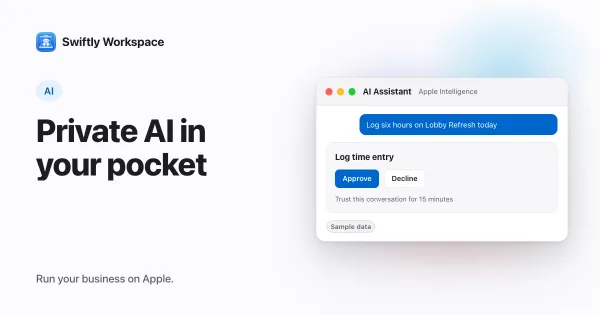
    To use on-device Apple Intelligence in Swiftly Workspace on iPhone or iPad, open Conversations, tap New Conversation, check that the chip below the message field says Apple Intelligence, and ask your question. The model runs on your device, and any change it suggests waits for your approval.

  28. Apple Intelligence for business: what runs on your device

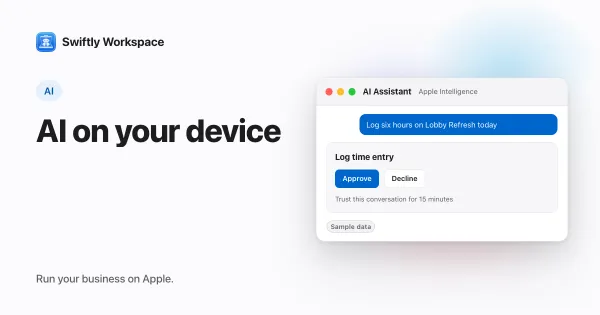
    Apple Intelligence runs a language model on your own iPhone, iPad or Mac, so a prompt is processed on the device instead of by a cloud AI provider. In Swiftly Workspace it answers questions, cleans up dictation and makes changes you approve.

  29. How to fill in and submit your timesheet on Mac

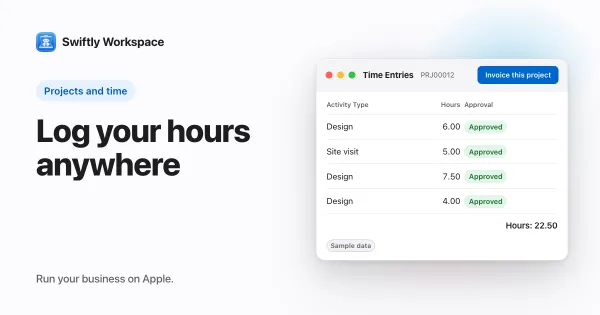
    On a Mac, open Projects, then Timesheets, click + and pick the period. Open the timesheet's Time Entries, add an entry per block of work with its project, then click Submit to send the week for approval.

  30. How to set up a project with phases on Mac

    On a Mac, open Projects, click + and fill in the New Project window. In the project's Phase tab add a phase, then add work packages and tasks in their own windows, and mark who approves the hours on the Members tab.

  31. How to set up a project with phases on iPhone or iPad

    On iPhone or iPad, open Projects, tap + and save the new project. On its Phase tab, add a phase, approve it, then tap + to add work packages into it. Add the colleague who approves hours on the Members tab.

  32. How to create and finalize an invoice on Mac

    On a Mac, open Finance, then Customer Documents, click + and choose New Invoice. Pick the customer, create the draft, add lines in the invoice window, then click Finalize Document to number and lock it.

  33. Business management software for Mac: what to look for

    Good business management software for the Mac is a real Mac app that keeps customers, invoices, projects and time in one place, opens records in their own windows and also works on iPhone and iPad. Check the App Store label, the modules you need and how pricing grows.

  34. Spotlight and App Intents: how system search reaches apps

    Spotlight is Apple's system-wide search on Mac, iPhone and iPad. It finds content inside apps when those apps add it to the on-device search index or describe it with App Intents, and in macOS Tahoe it can also run actions that apps offer.

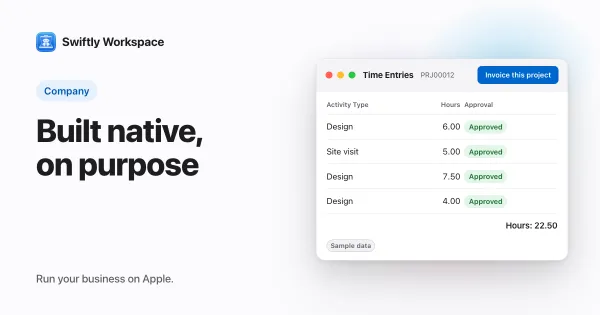
  35. Why we built a native business app for Apple devices

    We built Swiftly Workspace, a native app for iPhone, iPad and Mac where you keep your customers and invoices, because we wanted a native Apple business app and none existed. We started with Apple for two reasons: tight integration with the operating system, and on-device AI for privacy.

  36. One workspace on iPhone, iPad and Mac: keeping data in sync

    Swiftly Workspace keeps your company's records on its server, and the iPhone, iPad and Mac apps all read from it. Sign in with the same account on each device to see the same customers and invoices; a change saved on one shows on the others when they next load it.

  37. What "Designed for iPad" means on the Mac App Store

    "Designed for iPad" is the label the Mac App Store shows on an iPad app that runs on a Mac with Apple silicon. You get the same app you would install on an iPad, running on your Mac, rather than a version rebuilt for the Mac's windows, menus and pointer.

  38. Working in multiple windows on Mac: records side by side

    On a Mac, a native app can open each record in its own window, so a customer, an invoice and a list can sit side by side. In Swiftly Workspace, double-click a customer or an invoice in its list to open it in a window of its own.

  39. Native app or web app for your business: what changes

    A native app is built for the device it runs on, so it can use the platform's windows, menus, shortcuts and notifications. A web app runs in a browser tab and reaches any device with a browser. Choose by where your team works and what they do all day.

  40. What Handoff is and how it works between iPhone and Mac

    Handoff is an Apple Continuity feature that lets you start something on one device and continue it on another nearby device signed in to the same Apple Account. Turn on Wi-Fi, Bluetooth and Handoff on both, then continue from the Dock on a Mac or from the iPhone App Switcher.

  41. Managed Apple Accounts and Apple Business Manager sign-in

    Apple Business Manager is Apple's free web portal for managing an organization's devices, apps and work accounts. Managed Apple Accounts are Apple Accounts the organization owns. With federation, people sign in to them with their existing work identity, such as a Google Workspace account.

  42. Private Cloud Compute explained: Apple's private AI cloud

    Private Cloud Compute is Apple's server system for Apple Intelligence requests too large for the device. It runs on Apple silicon servers, uses personal data just to answer the request and, Apple says, keeps none of it afterward. Apple publishes its software so researchers can check those claims.