How to import customers, items or invoices on iPhone or iPad
To import on iPhone or iPad, open Administration, then Data Import, and tap + for a new session. Pick a source and a record type, upload your CSV or XLSX file from Files, choose Validate from the ⋯ menu, match any lookups, then choose Commit.
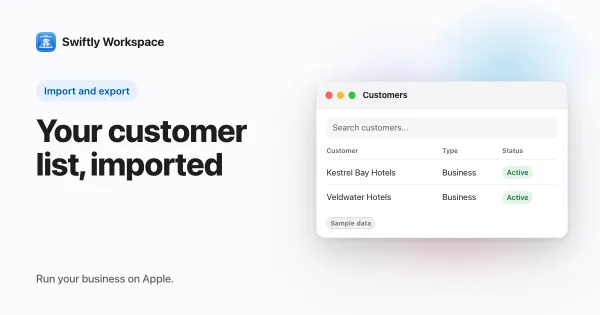
Nothing reaches your workspace until you commit, so you can check and fix as often as you need. This guide walks through customers, then shows what changes for items and open invoices. On a Mac? See how to import on Mac.
Before you start
- You can import. Data Import appears for roles that are allowed to import, which by default means admins and owners.
- You have an acquisition source. Each session records where its data came from, such as "Old spreadsheet". Add one under Administration, then Reference Data, in Acquisition Sources.
- Your file is in Files. Save your spreadsheet as CSV or XLSX to iCloud Drive or On My iPhone (On My iPad on an iPad), so the app can pick it up.
Import your customers in seven steps
- Open Data Import. On iPhone, open the menu and, under Settings, tap Administration, then Data Import. On iPad, tap Administration in the sidebar, then Data Import.
- Start a session. Tap + (New Session). In New Import Session, pick the Acquisition Source, turn on Customer under Entities, and tap the checkmark (Create). Tap the new session in the list to open it.
- Get the template. Tap ⋯ (Actions) and choose Download CSV Template. Save it to Files; it is named
customer_import_template.csv. Fill it in with your data, and give every customer a stable ID of your own in theexternal_idcolumn, which every customer file must have. - Upload. Tap Upload at the top and choose your CSV or XLSX file. The rows appear in the Staging tab, staged and not saved yet.
- Validate. Tap ⋯ and choose Validate. Errors and warnings show in the Warnings tab. To leave a row out, swipe it in Staging and confirm Exclude Row; it moves to the Excluded tab and is skipped at commit.
- Match the lookups. Open the Lookups tab. For each value from a reference column, such as a customer group or industry, pick the match under Resolve to, or turn on Map to blank to leave it empty. The app then asks whether to use your choice for every row with that value; Apply to All Matching saves you repeating it.
- Commit. Tap ⋯ and choose Commit. The session moves through Committing and Verifying to Finished, and your customers are in.
Commit stays unavailable while a row has an error or a lookup is still to be matched. Exclude the row, or correct it in your file and upload it in a fresh session. If your company checks VAT numbers or email addresses, Validate Identifiers also appears in the ⋯ menu; its results are advisory and never block the import.
Items and open invoices
The steps are the same for other record types; turn on a different one under Entities and download its template.
- Items. Turn on Item. A row needs a name. Columns such as item type, unit or tax category are lookups, which you match in the Lookups tab like any other.
- Open invoices. Import your customers before their invoices, under the same acquisition source, because each invoice finds its customer by the customer's ID. Moving open invoices to a new tool covers which invoices to bring and how to handle past payments.
Projects follow the same pattern, with their phases, work packages and tasks in sessions of their own; see importing projects and tasks. For what makes a template easy to fill in, read how to use CSV import templates.
Going the other way
Import accepts CSV or XLSX; export produces CSV. To get your records back out on the same device, see how to export your data on iPhone or iPad.
Frequently asked questions
Can I import a spreadsheet straight from iCloud Drive?
Yes. When you tap Upload, the Files picker opens, so you can choose a CSV or XLSX file from iCloud Drive, On My iPhone (On My iPad on an iPad) or another location Files offers.
What does Map to blank do?
It leaves the field empty for every row with that value instead of matching it to an entry in your reference lists. Use it when a value from your old tool has no counterpart yet, then set the field on each record later.
What should I check when Commit won't let me tap it?
A row still has an error, or a lookup is still to be matched. Check the Warnings and Lookups tabs, exclude or fix what they show, and Commit becomes available.
Run your business on Apple.
Create your account on the web, then set up your workspace in the app on your iPhone, iPad or Mac.
Create your account