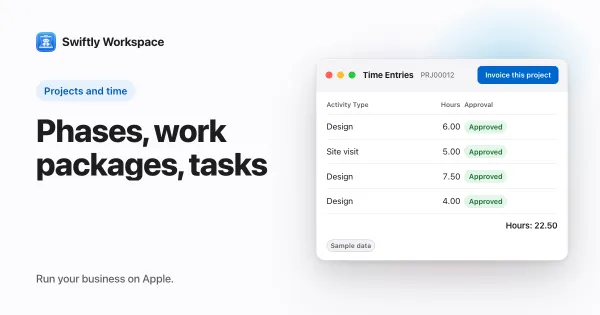
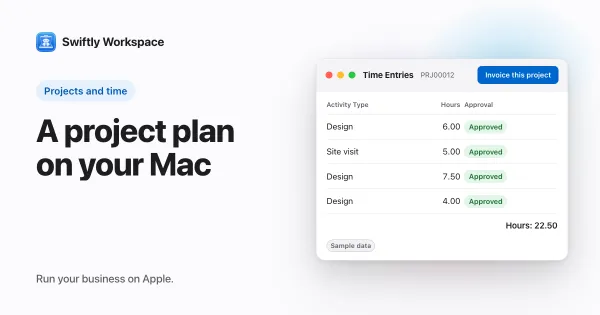
Importing projects with phases, work packages and tasks
To import projects with their structure, import four files in order: projects, then phases, then work packages, then tasks, each row pointing to its parent by an ID from your old tool. In Swiftly Workspace's Data Import, the importer still calls these Project, Budget, Project Line and Project Task.
Rebuilding twenty live projects by hand takes days and invites mistakes. An import takes four files and some preparation. Most of the work is in that preparation, so this guide starts there.
How the structure maps to the importer
In Swiftly a project is split into Phases, each phase into Work Packages, and each work package into Tasks. The importer still uses older labels for them. Here is how they line up:
| In the app | In the importer | Points to its parent with | Each row needs |
|---|---|---|---|
| Project | Project | The customer's external ID | Project number and name, start and end date, project status, billing type, project manager, approving manager |
| Phase | Budget | The project's external ID | A name, a budget type, a currency code and an effective-from date |
| Work Package | Project Line | The phase's external ID | A description, estimated hours and an hourly rate |
| Task | Project Task | The work package's external ID | A name, and a status if you have one |
So when the importer asks for a "Budget", it means a phase, and a "Project Line" is a work package. How to structure a project into phases, work packages and tasks explains what each level is for.
Prepare before you import
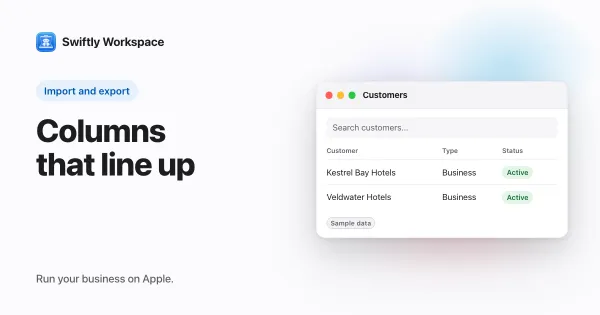
- Import your customers. A project finds its customer through the customer's external ID, so customers come in through Data Import before projects.
- Mark your managers. Every project needs a project manager and an approving manager from your team. They must have accepted their invitation, and on a Mac an admin turns on Can be Project Manager or Can be Approving Manager for them in Members & Roles, under Manager Permissions. Both start off. These are the same people the New Project form lets you choose, as the Mac project setup guide shows.
- Give every row an ID. Each project, phase and work package needs an external ID, usually its ID in your old tool. The level below uses it to find its parent.
- Keep one acquisition source. Every import session has an acquisition source that names where the data came from. Use the same one for the customers and all four project files, because parents are looked up within it.
- Get the templates. In each session, Download CSV Template gives you the exact column names. Working with import templates explains how to fill them.
Import in four passes
Data Import works one record type per session, so run four sessions in this order: Project, Budget, Project Line, Project Task. In each, upload the file, match the lookups, run Validate and then Commit. A row whose parent can't be found is refused, which is why the order matters. On iPhone or iPad the same sessions work; importing on iPhone or iPad shows the screens.
Matching the lookups
Some columns point at lists your company keeps. Each value in them appears in Lookups, where you pick the matching entry or choose Map to blank, and Commit stays unavailable until every value is handled.
- Project manager and approving manager: pick the member for each name in your file. There is no default here: a project never gets a manager by guesswork.
- Project status: the importer offers no list to pick from, so tick Map to blank. The project then gets one of your project statuses, which may not be the right one, so set each project's status after the import.
- Billing type: pick from your billing types. Mapped to blank, a project falls back to time and materials.
- Budget type of a phase: pick from your list, or map to blank for a default one.
- Task status: pick from your task statuses. Left empty or mapped to blank, the task takes your default open status.
Optional lookups, such as a work package's category or a task's priority, can be matched or left blank.
After the import
- Open a few projects and check the tree: every phase under the right project, every work package and task in place.
- Set the project statuses you mapped to blank.
- Check the members of each project and add the people who will log time.
- Start logging time in Swiftly. Logged hours are not among the record types Data Import takes, so keep past hours in an export from your old tool and start fresh on your cutover date.
If you are moving invoicing at the same time, moving open invoices and payments uses the same customers and acquisition source, and the switching checklist keeps the whole move in order.
Frequently asked questions
Can I import tasks without phases?
No. Each task needs a work package, and each work package needs a phase, because that is how projects are built in Swiftly. A small project can have one phase and one work package that hold all its tasks.
Why can't I pick a project manager during an import?
The list holds members who have accepted their invitation and have Can be Project Manager turned on. Ask an admin to turn it on in Members & Roles, then reopen the lookup.
Can I import time logged on old projects?
Not through Data Import. Keep your old timesheets in an export from your previous tool for reference, and log new time in Swiftly from the day you switch.
What happens if I import the same project file twice?
Rows are matched by their external ID within the same acquisition source, so a second run of a corrected file updates what is there instead of adding copies. Keep the IDs stable between runs.
Run your business on Apple.
Create your account on the web, then set up your workspace in the app on your iPhone, iPad or Mac.
Create your account