Blog

Import and export

Practical guides to running your business on Mac, iPad and iPhone: invoicing, projects, time tracking and working with the AI assistant.

  1. How to import customers, items or invoices on iPhone or iPad

    To import on iPhone or iPad, open Administration, then Data Import, and tap + for a new session. Pick a source and a record type, upload your CSV or XLSX file from Files, choose Validate from the ⋯ menu, match any lookups, then choose Commit.
  2. How to export your data to CSV on iPhone or iPad

    To export data on iPhone or iPad, open Administration, then Data Export, and tap + for a new session. Tick a record type under Entities, tap Continue, then choose Generate from the ⋯ menu. When the session shows Finished, save the CSV file to a folder in Files.

  3. Importing projects with phases, work packages and tasks

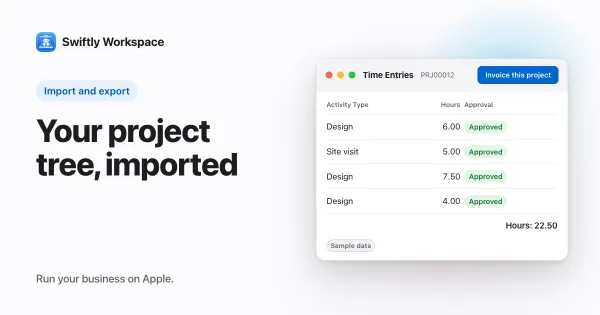
    To import projects with their structure, import four files in order: projects, then phases, then work packages, then tasks, each row pointing to its parent by an ID from your old tool. In Swiftly Workspace's Data Import, the importer still calls these Project, Budget, Project Line and Project Task.

  4. Moving open invoices and payments to a new invoicing tool

    To move open invoices to a new tool, import each fully unpaid invoice with its old number, dates and total, and settle partly paid ones in the old tool before you switch. Swiftly Workspace's Data Import brings them in as finalized invoices that keep their numbers.

  5. AI-assisted lookup mapping when you import data

    AI-assisted lookup mapping spots which import columns hold values from your reference lists, such as a customer type, and flags each value for you to match. In Swiftly Workspace the AI Mapping Assistant in Data Import does this, on the device or with your own AI provider key.

  6. CSV or XLSX? Picking a file format for data imports

    For most business data imports, either format works. Pick CSV when the data is plain and you want to see exactly what the importer will read. Pick XLSX when your data lives in a spreadsheet already and contains accents, semicolons or codes a CSV export might mangle.

  7. How to export your data to CSV on Mac

    To export data on a Mac, open Administration, then Data Export, and click + for a new session. Tick one record type under Entities, leave the mode on Data, click Generate, and when the session shows Finished, click Download to save the CSV file.

  8. Exporting your data to CSV: what you get and how to use it

    A CSV export gives you one file per record type, such as customers or invoices, with one row per record and a header row naming the columns. Open it in a spreadsheet, hand it to your accountant, or keep it as a copy of your data outside the tool.

  9. Prepare a CSV for import: templates, columns and errors

    Start from the importer's own template, keep its column names, put one record per row and save the file as UTF-8. Most failed imports come from a missing required column, a repeated ID, a badly formatted date or number, or a value the system does not recognize.

  10. Clean customer data before import: duplicates, VAT, emails

    Before importing customers, work in a copy of the file: give every customer a stable ID, merge duplicates, put VAT numbers in one format with their country prefix, trim and lower-case email addresses, and use one country code style. Then import a small sample before the rest.

  11. How to import customers from a CSV or XLSX file on Mac

    To import customers on a Mac, an admin opens Administration, then Data Import, starts a New Session and ticks Customer. Download the CSV template, fill it in, click Upload, then Validate to check the rows and Commit to save them.

  12. Switching business software: a clean cut-over checklist

    A clean switch to new business software comes down to four things: a fixed cut-over date, a list of what moves and what stays archived, a test import before the real one, and a short period where the old system is kept for reference and no longer edited.

  13. Moving your business off spreadsheets: a migration plan

    To move off spreadsheets into any business software, decide what to bring, clean one sheet per record type, and import in dependency order: customers and vendors, then items, then documents and payments, then projects. Test a small batch, check the result, then import the rest.

  14. Data portability: what to ask before you sign up

    Before you commit to business software, ask how you get your data out: which records export, in what format, whether files and history come too, how long you have after canceling, and whether a full export costs extra. Clear answers keep switching a real choice.

  15. What does switching business software really cost?

    Switching business software costs more than the new subscription. Add the months you pay for both systems, the hours to export, clean and import data, rebuilding integrations and templates, training and a slower few weeks, plus exit terms and archive access for the old records.