Blog

AI

Practical guides to running your business on Mac, iPad and iPhone: invoicing, projects, time tracking and working with the AI assistant.

  1. Reusing a good prompt on Mac: copy any message you sent

    On a Mac, each message you sent in Swiftly Workspace's Conversations has a small copy button next to its time. One click puts the exact text on the clipboard, ready to paste into a new conversation, a note or a message to a colleague.
  2. AI assistants that remember, and how to make them forget

    AI memory lets an assistant keep short notes about a record or a conversation and use them next time. In Swiftly Workspace each note belongs to you and one assistant, you can see and delete it, and an admin can switch an assistant's memory off.

  3. What business data does an AI assistant send to the provider?

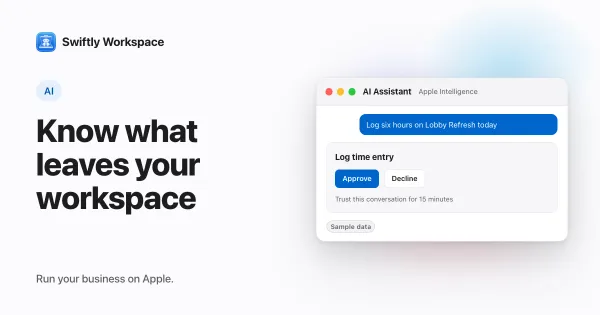
    It can be, once you know what is sent: a cloud AI assistant sends the provider your question plus the records it looked up. In Swiftly Workspace that goes to your company's own connected provider; with Apple Intelligence on the device, the text isn't sent to a cloud AI provider.

  4. AI previews you can check: invoice and table artifacts

    An artifact is a preview the AI shows beside its answer in Conversations: an invoice, credit note or proforma, a payment receipt, a table or a report. Open, download or copy it; it is a view, not a record. Opening, downloading or closing one changes nothing in your workspace.

  5. How your AI provider key is stored: encryption at rest

    When an admin adds an AI provider key in the app, Swiftly Workspace encrypts it with AES-256-GCM before storing it, using a secret kept outside the database. The server never sends the key back, not even partly hidden, and decrypts it just to call the provider for your company.

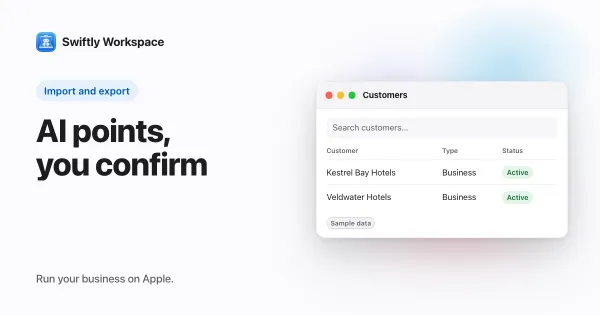
  6. AI-assisted lookup mapping when you import data

    AI-assisted lookup mapping spots which import columns hold values from your reference lists, such as a customer type, and flags each value for you to match. In Swiftly Workspace the AI Mapping Assistant in Data Import does this, on the device or with your own AI provider key.

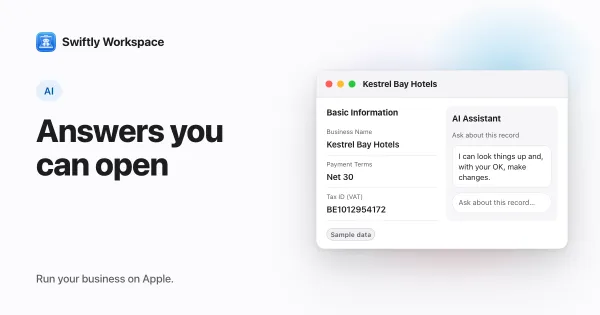
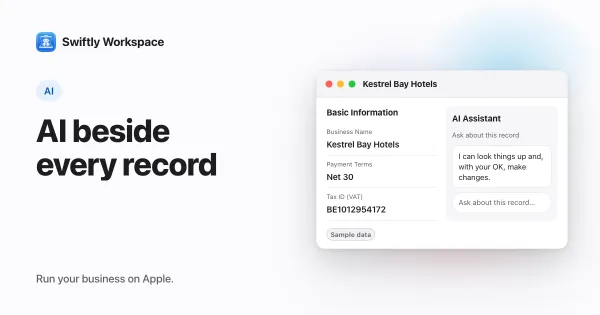
  7. An AI assistant in every record window

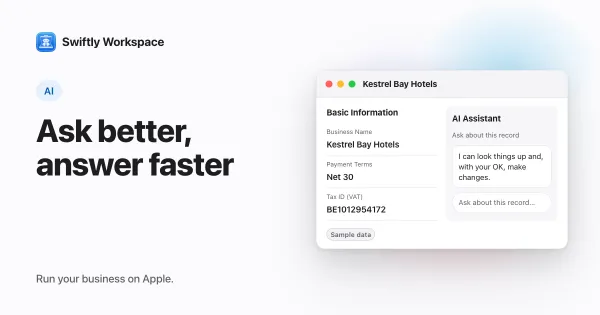
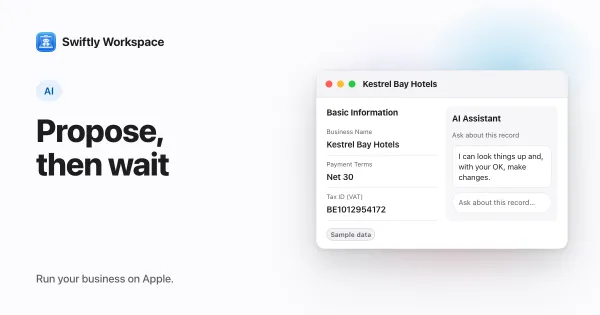
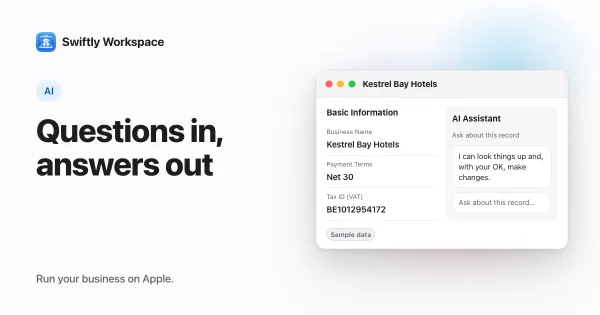
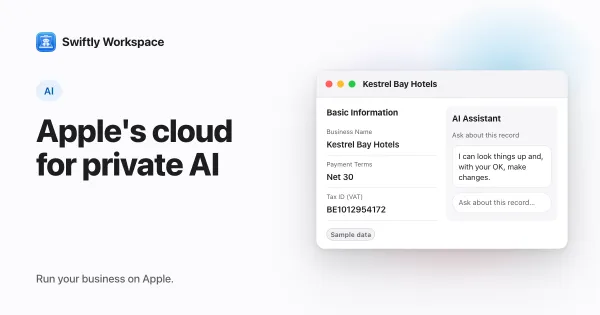
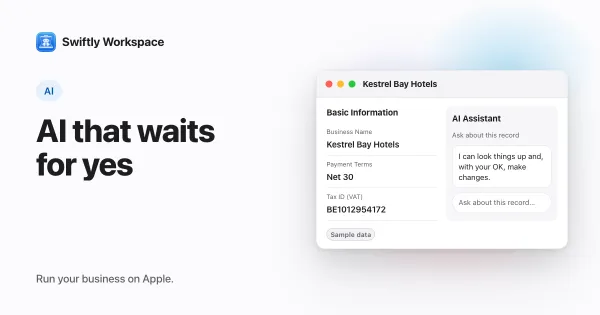
    A record assistant is an AI chat tied to the customer, invoice or project you have open, so you never have to say which one you mean. In Swiftly Workspace the AI Assistant button opens it, and changes like adding, updating, finalizing or recording wait for your Yes.

  8. Asking about your business from the car with CarPlay

    With CarPlay you can ask Swiftly Workspace about your business while driving: tap Talk on the car's screen, ask your question, and the answer is read aloud. It is Main Chat by voice, so it answers from your own customers, invoices, projects and hours.

  9. Prompts for running a service business from a chat window

    The most useful AI prompts for a service business ask about your own records: which invoices are overdue, what a client still owes, how many hours went into a project. Name the client or project, give a time frame and say how you want the answer, such as a table.

  10. Talking to your business app: dictation and spoken replies

    In Swiftly Workspace you can speak to Main Chat instead of typing: tap the microphone, talk, and your words are transcribed on the device, tidied by Apple Intelligence and sent. Replies can be read aloud, one at a time or every time.

  11. AI changes that wait for your Yes: the approval card

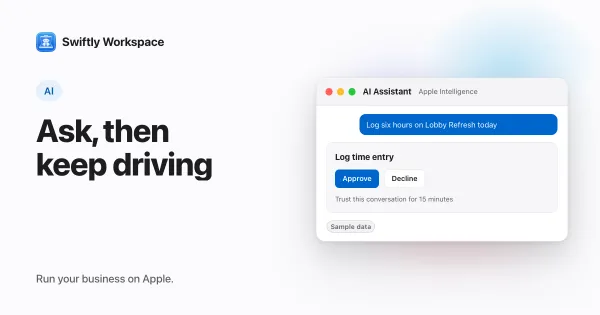
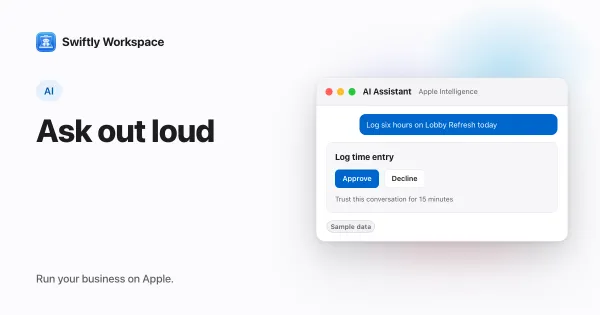
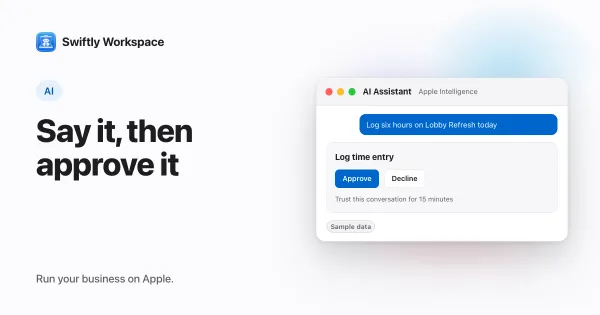
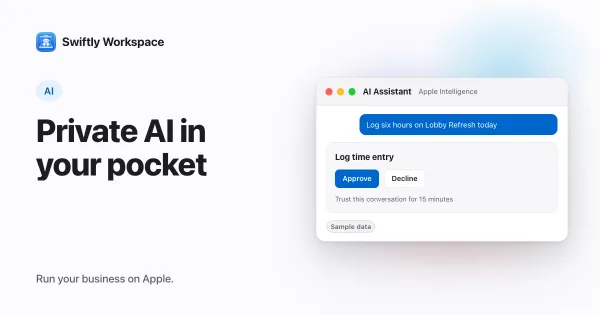
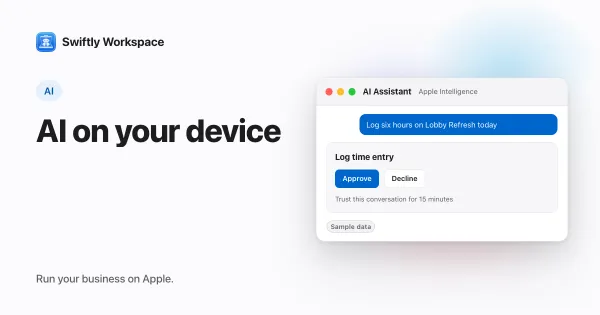
    In Swiftly Workspace, a record's AI assistant stops before changes like adding, updating, finalizing or recording and shows a card. Nothing is written until you answer Yes. In Conversations with Apple Intelligence on the device, each change asks for your approval unless you trust the conversation for routine changes.

  12. OpenAI, Gemini or Mistral? Choosing an AI provider

    Choose an AI provider for business data by comparing how it handles the data you send, how well its models do your everyday tasks, how it bills usage and how easy it is to switch. Then test two or three on real questions before you settle on one.

  13. How to connect your own AI provider key on Mac

    On a Mac, an admin clicks Capabilities in the sidebar, selects the AI provider, pastes the API key under Configure Custom Key, clicks Save and selects Enable this provider. The provider then appears in the menu below the message field in Conversations.

  14. How to connect your own AI provider key on iPhone or iPad

    To connect your own AI provider key on iPhone or iPad, an admin opens Capabilities, taps the provider, pastes the API key under Configure Custom Key, taps Save API Key and turns on Enable this provider. A short question in Conversations is the quickest check that it works.

  15. Bring your own AI key: what it means for a business app

    Bring your own key means the app sends AI requests with your company's own provider key: you pick the provider, the provider bills you directly, and with no key there is no cloud AI. Swiftly Workspace works this way, with Apple Intelligence on device as the no-key option.

  16. Ask your workspace: an AI chat over your own business data

    An AI chat over your business data answers questions like "which invoices are overdue?" from your own records. In Swiftly Workspace it is Main Chat (Conversations in the sidebar): it looks up customers, invoices, payments, projects and timesheets, and answers in text, tables or document previews.

  17. Log time by asking: AI time entry with Apple Intelligence

    To log time with AI, tell an assistant running on Apple Intelligence what you did, for example three hours on a project yesterday, billable. In Swiftly Workspace it finds your timesheet and the project, shows the entry on a card, and saves it when you approve.

  18. Setting up AI agents and tool access for your team

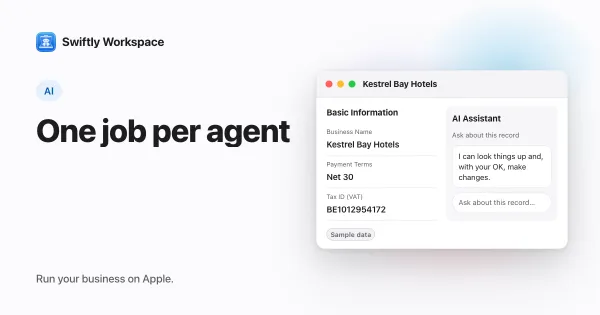
    To set up AI agents for a team, give each agent one job, write its instructions like a brief, switch on just the tools that job needs, and decide which agent answers where. In Swiftly Workspace on Mac, admins do this in Administration, under Agents and Agent Routing.

  19. How to use on-device Apple Intelligence on Mac

    To use on-device Apple Intelligence in Swiftly Workspace on a Mac, click Conversations in the sidebar, click + for a new conversation, make sure the menu below the message field says Apple Intelligence, and ask. The model runs on your Mac, and any change waits for your approval.

  20. How to use on-device Apple Intelligence on iPhone or iPad

    To use on-device Apple Intelligence in Swiftly Workspace on iPhone or iPad, open Conversations, tap New Conversation, check that the chip below the message field says Apple Intelligence, and ask your question. The model runs on your device, and any change it suggests waits for your approval.

  21. Apple Intelligence for business: what runs on your device

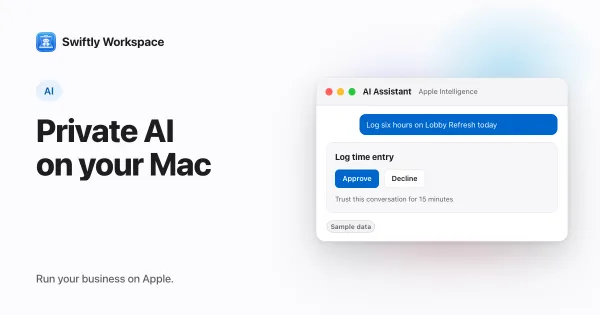
    Apple Intelligence runs a language model on your own iPhone, iPad or Mac, so a prompt is processed on the device instead of by a cloud AI provider. In Swiftly Workspace it answers questions, cleans up dictation and makes changes you approve.

  22. Private Cloud Compute explained: Apple's private AI cloud

    Private Cloud Compute is Apple's server system for Apple Intelligence requests too large for the device. It runs on Apple silicon servers, uses personal data just to answer the request and, Apple says, keeps none of it afterward. Apple publishes its software so researchers can check those claims.

  23. Human in the loop: designing AI that asks before it acts

    Human in the loop means an AI system proposes an action and a person approves, edits or rejects it before anything changes. Sort actions by risk, show a clear preview of each change, and enforce the approval in code rather than in the prompt.

  24. What does AI cost when you bring your own key?

    With your own key you pay the AI provider directly for usage, usually per token, for the text you send and the text the model writes back. The bill depends on the model, the length of each request and how often your team uses it.