Setting up AI agents and tool access for your team
To set up AI agents for a team, give each agent one job, write its instructions like a brief, switch on just the tools that job needs, and decide which agent answers where. In Swiftly Workspace on Mac, admins do this in Administration, under Agents and Agent Routing.
An AI agent is an assistant with a name, a set of instructions and a list of things it is allowed to do. Left at their defaults, agents work. Shaped by someone who knows the business, they work better: answers in the right tone, fewer tools to misuse, and fewer surprises for the people who rely on them.
Principles before settings
- One job per agent. An agent for customer records and another for invoices are easier to instruct and to trust than one agent for everything.
- Instructions are a brief. Write them as you would for a new colleague: what the job is, what good looks like, what to avoid.
- Fewest tools that do the job. Every tool you switch off is a mistake the agent can't make.
- Keep people in the loop. Changes to business data should wait for a person to approve them. The guide to keeping a human in the loop explains why.
- Review after a few weeks. Read what people asked and how the agent answered, then tighten the brief.
Setting up an agent in Swiftly Workspace
On a Mac, open Administration in the sidebar and choose Agents. New Agent creates one; for an existing agent, Control-click it and choose View Details to open it in its own window. The agent window has four tabs:
| Tab | What you set |
|---|---|
| Identity | Agent Display Name, an Active / Inactive switch, and under AI Configuration the Model and a Temperature (lower is more predictable, higher more varied) |
| Instructions | Free-text instructions, Behavioural Rules (Restrictions, Industry Guidelines, Prohibited Words, Required Compliance) and a Communication Style: Formal, Casual or Technical |
| Tools | Tool Access: one Enabled switch per tool |
| Audit | The agent's kind, the window it is routed to, its status and when it was created |
An example setup
A small services business might start with two agents:
| Agent | Brief | Tools |
|---|---|---|
| Customer desk | Keeps customer and contact details complete and correct; formal tone | Customer Tools on; Document & Payment Tools off |
| Billing helper | Answers questions about invoices and payments; never promises a discount | Document & Payment Tools on; tools its job doesn't need off |
Route the customer agent to customer windows and the billing agent to invoice and payment windows, and each person meets the right assistant without choosing one.
Writing instructions that work
Keep the free-text instructions short and concrete: the agent's job, who it helps, and the outcome you want. Use the rule fields for the hard edges. Prohibited Words suits terms your business never uses with customers, and Required Compliance suits rules such as "never share one customer's data with another". Pick a Communication Style that matches how your team writes.
Choosing tools
On the Tools tab, switching a tool off removes it from that agent. Tools you leave without a setting of their own follow the defaults for the window the agent works in. A sensible pattern: start from the defaults, then switch off whatever the agent's job doesn't need.
Retiring an agent
Switch an agent to Inactive to stop using it while you rethink it. Deleting an agent deactivates it and hides it from the list.
Deciding which agent answers where
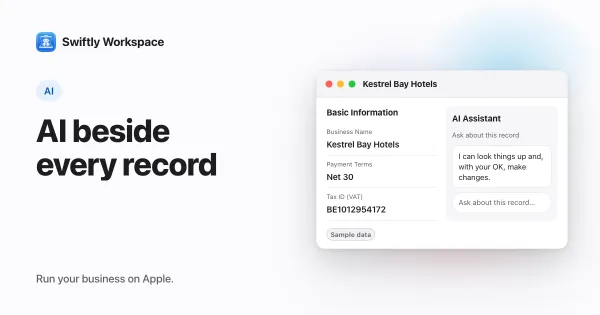
Each record window on the Mac, such as a customer or an invoice, has an assistant bound to that record. Agent Routing, also in Administration, lists those windows. For each one, pick the agent that should answer there, or choose None to return the window to its default agent, then save.
Routing is where the one-job principle pays off: your invoicing agent answers in invoice windows, your customer agent in customer windows, each with its own brief and tools. More on that assistant in the AI assistant in record windows.
Test before you roll out
- Try the questions your team asks. Open a few real records and ask the assistant what people ask every week.
- Try what it should refuse. Ask for something outside its job and check that it declines or says it can't.
- Check the tone. Read the answers as a customer would, if they were ever forwarded.
- Adjust one thing at a time. Change the instructions or a tool switch, then test again, so you know which change helped.
Who can change agents
Agents and routing shape what the AI does for everyone, so they belong with admins. The Standard role that new members get by default doesn't include agents or agent routing. The guide to roles and field-level permissions explains how roles work.
Two more things hold whatever you configure. A record's assistant asks before changes like adding, updating, finalizing or recording. And the assistant in a record window runs on a cloud AI model, which needs an AI provider key your company adds under Capabilities, in AI Providers; read how AI provider keys work for the background. For AI that runs on your own device instead, see on-device Apple Intelligence.
Frequently asked questions
How many AI agents does a small business need?
Often two or three: one for customer records, one for invoicing and payments, perhaps one for projects. Start with fewer and split an agent when its instructions start covering unrelated jobs.
What does the temperature setting change?
How varied the model's wording is. A low temperature gives steadier, more repeatable answers, which suits business records. A higher one gives more varied phrasing, which can help with drafting text.
Can members change an agent's instructions?
Not with the default Standard role, which leaves agents and agent routing to admins. Members use the agents; admins shape them.
Do agents work without an AI provider key?
The assistant in a record window needs a cloud AI model, so it needs a key your company adds under Capabilities. A conversation that runs on on-device Apple Intelligence needs no key, on supported devices.
Run your business on Apple.
Create your account on the web, then set up your workspace in the app on your iPhone, iPad or Mac.
Create your account