An AI assistant in every record window
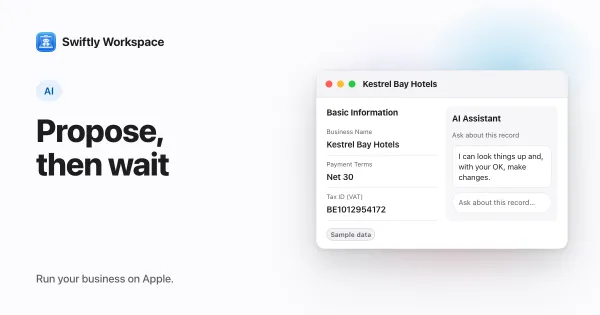
A record assistant is an AI chat tied to the customer, invoice or project you have open, so you never have to say which one you mean. In Swiftly Workspace the AI Assistant button opens it, and changes like adding, updating, finalizing or recording wait for your Yes.
A general AI chat starts from nothing: you name the customer, paste the invoice number, describe the project. An assistant that lives in the record skips that step. It knows what you are looking at, so a short question gets a specific answer.
Where you find it
Open a record and look for the sparkles button labeled AI Assistant in the toolbar. On a Mac the assistant opens in a column beside the record, in the same window. On iPhone and iPad it opens as a sheet over the record. The composer reads Ask about this record….
| Area | Records with an assistant |
|---|---|
| CRM | Customers, their addresses and contacts |
| Vendor Management | Vendors, their addresses and contacts |
| Finance | Invoices and other customer documents, supplier documents, customer and supplier payments |
| Projects | Projects and timesheets |
The same records have an assistant on iPhone, iPad and Mac.
What it can do
The assistant can look things up about the record and, with your OK, make changes to it. A few examples of what people ask:
- In a customer: "Which of this customer's invoices are still open?" or "Add Jan Peeters as the accounts contact, jan@example.com."
- In an invoice: "Summarize the lines on this invoice" or "Record a payment for the full amount, received today."
- In a project: "How many hours are planned in each phase?"
- In a timesheet: "Which days this week have no time logged?"
Questions are answered straight away. A change works differently.
Changes wait for your Yes
When the assistant wants to make a change like adding a contact, updating a field, finalizing a document or recording a payment, it stops before anything is saved and shows a card: Apply this change: …? with what it is about to do. Answer Yes and the change runs. Answer No and nothing happens. Because this stop is enforced by the server that runs the change, not by an instruction to the model, the card looks the same on every device. How the approval card works goes into the details.
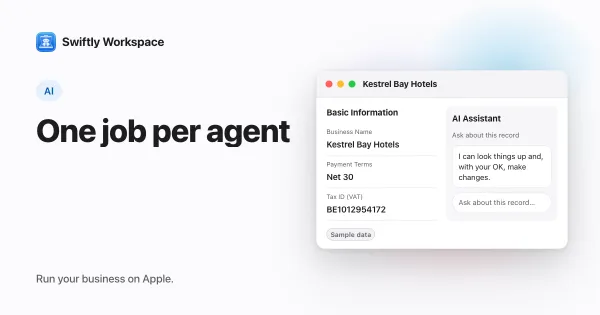
The assistant works within your own permissions, and it can use just the tools its agent is given. In the Mac app, admins decide which agent answers in each record window under Agent Routing, and which tools that agent may use under Agents. The default Standard role doesn't include either setting. Setting up AI agents and tool access shows how.
What it runs on
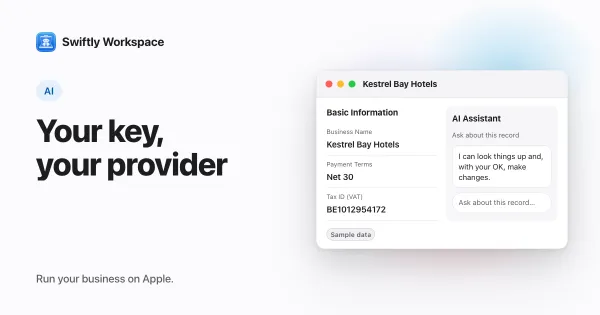
A record's assistant answers with a cloud AI provider that your company connects with its own key, using the model set for that window's agent or your company's default. Without a usable key, it can't answer. Bring your own key, explained covers why it works this way and who pays for what.
Apple Intelligence on your device is not used in record windows. If you want an answer that isn't sent to a cloud AI provider, ask in Conversations with Apple Intelligence instead; on-device AI with Apple Intelligence explains what it can do.
Your conversations, kept with the record
Each conversation is saved with the record it belongs to, and you see your own. Chat History lists earlier conversations about the same record, so you can pick up where you left off. On a Mac you can narrow the list to Today, This week or With changes, which makes it easy to find the conversation where a change was made.
Record assistant or Conversations?
Both use your workspace data. They are good at different things:
- Use the record's assistant when the question or the change is about one record. It already knows which one, and changes wait for your Yes.
- Use Conversations for questions across your workspace, such as which invoices are overdue this month or which projects ran over. Asking an AI chat about your business data shows what it can answer.
Voice is another way in: asking your workspace a question from CarPlay works with Conversations while you drive.
Frequently asked questions
Does the record assistant know about other records?
It starts from the record you have open and, when its tools allow, looks up related information, such as a customer's invoices or a project's phases. For questions that span many customers or projects at once, Conversations is the better place to ask.
Can a colleague read my chat about a customer?
By default you see your own conversations, and your colleagues see theirs. The record itself is shared, so a change you approve shows up for everyone who can open that record.
Why does the assistant say AI is unavailable?
A record's assistant needs a cloud AI provider connected with your company's own key. If no usable key is set up, ask an admin to add one under Capabilities, in AI Providers.
Is an AI sidebar in business software safe to use?
It depends on what the AI may do without you. Look for changes that wait for a person to approve them, tools limited per assistant, and a history of what was asked. A record's assistant in Swiftly holds changes like adding, updating, finalizing or recording for your Yes, limits its tools per agent and keeps your chat history.
Run your business on Apple.
Create your account on the web, then set up your workspace in the app on your iPhone, iPad or Mac.
Create your account