AI changes that wait for your Yes: the approval card
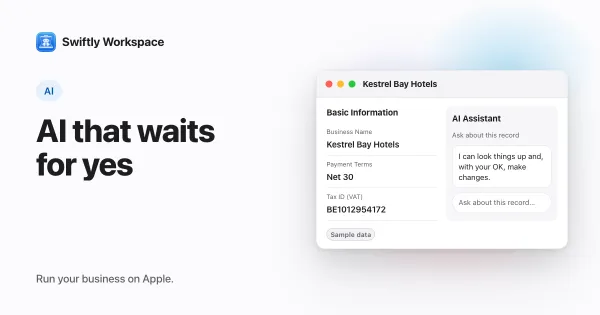
In Swiftly Workspace, a record's AI assistant stops before changes like adding, updating, finalizing or recording and shows a card. Nothing is written until you answer Yes. In Conversations with Apple Intelligence on the device, each change asks for your approval unless you trust the conversation for routine changes.
That design follows a simple idea: an assistant can read and suggest freely, but changing business data is a decision a person makes. Human in the loop: designing AI that asks before it acts explains the thinking behind it. This post shows how it works in practice.
How the approval card works in a record's assistant
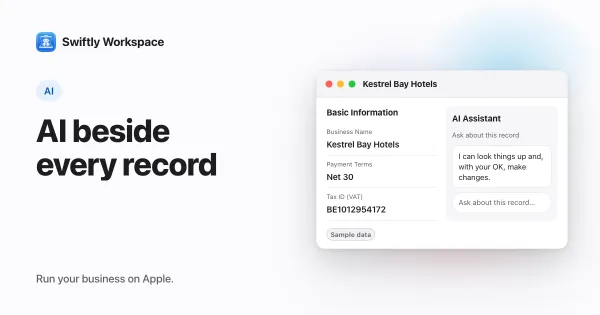
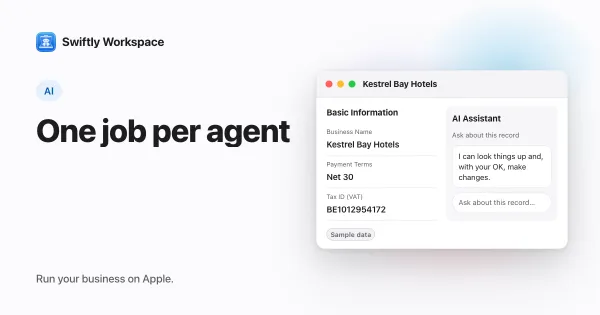
Records such as a customer or an invoice have their own AI assistant, bound to that record, on iPhone, iPad and Mac. You can ask it questions, and you can ask it to change things. When it wants to make a change, this is what happens:
- The assistant proposes. It works out the change, for example a new phone number on the customer you have open.
- The change stops. Before anything is written, the turn ends and a card appears with the question Apply this change: Update customer?
- You decide. The Yes button applies the change. The No button cancels it, and nothing is saved.
The stop is enforced by Swiftly's server, which runs the assistant's tools. It is not a polite request in the assistant's instructions that a model might ignore. If you never answer the card, the change never runs.
Which changes stop? Those that add, update, finalize or record something: a new contact, an edited address, an invoice that should be finalized, a payment to record. Looking things up, summarizing a record or drafting text needs no card, because it changes nothing.
The assistant in a record answers with a cloud provider your company has connected, and the change waits for you. The AI assistant in every record window covers what else it can do, and setting up AI agents and tool access shows how an admin narrows the tools each assistant gets.
An example from a customer record
Say a customer tells you their accounts contact has changed. You open the customer, and in its assistant you type the new person's name and email address. The assistant looks at the record, works out what to add and stops. A card asks you to apply the change, naming what it is about to do. You read it, check the spelling of the email address, and answer Yes. At that moment, and not before, the contact is added to the customer.
If the assistant got something wrong, say the old contact's name, answer No, then tell it in a new message what to fix. When it proposes again, you get a new card.
On the device, each change asks for approval
When Apple Intelligence handles a request in Conversations on your iPhone, iPad or Mac, each tool that would write data waits for an approval card before it runs. The card shows the proposed change, with Approve and Decline buttons. Decline, and the assistant is told you said no.
There is one exception, and you choose it. For routine changes, the card can offer Trust this conversation for 15 minutes. Turn it on and approve, and for the next 15 minutes routine changes in that conversation go through without a card. Sensitive changes still ask every time.
| Routine: can be trusted for 15 minutes | Sensitive: always asks |
|---|---|
| Logging time | Recording a payment |
| Updating a task's status | Finalizing a document |
| Adding or updating customers, vendors and items | Submitting a timesheet |
| Adding or updating contacts and addresses | |
| Adding, updating or deactivating lookup values, and field settings |
The window is short on purpose. It saves a run of taps when you log a morning of work in five lines, and it ends before you forget it is on. Logging time with on-device AI shows the routine case, and what on-device Apple Intelligence can do covers the rest.
What the card does not cover
Be clear about where the card applies. It belongs to a record's assistant and to Conversations with Apple Intelligence on the device. Conversations with a cloud provider don't show this card, so when you want each change held for a Yes, ask from the record itself.
A card is also a decision, not a check. Read what it proposes: the right record, the right field, the right value. For tracing who changed what afterwards, see how an audit trail works for a small business.
Frequently asked questions
What happens if I ignore an approval card?
Nothing changes. In a record's assistant, the proposed change waits for your Yes, and if it never comes, the change never runs. You can ask the assistant something else or close the window.
Can I make the AI stop asking for approval?
In a record's assistant, no: changes that add, update, finalize or record data show the card each time. In Conversations with Apple Intelligence, you can trust one conversation for 15 minutes for routine changes, and sensitive ones such as recording a payment still ask.
Does the approval card work on iPhone and iPad?
Yes. A record's assistant shows the same card on iPhone, iPad and Mac, because the stop happens on Swiftly's server.
Why ask for approval when the AI is usually right?
Because "usually" is not enough for an invoice or a payment. A short pause before a write catches the wrong customer, the wrong amount or a misheard name, and it keeps a person responsible for every change to the books.
Run your business on Apple.
Create your account on the web, then set up your workspace in the app on your iPhone, iPad or Mac.
Create your account