Audit trails for small businesses: what to log and why
An audit trail records who changed what in your business records, and when. A small business should log changes to customers, invoices, payments, projects and timesheets, each with the old value, the new value, the person and the time, in a log nobody can edit.
Audit trails sound like something for large companies with internal auditors. They are not. The moment two people touch the same records, or one person touches them on a busy Friday, you will want to know what happened to a number. This guide covers what to log, what a useful entry looks like and how to keep the log worth trusting.
Why a small business needs one
- Mistakes happen. A total changes, a due date moves, a customer's address is overwritten. A log turns "who did this?" into a two-minute lookup instead of an argument.
- Fraud often starts small. A changed bank account on a supplier record is a classic. If every change to bank details leaves a trace, it gets noticed.
- Your accountant will ask. Why was this invoice changed after it was sent? Who approved these hours? A log answers with facts.
- Tax rules care about integrity. EU VAT rules require that an invoice stay authentic, complete and readable from the day it is issued until the end of the storage period, and each member state sets that period. Other regions have similar expectations.
What to log
You don't need to log every click. Focus on the records that carry money, obligations or access:
| Records | Changes worth capturing | Why it matters |
|---|---|---|
| Customers and vendors | Names, VAT numbers, addresses, bank details | Catches wrong or suspicious edits to who you bill and pay |
| Invoices and credit notes | Lines, amounts, dates, status | Explains why a total or a due date changed |
| Payments | Amounts, dates, which invoice a payment settles | Reconstructs how an invoice came to be paid |
| Projects and timesheets | Hours, rates, submissions, approvals | Settles questions about what was billed and why |
| Users and roles | Who joined, who left, who gained access | Supports access reviews |
| Settings | Tax rates, payment terms, numbering | Explains why numbers changed across many records |
What a good log entry contains
- The record. Which customer, invoice or timesheet.
- The field. What changed, by name.
- Before and after. The old value and the new one, so nobody has to guess.
- The person. A named user, not a shared login, or the system process that made the change.
- The time. Date and time, ideally in one time zone across the log.
- The reason, when there is one. A short note on a reversal or a correction saves a lot of digging later.
Keep the log trustworthy
- Nobody edits it. Not even admins. A log you can rewrite proves nothing.
- Named users, always. Shared accounts make every entry say "someone".
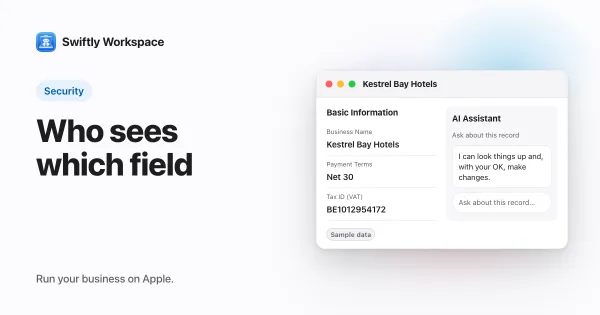
- Limit the full view. Everyone can see the history of the records they work on; a workspace-wide view belongs to admins. Our guide to roles and field-level permissions covers how to split access sensibly.
- Look at it now and then. A monthly glance at changes to bank details and VAT numbers takes minutes.
- Consider chaining. Some systems link each entry to the one before with a cryptographic fingerprint, so a changed or removed entry shows up when the chain is checked. How hash chains protect records explains the idea.
Common mistakes
- Logging everything, reading nothing. A log nobody looks at catches nothing. A short monthly review beats a perfect log left alone.
- Keeping the log in the same spreadsheet as the data. If the person who changes a number can also change its history, the history is decoration.
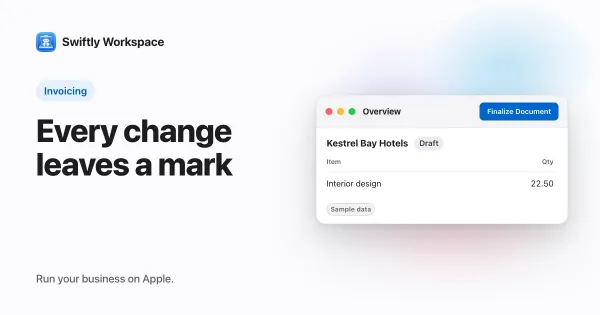
- Deleting instead of correcting. A wrong invoice should be corrected with a credit note, not erased, so the trail shows both the mistake and the fix.
- Forgetting access changes. When someone leaves, removing their access is a change worth recording too.
Change history in Swiftly Workspace
Swiftly Workspace keeps a change history on your main business records, on Mac and on iPhone and iPad:
- A History tab on the record. Customers, vendors, customer and vendor documents, customer and vendor payments, projects and timesheets each have a History tab.
- Every entry in full. Each entry shows the field that changed, the old value and the new one, who made the change and when. When a record is deleted, its last values stay in the history, marked Deleted.
- To read, not to rewrite. The app has no way to edit or delete an entry.
- The whole workspace for admins. In Administration, admins open All Change Logs to see every change across the workspace and filter it by record type, field, person or date range.
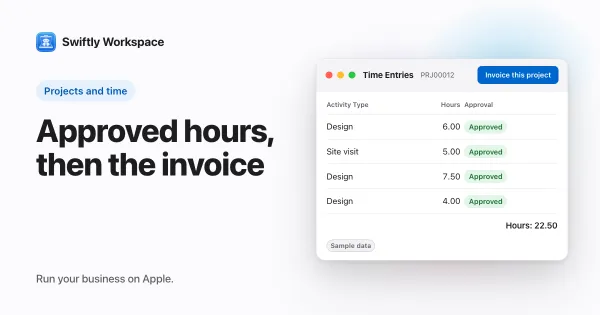
- Approvals, chained. When a timesheet goes through approval, each step (submitting, approving, rejecting) is also written to a separate approval log in which every entry carries a SHA-256 fingerprint of the one before it. See how timesheet approval works, and hash-chained approvals for the detail.
For a closer look at the History tab on a customer, see change history on customer records.
Frequently asked questions
How long should a small business keep an audit trail?
At least as long as the records it describes. Tax rules in many countries ask businesses to keep invoicing records for several years, so check the period that applies where you are and keep the log for the same time.
Is an audit trail the same as a backup?
No. A backup lets you restore data after a loss. An audit trail explains how the data got to where it is. You want both, and neither replaces the other.
Should employees be able to see the audit trail?
Seeing the history of the records they work on helps people answer their own questions. The workspace-wide view, with every change by everyone, is usually best kept to admins.
Run your business on Apple.
Create your account on the web, then set up your workspace in the app on your iPhone, iPad or Mac.
Create your account