How timesheet approval works, and why billing depends on it
In a timesheet approval workflow, people submit their hours, a designated approver checks them, then approves them or sends them back with a reason. Approved hours are the ones you bill, so every invoice rests on time somebody actually checked.
The four states of a timesheet
Whatever tool you use, approval follows the same short life cycle. Knowing it makes the rules easier to agree on with your team.
| State | What it means | Who acts next |
|---|---|---|
| Draft | The person is still filling in the week | The person |
| Submitted | The week is done and waiting for a check | The approver |
| Approved | The hours are accepted and can be billed | Finance |
| Rejected | Something needs fixing, with a reason | The person, then the approver again |
Why billing depends on approval
An invoice built from unchecked hours is a guess with a total at the bottom. Approval adds three things billing needs:
- A second pair of eyes. The approver knows the project and spots the eight hours booked on the wrong client.
- A clear cut-off. Once hours are approved, finance can bill them without chasing anyone.
- A record. If a client asks why they paid for twelve hours of design, you can show who approved them and when.
That is also why approval should happen weekly, not at month end. A project lead remembers last week; nobody remembers the second Tuesday of last month. Our weekly timesheet basics cover what each entry should hold so the check goes quickly.
Who should approve
The right approver is the person closest to the work: usually the project lead, sometimes the client lead as well. Two common setups:
- One approver is enough. Any of the project's approvers can sign off. This suits small teams where speed matters more than ceremony.
- Everyone must approve. Every named approver signs off before the hours count. This suits fixed budgets or sensitive clients.
Decide too what happens when an approver logs time themselves. Many teams let a lead's own hours pass without a second check; others want a colleague to look. Either is fine, as long as everyone knows the rule.
How it works in Swiftly Workspace
- Approvers per project. On each project, members marked as a Required timesheet approver approve the hours logged on that project.
- One request per project. When someone submits a timesheet that covers two projects, each project's approvers receive the hours for their own project.
- Choice of flow. An admin picks which flows the company allows and a default flow: All required approvers, where every required approver must approve; Any required approver, where one approver's decision is enough; or Auto-approve, with no manual review. A separate setting, Allow projects to skip self-approval, covers an approver's own time.
- Approvals on or off. With Timesheet approvals required turned off, submitted timesheets are approved straight away. With it on, a project needs at least one required approver before hours on it can be submitted.
- Reasons on rejection. Rejecting hours requires a reason, so the person knows what to fix.
- Where approvers work. On a Mac, admins with approval rights open Projects, then Timesheet Approvals. On iPhone and iPad, people with approval rights open Projects, then Approval Queue.
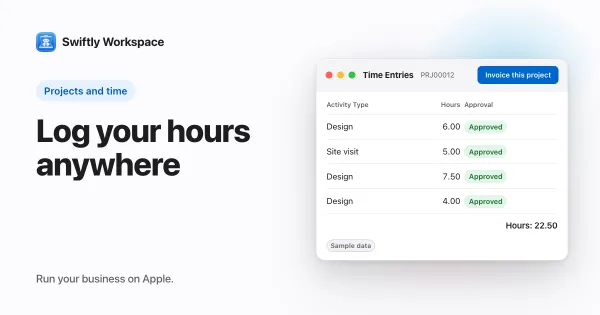
- From approval to invoice. Once hours are approved, Invoice this project gathers the approved billable hours that haven't been invoiced yet into a draft invoice, which a person checks and finalizes.
- A record that holds. Approval events are written to a hash-chained audit log, so a later change to that history can be detected. Our explainer on hash-chained approvals goes deeper.
To see the submitting side step by step, read how to submit your timesheet on iPhone or iPad or how to submit your timesheet on Mac. For the invoicing side, invoicing approved hours from a project picks up where this post stops.
Setting it up in your team
- Name an approver for every project before anyone logs time on it.
- Pick one flow as the default and explain it in a sentence the team will remember.
- Agree a weekly deadline for submitting, and a day for approving.
- Write rejection reasons the person can act on: "move the Tuesday hours to the website project" beats "wrong".
- Bill from approved hours, never from drafts.
Put a short approval slot in the calendar each week, and treat a rejected week as a normal part of the process rather than a reprimand. Running the whole loop from client to invoice is the subject of running a small agency on one app.
Frequently asked questions
Who approves timesheets in a small business?
Usually the person who leads the project the hours were spent on. In very small teams that is often the owner. What matters is that the approver can judge whether the hours are right.
How long should a timesheet approval take?
A few days at most. Many teams submit on Friday and approve by Tuesday, so the hours are still fresh and billing isn't held up.
What happens to rejected hours?
They go back to the person with the approver's reason. They correct the entries and submit again, and the approver takes another look. A clear reason saves a second round trip.
Can approved hours still be changed?
They shouldn't be changed quietly. If an approved entry is wrong, the clean route is a correction that the approver sees again, so the record and the invoice stay in step.
Run your business on Apple.
Create your account on the web, then set up your workspace in the app on your iPhone, iPad or Mac.
Create your account