Blog

Projects and time

Practical guides to running your business on Mac, iPad and iPhone: invoicing, projects, time tracking and working with the AI assistant.

  1. Harvest alternatives for teams that need CRM and projects

    Harvest is a strong pick for a focused time tracker with invoicing. Swiftly Workspace suits teams that also want customers, structured projects and approved timesheets in one native app; Toggl Track suits pure time tracking, Productive.io and Teamwork.com larger agency setups.
  2. Swiftly Workspace vs Harvest: an honest comparison

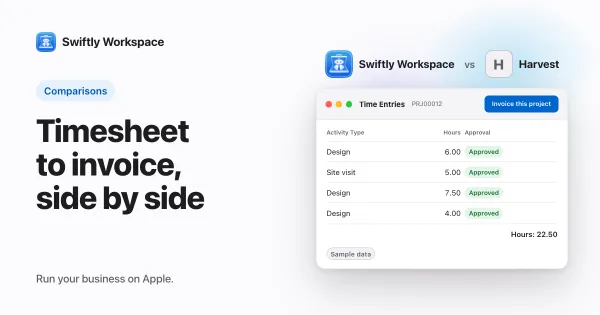
    Harvest suits people and teams who want a focused time tracker with invoicing on iPhone and Mac. Swiftly Workspace suits service businesses that want customers, projects, approved timesheets and invoices in one app on iPhone, iPad and Mac.

  3. Log time from the project you are working on

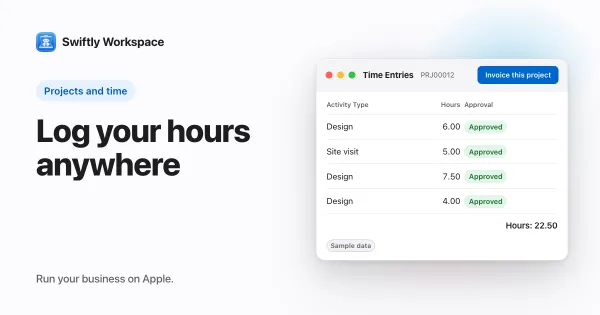
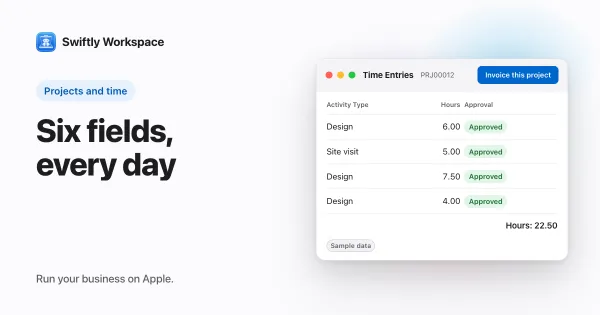
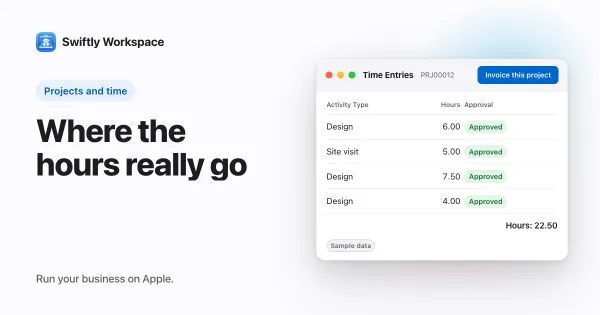
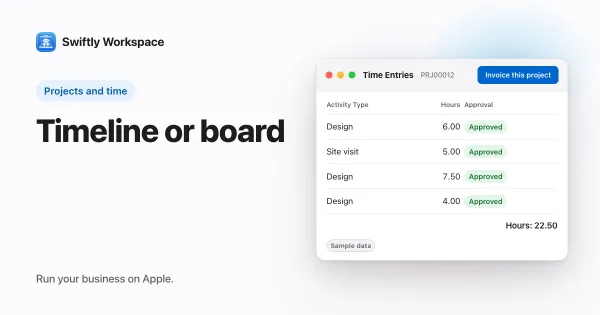
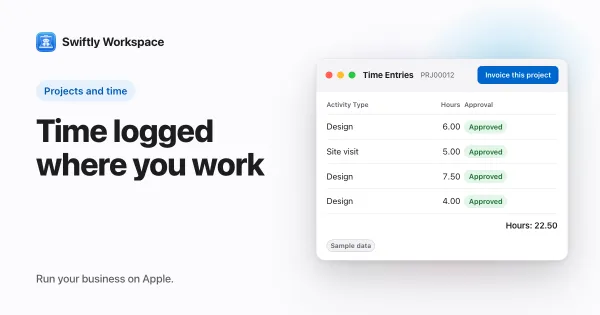
    To log time against a project in Swiftly Workspace, open the project, go to its Time Entries tab and choose Add Time Entry (+). The project is filled in. Pick the phase, work package or task, the date and the hours; the entry lands on your timesheet for that period.

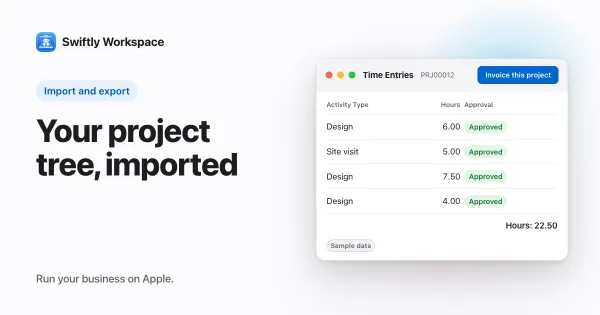
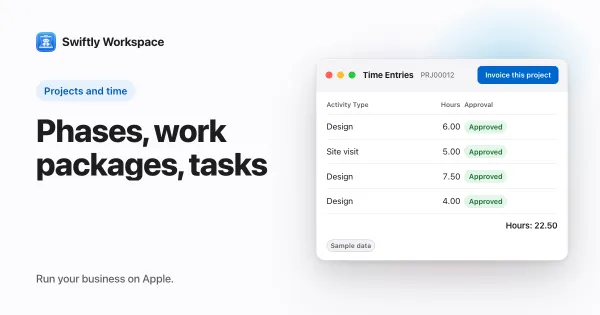
  4. Importing projects with phases, work packages and tasks

    To import projects with their structure, import four files in order: projects, then phases, then work packages, then tasks, each row pointing to its parent by an ID from your old tool. In Swiftly Workspace's Data Import, the importer still calls these Project, Budget, Project Line and Project Task.

  5. Prompts for running a service business from a chat window

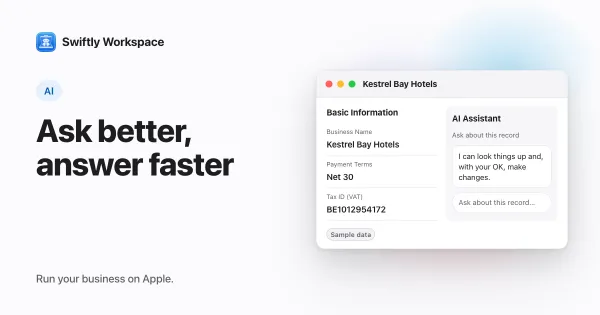
    The most useful AI prompts for a service business ask about your own records: which invoices are overdue, what a client still owes, how many hours went into a project. Name the client or project, give a time frame and say how you want the answer, such as a table.

  6. A consultant's week in one workspace: from call to invoice

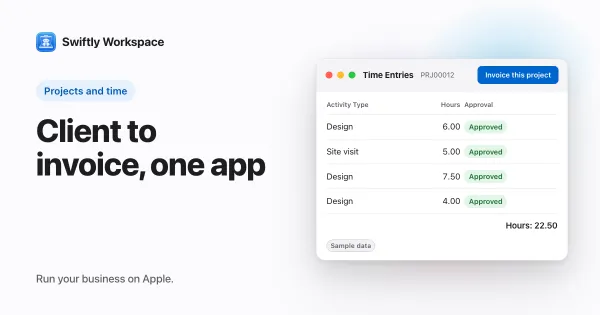
    Software for consultants should let you run the whole week in one workspace: add the client and the project after the call, log hours against it, submit the week for approval, turn approved hours into a draft invoice, send the PDF and record the payment. Swiftly Workspace works this way on iPhone, iPad and Mac.

  7. Batch timesheets: set up several weeks in one go

    Batch timesheet creation sets up a timesheet for every week or month in a date range in one action. Swiftly Workspace asks for a From and a To date and shows a preview, then creates them all; if your role allows, you can include teammates too.

  8. Logging time on behalf of a teammate: when it makes sense

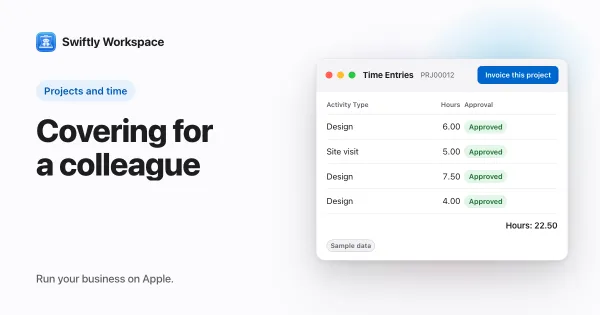
    Logging time on behalf of a teammate makes sense when someone is away, offline or unable to reach their timesheet. Swiftly Workspace ties it to the Manage Timesheets On Behalf permission, held by admins by default; the timesheet stays the teammate's and goes to their approvers.

  9. Log time by asking: AI time entry with Apple Intelligence

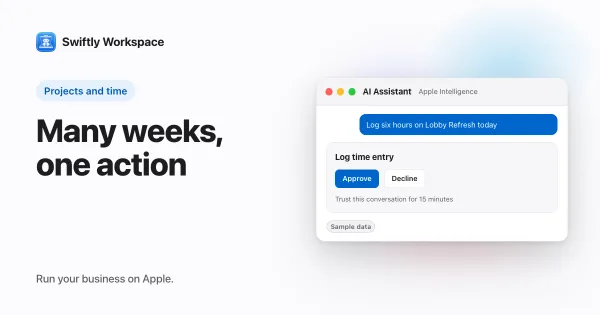
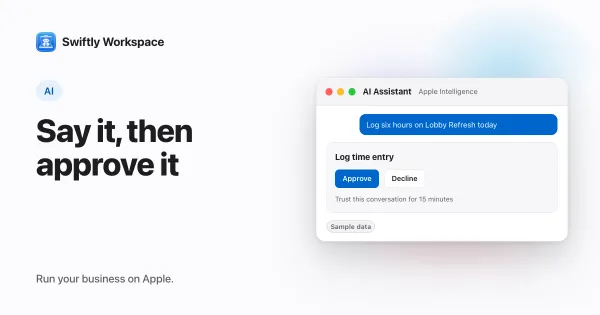
    To log time with AI, tell an assistant running on Apple Intelligence what you did, for example three hours on a project yesterday, billable. In Swiftly Workspace it finds your timesheet and the project, shows the entry on a card, and saves it when you approve.

  10. Project budget tracking: what to watch and when

    To track a project budget, set it per piece of work, compare the hours actually spent with the hours estimated as time is approved, and check at fixed moments: weekly, at each milestone, and whenever a piece of work passes half, three quarters and nine tenths of its estimate.

  11. Setting member-level rates and volume discounts on projects

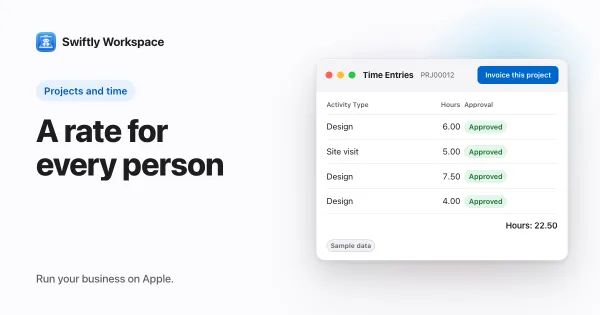
    In Swiftly Workspace, each project member has their own bill rate, cost rate and currency, set when you add them on the project's Members tab. Optional volume discounts lower that member's rate by a percentage once their hours on the project pass a threshold per day, week or month.

  12. Invoicing a project: invoice now or on a set frequency

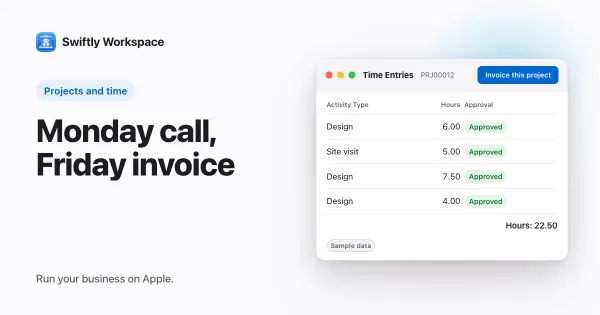
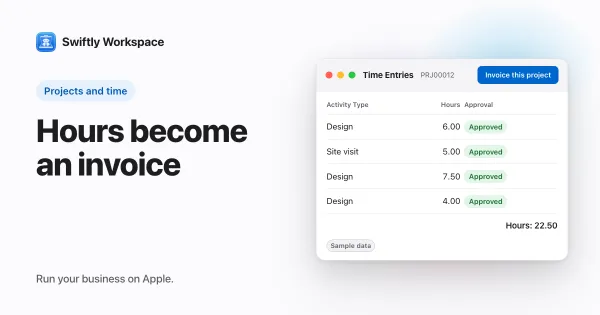
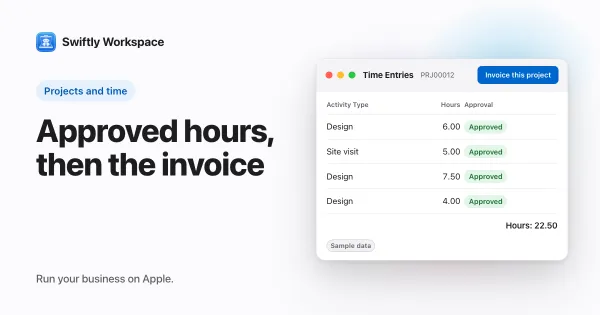
    In Swiftly Workspace, Invoice this project turns a project's approved billable hours that are not invoiced yet into a draft invoice for the project's customer. You check the draft and finalize it; the hours are marked as invoiced so they are never billed twice.

  13. How to fill in and submit your timesheet on Mac

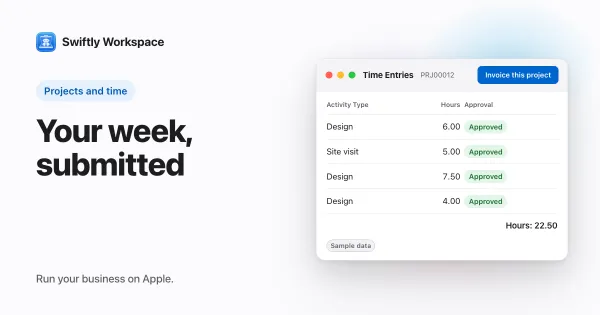
    On a Mac, open Projects, then Timesheets, click + and pick the period. Open the timesheet's Time Entries, add an entry per block of work with its project, then click Submit to send the week for approval.

  14. How to set up a project with phases on Mac

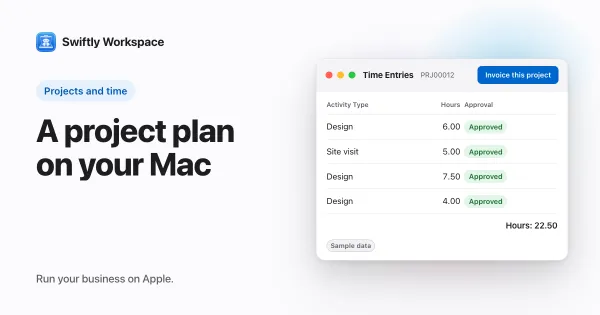
    On a Mac, open Projects, click + and fill in the New Project window. In the project's Phase tab add a phase, then add work packages and tasks in their own windows, and mark who approves the hours on the Members tab.

  15. How to set up a project with phases on iPhone or iPad

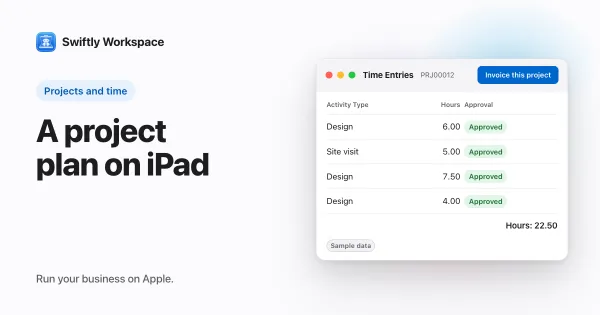
    On iPhone or iPad, open Projects, tap + and save the new project. On its Phase tab, add a phase, approve it, then tap + to add work packages into it. Add the colleague who approves hours on the Members tab.

  16. How timesheet approval works, and why billing depends on it

    In a timesheet approval workflow, people submit their hours, a designated approver checks them, then approves or sends them back with a reason. Bill from approved hours, and every invoice rests on time someone actually checked.

  17. Running a small agency on one app: clients, time, invoices

    A small agency can run on one app when clients, projects, timesheets and invoices share the same records: hours are logged against a client's project, approved, then turned into a draft invoice. Swiftly Workspace works this way on iPhone, iPad and Mac.

  18. Fixed fee vs time and materials: pricing client projects

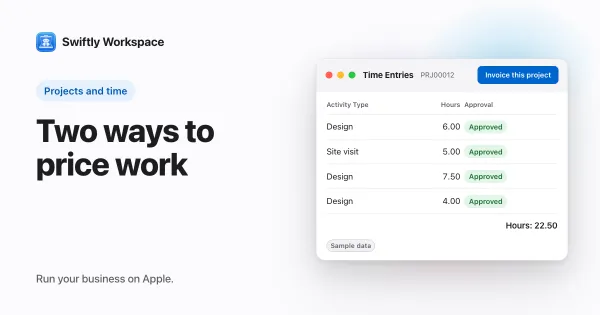
    A fixed fee (also called a fixed price) is one agreed price for a defined scope, so you carry the risk of overrun. Time and materials bills the hours worked at agreed rates plus agreed costs, so the client carries that risk. Choose by how clear the scope is.

  19. Billable vs non-billable hours: a guide for agencies

    Billable hours are time you can charge a client for under your agreement, such as work on their project at the agreed rate. Non-billable hours are the rest: sales, admin, training and internal meetings. Track both, because the split decides what you really earn per hour.

  20. Handling scope changes with change orders

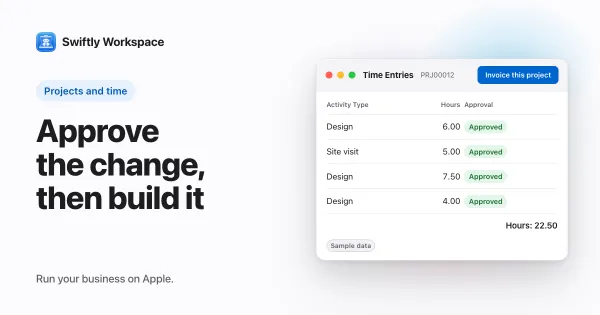
    A change order is a short written agreement, approved before the extra work starts, that records what changes in a project's scope, what it costs and how it moves the schedule. Log every request, price it, get it signed, then update the budget and plan.

  21. Budget vs actual: what a project dashboard should show

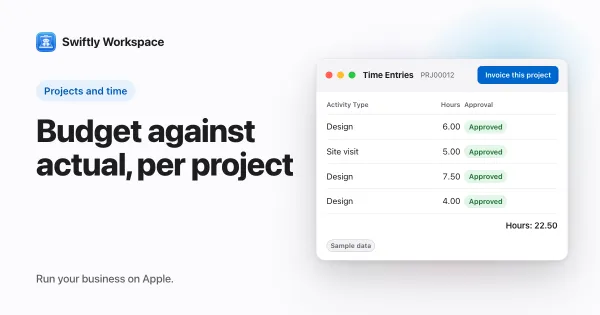
    A project budget dashboard should answer one question per project: will it finish within budget? Show budget vs actual, the share of budget spent against the share of work done, a forecast at completion, margin, and unbilled work, with a clear flag when any of them drifts.

  22. Gantt or Kanban: picking a view for client projects

    Use a Gantt chart when dates, dependencies and a fixed deadline drive the project. Use a Kanban board when work arrives as a stream of tasks and the question is what to do next. Many client projects use both.

  23. Tracking project expenses and receipts: a practical guide

    Track project expenses by recording each cost against its project the day it happens, with the receipt attached, a category and a billable flag. Approve before you reimburse, and compare costs with the budget every week.