A consultant's week in one workspace: from call to invoice
Software for consultants should let you run the whole week in one workspace: add the client and the project after the call, log hours against it, submit the week for approval, turn approved hours into a draft invoice, send the PDF and record the payment.
Swiftly Workspace works this way on iPhone, iPad and Mac. Many consultants don't lose time on the work itself. They lose it between tools: the client's details in one place, hours in a spreadsheet, invoices somewhere else, and a Friday spent copying numbers across. Here is the same week with everything in one place.
The week at a glance
| Day | What happens | Where it lives |
|---|---|---|
| Monday | Discovery call with a new client | Customer, contact, address |
| Tuesday | The engagement is agreed and planned | Project with Phases, Work Packages and Tasks |
| Wednesday | Workshops and analysis | Time entries on the project |
| Thursday | Week submitted, hours approved | Timesheet and approval |
| Friday | Invoice out, last month's payment in | Draft invoice, PDF, payment |
Monday: the client call
The call goes well, and the client wants a proposal. Before you forget the details, add the client as a customer, with the person you spoke to as a contact and their billing address. Everything that follows hangs off that record: the project, the hours, the invoices and the payments.
On iPhone you can do this from the train home. The record is the same one you will open on your Mac tomorrow, because all three apps work on the same workspace.
Tuesday: plan the engagement as a project
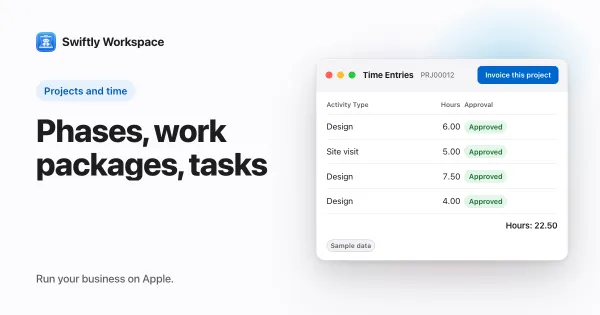
Once the client says yes, create a project for them. Split it the way you will deliver it: Phases such as discovery, recommendations and handover, Work Packages inside each phase, and Tasks where you want that much detail. Add the budget you agreed with the client to the project.
If you are new to this structure, how to structure a project in phases, work packages and tasks shows how to size it.
Wednesday: log hours where the work happens
Consulting days are fragmented, so make logging time cheap. There are three ways to do it:
- On the timesheet. Open Projects, then My Timesheets on iPhone or iPad, or Projects, then Timesheets on a Mac, and add entries to the week.
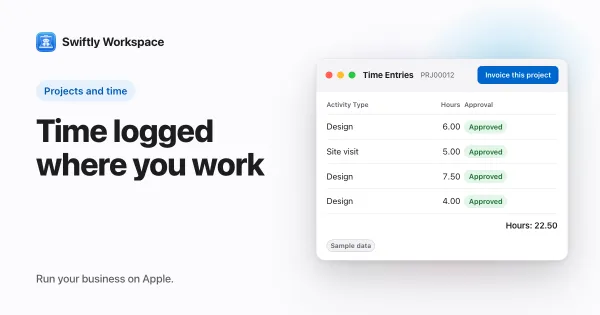
- From the project. Since the August 2026 update, you can add a time entry from inside the project itself, on its Time Entries tab. Logging time from the project you are working on walks through it.
- By asking. Tell Apple Intelligence on your device "two hours on the client workshop today", and it prepares the entry on a card for you to approve.
Thursday: submit the week
When the week is done, submit the timesheet. The people set as timesheet approvers on the project review it and approve or reject it. In a small firm, that is often a partner. Once associates join, approval means their hours reach the client's bill after someone has checked them. How timesheet approval works covers the rules.
Friday: invoice and get paid
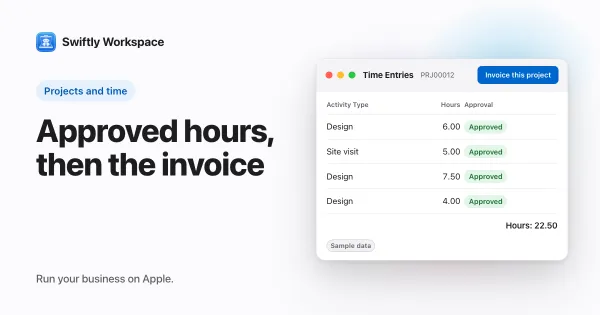
Open the project and choose Invoice this project. It gathers the approved billable hours that haven't been invoiced yet into a draft invoice for the client. Read the draft, adjust a line if needed, and finalize it: every invoice stays a draft until a person finalizes it. Turning project hours into an invoice explains what goes on it.
Then send it. On iPhone or iPad, open the finalized invoice and share the invoice PDF through the share sheet. When last month's payment lands, record it as a customer payment and allocate it to the open invoice it pays; recording a payment on iPhone or iPad shows the steps.
Ask the workspace before the weekend
Friday afternoon is also a good time to ask questions. With your company's own AI provider key, or Apple Intelligence on the device, Conversations answers from your own records: "Which invoices are overdue?" or "How many hours went into this project this month?". Asking your workspace about your own data has more examples.
What stays outside
One workspace doesn't mean one tool for everything. The app doesn't keep your books, so your accountant still does, from a CSV export you send them. Your slide decks and reports stay in your usual office apps. If you run a team of consultants rather than working mostly alone, running a small agency on one app looks at the same flow with more people in it.
Frequently asked questions
What software does a consultant need?
At minimum: a place for client details, a way to track time per client and project, and invoicing that uses those hours. Many consultants also want approvals once associates join, and a simple way to see what is overdue. One workspace that covers all four saves the copying between them.
Can a consultant track time and invoice in one app?
Yes. Hours logged against a client's project can be approved and then turned into a draft invoice for that client, so the numbers on the invoice are the hours you logged, not a retyped total.
How do I stop forgetting to log my hours?
Log close to the work. Add the entry from the project when you finish a block, or say it to the on-device assistant on your phone between meetings. A short daily habit beats rebuilding a week from your calendar on Friday.
How should consultants bill for their time?
Many bill hourly or daily for open-ended work and a fixed fee for well-defined deliverables. Whichever you choose, log your hours anyway: they show whether a fixed fee was priced right and make the next estimate easier.
Run your business on Apple.
Create your account on the web, then set up your workspace in the app on your iPhone, iPad or Mac.
Create your account