Invoicing a project: invoice now or on a set frequency
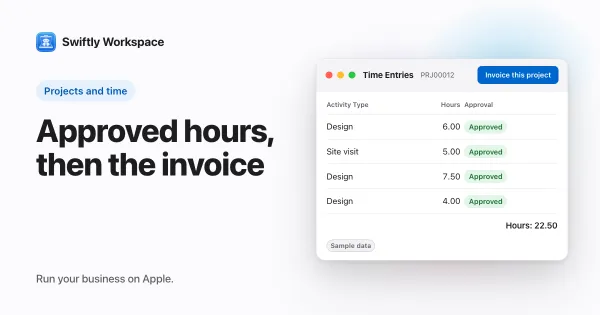
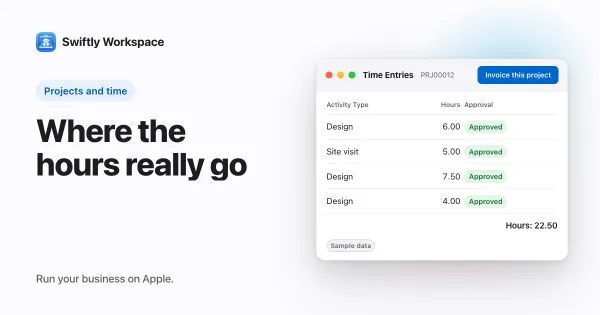
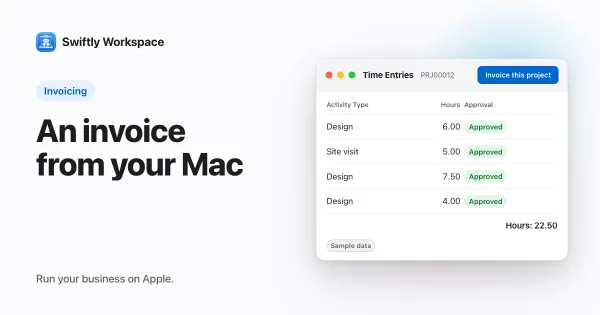
In Swiftly Workspace, Invoice this project turns a project's approved billable hours that are not invoiced yet into a draft invoice for the project's customer. You check the draft and finalize it, and the hours are marked as invoiced so they are never billed twice.
For agencies and consultants, the slow part of invoicing a project is gathering the hours: who worked, which hours were approved, which were already billed last month. When time, projects and invoices live in one place, that gathering is a button.
Two ways to invoice a project
| Invoice now | On a set frequency | |
|---|---|---|
| When | Whenever you click Invoice this project | On the day the project's Invoice frequency comes around |
| What it picks up | Approved billable hours not yet invoiced | The same |
| What you get | A draft invoice for the project's customer | The same |
| Who finalizes | You | You |
Invoice a project now
On a Mac: open the project in its own window and click Invoice this project in the toolbar (its tooltip reads Generate an invoice from this project's uninvoiced approved time entries.). The new draft opens in a window of its own.
On iPhone or iPad: open the project, go to its Overview tab and tap Invoice this project in the toolbar. The new draft opens when it is ready.
The button is there for people who can edit the project. The draft is addressed to the project's customer, with a due date from the customer's payment terms, if set. If there is nothing to invoice, for example because this month's hours are still waiting for approval, an alert appears and no invoice is made.
Invoice on a set frequency
Some projects bill every week or every month. On a Mac, open the project's Overview inspector and choose an Invoice frequency in its Invoicing section. On that day, the same kind of draft is made from the approved hours not yet invoiced. An admin defines the frequencies you can pick under Reference Data, in Invoice Frequencies.
Why approval comes before invoicing
Hours reach an invoice once someone has approved them and they are marked billable. That is the safety net: a typo in a timesheet is caught at approval, before a customer ever sees it. Read how timesheet approval works for the approval side, and billable hours explained for what counts as billable.
Check, then finalize
Every invoice in Swiftly is a draft until a person finalizes it. Nothing goes to the customer on its own. Open the draft, read it the way your customer will, adjust lines if you need to, then finalize it. The steps are the same as for any invoice: how to create and finalize an invoice on Mac shows them.
Rates matter as much as hours, so it is worth setting them per person; see project member rates. To keep an eye on the money side of a project as it runs, read how to track a project budget.
Frequently asked questions
Can the same hours end up on two invoices?
No. Once hours are on an invoice they are marked as invoiced, and the next run picks up just the hours approved since.
Why does Invoice this project show an error?
When there are no approved billable hours left to invoice, no draft is made and an alert appears instead. Check that the hours are approved and marked billable, and that they were not invoiced already.
Does a project invoice go to the customer straight away?
No. It is created as a draft. You review it and finalize it when it is right, the same as any other invoice.
Run your business on Apple.
Create your account on the web, then set up your workspace in the app on your iPhone, iPad or Mac.
Create your account