Project budget tracking: what to watch and when
To track a project budget, set it per piece of work, compare the hours actually spent with the hours estimated as time is approved, and check at fixed moments: weekly, at each milestone, and whenever a piece of work passes half, three quarters and nine tenths of its estimate.
Small teams rarely lose money on a project in one go. It leaks: an extra round of revisions here, a meeting nobody planned there. By the time the final invoice is due, the margin is gone. Budget tracking is the habit of seeing that leak while you can still do something about it.
What to watch, and when
| Signal | Why it matters | When to check |
|---|---|---|
| Hours used against hours estimated, per piece of work | Shows exactly where the overrun is | Every week |
| Share of budget used against share of work done | Separates "nearly done and nearly spent" from "half done and nearly spent" | Every week, and at milestones |
| Work packages crossing a threshold | Gives you time to act before the estimate runs out | When they cross half, three quarters and nine tenths |
| New requests from the client | Extra work that was never priced is a frequent leak | As soon as they come in |
| Time logged but not approved | Your numbers lag until it is approved | Before every review |
Set the budget where the work is planned
A single total for the whole project hides the problem. If the project is 20 percent over, you need to know which part is over. Break the budget down the same way you break down the work: by phase, and inside each phase by deliverable. Our guide to structuring a project into phases, work packages and tasks shows how deep to go.
Give each piece of work an estimate in hours, and a rate if you sell by the hour. Hours are the honest unit for a service team: they are what you actually spend, and money follows from them.
Track from approved time, not from memory
A budget is never more current than the last timesheet. Ask people to log time daily, against the specific piece of work, and approve timesheets promptly. Approved time is time someone has checked, so it is the right number to measure the budget against.
Then compare two shares. If a work package has used half its hours and is about half done, it is on track. If it has used three quarters and is half done, it will overrun unless something changes. That second comparison is the one that catches trouble early.
When you want a wider view across several projects, our guide to what a budget vs actual report should show lists the numbers worth putting side by side.
Agree your warning thresholds in advance
Decide before the project starts what you will do at each threshold, so nobody has to improvise:
- Half the estimate used. Check progress. If the work is well behind, re-estimate the rest now.
- Three quarters used. Talk to the team about what is left, and warn the client if the scope has grown.
- Nine tenths used. Stop and decide: finish within the budget, agree extra budget, or cut scope.
Hours are rarely the whole cost
Subcontractors, travel and materials eat into the same budget. Keep them attached to the right project as they happen, not at the end; our guide to tracking project costs and receipts covers the practical side.
The other big leak is scope. When a client asks for something extra, price it and get it agreed before the work starts. Turning extra client requests into agreed scope changes walks through a simple routine for that.
How it works in Swiftly Workspace
In Swiftly Workspace, every project is organized as Phases, Work Packages and Tasks. Each work package carries Estimated Hours and an Hourly Rate, which together give its Budgeted Amount, so the budget lives exactly where the work is planned.
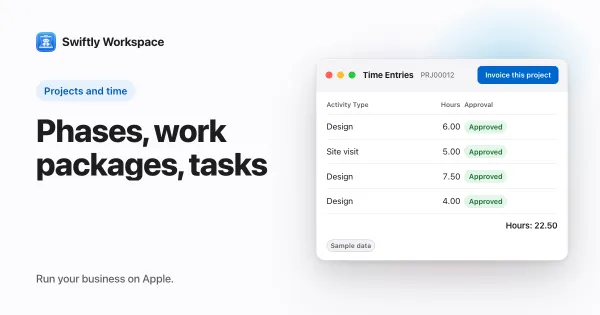
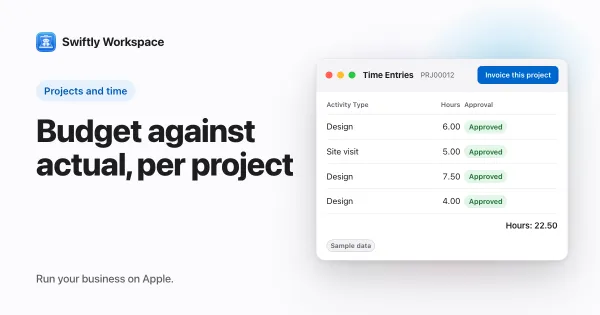
Your team logs hours on timesheets against the project, down to the phase, work package or task the project asks for. Once a timesheet is approved, the hours logged on a work package count toward its Actual Hours. You see them in the work package's details, in a section called Actuals (from Timesheets), on Mac and on iPhone and iPad, right next to the estimate. Time that is not approved yet doesn't count, which keeps the comparison honest.
To keep the numbers current, see how to submit your timesheet on iPhone or iPad. For the money side, rates per team member explains how hourly rates are set up, and invoicing a project's approved hours covers turning the hours into an invoice.
Frequently asked questions
Should a project budget be in hours or money?
Both, if you sell time. Track the hours, because that is what your team actually spends, and convert to money with your rates for pricing and invoicing. A fixed-price project still benefits from an hours estimate behind the price.
Does time that is not approved count against the budget?
In many teams it should not, because nobody has checked it yet. Count approved time for the official numbers, and keep an eye on what is still waiting so the picture doesn't lag by a week.
What should I do when a work package goes over its estimate?
Find out why before you react. If the client asked for more, agree the extra work and its cost. If the estimate was simply too low, note it for the next project you price, and decide with the team how to finish the rest within what is left.
Run your business on Apple.
Create your account on the web, then set up your workspace in the app on your iPhone, iPad or Mac.
Create your account