Log time from the project you are working on
To log time against a project in Swiftly Workspace, open the project, go to its Time Entries tab and choose Add Time Entry (+). The project is filled in. Pick the phase, work package or task, the date and the hours; the entry lands on your timesheet for that period.
Many people think about their work in projects, not in timesheet weeks. You finish a design review, you are still looking at the project, and the natural moment to record the two hours is right there. Going to a separate timesheet screen, finding the right week and picking the project again is exactly the kind of detour that makes hours go unrecorded.
How to add a time entry from a project
- Open the project. On a Mac, double-click it in your project list to open its window. On iPhone, tap it; on iPad, double-tap it.
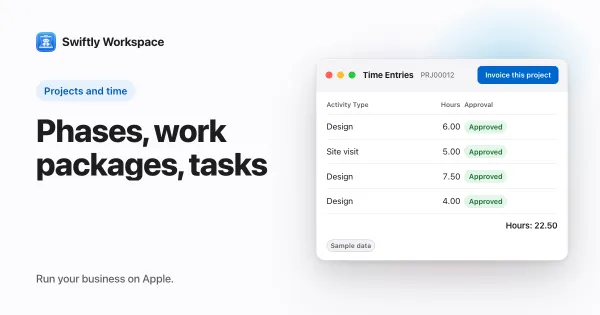
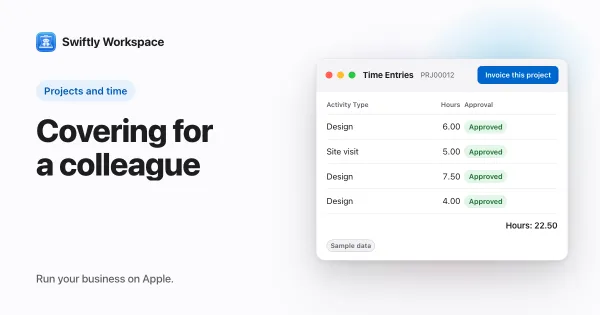
- Go to Time Entries. The tab lists the time already logged on the project, with who logged it and its status.
- Choose Add Time Entry. It is the + button in the toolbar. The form opens with the project and its customer filled in and locked, so the hours can't be booked to the wrong client by accident.
- Pick where the time goes. Choose the phase, work package or task, at the level the project asks for. How Phases, Work Packages and Tasks fit together explains those levels.
- Enter the date and the hours, and fill in any other fields your company uses, such as a short note.
- Save. The new entry appears in the project's Time Entries list straight away.
If you don't see the + button, your role doesn't allow creating time entries. The Standard role that new members get does include it; an admin can check your role.
Which timesheet the entry goes on
You never pick a timesheet in this form. Swiftly looks for your draft timesheet for the week or month that contains the entry's date, depending on whether your company works with weekly or monthly timesheets. If there is one, the entry is added to it. If there isn't, a new draft timesheet is created for that period and the entry goes on it.
The entry is the same one you would get by adding it inside the timesheet itself: the same fields, the same checks and the same rules about which level of the project it must be booked against. Nothing about it is special because it started from the project.
| Your timesheet for that period | What happens when you save |
|---|---|
| Doesn't exist yet | A draft timesheet is created and the entry is added |
| Is a draft | The entry is added to it |
| Was sent back to you | The entry is added, so you can correct and resubmit |
| Is submitted or approved | The entry is refused with a message naming the period, and nothing changes |
That last row protects the approval. Once a week has been submitted, adding hours to it quietly would change what the approver is looking at. If you really forgot something, talk to your approver about how they want it handled.
The entry is always yours
Time added from a project goes on your own timesheet. That keeps the flow simple for the everyday case. When someone needs to record hours for a colleague who is away, that is a different job with its own permission, covered in logging time on behalf of a teammate. To prepare timesheets for several people or weeks at once, see batch timesheet creation.
What happens next
Adding an entry doesn't submit anything. Your timesheet stays a draft, and you can keep adding to it from the project, from other projects or from the timesheet itself. When the period is complete, submit the timesheet as usual; how to fill in and submit a timesheet on a Mac walks through it, and how timesheet approval works explains who reviews it.
Draft hours don't count yet in the project's actual hours. They are added once the timesheet is approved, which is when they show up in tracking hours against the project budget. That way a plan never moves because of hours nobody has checked.
Tips for logging time inside projects
- Log at the end of each block of work, while the project is open and the details are fresh.
- Book at the right level. If the project tracks tasks, pick the task, so the estimate and the actuals stay comparable.
- Write a note a client could read. "Reviewed homepage wireframes with the client" travels better than "meeting".
- Check your timesheet before you submit, because entries from several projects come together there.
Setting a project up so this works smoothly starts with its structure; setting up a project on iPhone or iPad covers that.
Frequently asked questions
Do I need to create a timesheet before adding time to a project?
No. If you have no draft timesheet for the period yet, one is created when you save the entry, and later entries for the same period go on that same timesheet.
Can I add hours to a week I have already submitted?
Not from the project. A submitted or approved timesheet can't take new entries, so the entry is refused and nothing changes. If a timesheet is sent back to you, you can add entries to it again.
Can I log time on a project for someone else?
Not from the project's Time Entries tab: those entries always go on your own timesheet. Entering hours for a colleague uses on-behalf entry, which needs its own permission.
Does it matter whether I log time from the project or the timesheet?
No. Both create the same kind of entry with the same rules, and it shows up in both places. Use whichever screen you happen to be on.
Run your business on Apple.
Create your account on the web, then set up your workspace in the app on your iPhone, iPad or Mac.
Create your account