How to fill in and submit your timesheet on Mac
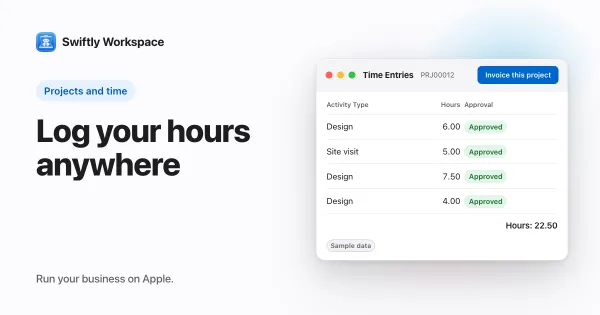
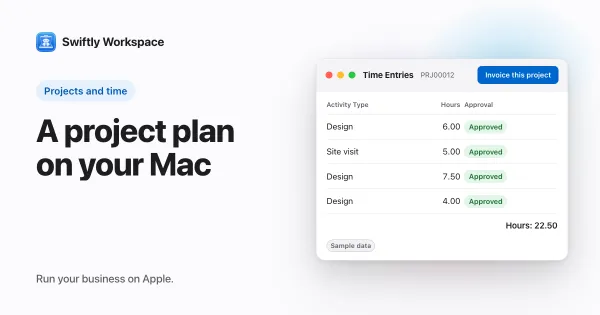
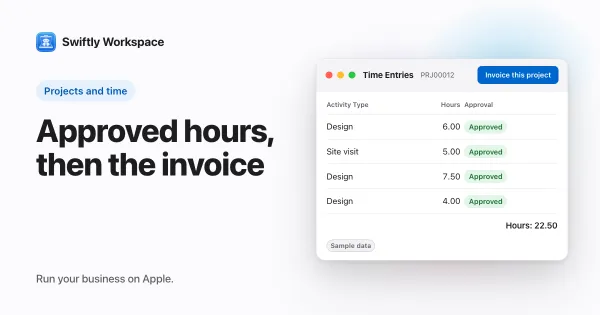
To submit your timesheet on a Mac in Swiftly Workspace, open Projects, then Timesheets, click + and pick the period. In the timesheet's window, add an entry for each block of work on Time Entries, then click Submit to send the week for approval.
The timesheet gets a window of its own, so you can keep it open next to your calendar while you fill it in. On iPhone or iPad? See how to submit your timesheet on iPhone or iPad.
Before you start
- The project is set up. Hours are logged against a project, and often against a phase, work package or task inside it. Setting up a project on Mac covers that, including who approves the hours.
- Your company's period is known. Timesheets run per week or per month, as your company has set them up.
Fill in and submit a timesheet in six steps
- Open your timesheets. In the sidebar, click Projects, then Timesheets. You see the timesheets you can access.
- Create the timesheet. In the toolbar, click + (Add Timesheet). Pick the week, or the month if your company uses monthly periods, and confirm. The new timesheet appears in the list; double-click it to open it if its window isn't open yet.
- Go to the entries. The timesheet window opens on its Overview. In its sidebar, click Time Entries.
- Add an entry. In the toolbar, click + (Add Entry). In Add Time Entry, set the Date and the Hours, choose the Project, then pick down to the level the project asks for: the Effective level line under the pickers says whether that is a phase, a work package or a task. Set Billable, add a short Description, then click the checkmark (Add time entry). The entry appears in the list.
- Repeat for the week. Add one entry per block of work, per day. The timesheet's total hours grow as you go.
- Submit. Once the timesheet has hours, Submit appears in the toolbar. Click it, check the Period and Total Hours in the Submit for Approval sheet, and click Submit.
The sheet warns you before you send: Once submitted, you won't be able to edit this timesheet until it's reviewed. Read the week through one last time before you click.
If you pick a project that isn't set up deep enough for the level it asks for, a Project not ready message explains what is missing and offers Add now, which opens the project so someone with the rights can add it.
What happens after you submit
- Each project's approvers get their part. If your week covers two projects, the required approvers of each project see the hours for their own project.
- Approvers work from their own list. On a Mac, admins with approval rights open Projects, then Timesheet Approvals. On iPhone and iPad, people with approval rights open Projects, then Approval Queue.
- A rejection comes with a reason. Rejecting hours requires the approver to say why, so you know what to fix.
- A project needs an approver. When your company requires timesheet approval, which is the default, hours on a project without a required approver can't be submitted.
How timesheet approval works explains the approver's side in full, and invoicing approved hours from a project picks up where approval ends.
Tips for a timesheet that goes through
- Fill it in daily, while you still remember what you did. Our weekly timesheet basics cover what a good entry holds.
- Pick the project and the level before you click the checkmark, so the entry saves in one go.
- Write descriptions the client could read: "Homepage wireframes, round two" beats "design".
Frequently asked questions
Why don't I see the Submit button?
Submit shows while the timesheet is a draft and has at least some hours on it. Add an entry on Time Entries and it appears.
Can I edit a timesheet after submitting it?
Not while it waits for review. The approver either approves the hours or rejects them with a reason.
Why does the time entry ask for a task?
Each project decides how deep time is logged: on a phase, a work package or a task. When the project asks for tasks, pick the task before you save.
Run your business on Apple.
Create your account on the web, then set up your workspace in the app on your iPhone, iPad or Mac.
Create your account