Logging time on behalf of a teammate: when it makes sense
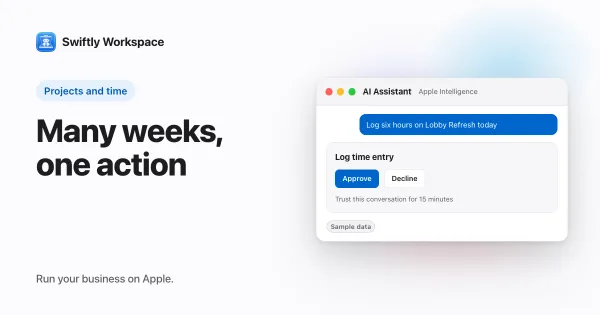
Logging time on behalf of a teammate makes sense when someone is away, offline or can't reach their timesheet before it is due. Swiftly Workspace ties it to the Manage Timesheets On Behalf permission, held by admins by default, and the timesheet stays the teammate's and goes to their approvers.
Timesheets work best when people log their own hours. But weeks don't always go to plan: a consultant falls ill before submitting, a site lead has no laptop for two weeks, a new colleague doesn't have access yet. Someone has to make sure the hours are recorded, and on-behalf entry is the honest way to do it.
When entering time for someone else is the right call
| Situation | On-behalf entry? | Why |
|---|---|---|
| Sick leave or vacation at the deadline | Yes | The hours are known, the person isn't there to submit them |
| Field staff without a device | Yes | A coordinator types up paper or verbal hours |
| A new hire without access yet | Yes, briefly | Their opening days still count |
| Correcting an obvious typo before submission | With the person's OK | Quicker than a round trip, but check with them |
| "Tidying up" someone's hours to fit a budget | No | The timesheet should reflect the work done |
Who should be allowed to
Entering time for others is a trust question, so keep the group small. In Swiftly, two permissions split the job:
- Create Timesheets On Behalf lets someone set up timesheets for teammates, for example a week for three people at once with batch timesheet creation. Members on the default Standard role have it.
- Manage Timesheets On Behalf lets someone work inside a teammate's timesheet: add, change and delete entries, submit it for approval, and delete it while it is still a draft. The Standard role new members get does not include it, so by default this sits with admins.
Without the manage permission, a teammate's timesheet opens for viewing: the buttons to add entries, submit or delete simply aren't there. If you want a team lead to cover without making them an admin, give their role the manage permission rather than a broader one. How roles and field permissions work explains how roles are put together.
How it works in Swiftly Workspace
- Find the timesheet. On a Mac, open Projects, then Timesheets, and remove the My Timesheets filter to see your team's timesheets. The list on iPhone and iPad has the same My Timesheets filter.
- Open it. On a Mac, double-click the row or choose View Details. On iPhone, tap it; on iPad, double-tap it.
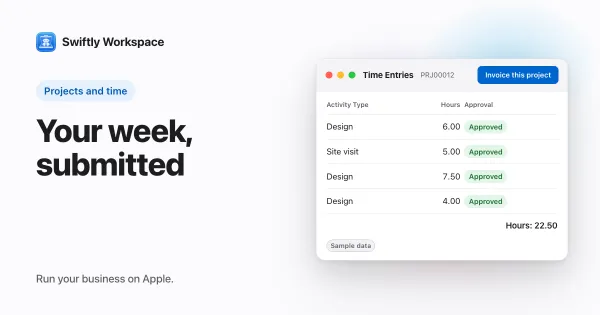
- Add the hours. In Time Entries, use the + button (Add Entry) for each block of work, with the project and the date, just as the person would. How to fill in and submit a timesheet on a Mac walks through the entry form.
- Submit when the week is complete. Click Submit. Approval goes to the approvers of the projects on the timesheet.
If the teammate has no timesheet for that week yet, create it beforehand from New Timesheets with your colleague picked in the Members list.
What stays the same for the teammate
Entering hours for someone doesn't take their timesheet away from them. It stays in their name, in their list, with the same status rules as any other timesheet: a draft can be changed, and once it is submitted it waits for approval. When they are back, they open it as usual and can see the entries that were added for them.
That matters for two reasons. The person whose work it is can still check that the hours are right, and anyone reviewing the timesheet later sees a single, complete week for that person rather than scattered entries in other people's timesheets.
Ground rules that keep on-behalf time trustworthy
- Tell the person. A short message ("I logged Monday to Wednesday from your notes") avoids double entries when they are back, and gives them the chance to correct anything you got wrong.
- Use their source, not your memory. Calendars, job sheets and messages are better evidence than a recollection a week later.
- Leave the approval to the approvers. Entering someone's time and approving it are different jobs. Keeping them apart is what makes timesheet approval worth having.
- Make it the exception. If one person's timesheet is filled in by someone else every week, fix the underlying problem, whether that is access, a device or a habit. Weekly timesheet basics has ideas.
Project leads who mostly log time while looking at a project may also like logging time from inside a project.
Frequently asked questions
Can a manager fill in an employee's timesheet?
In Swiftly, yes, if their role has Manage Timesheets On Behalf. Admins have it by default. They can add and change entries and submit the timesheet, which stays the employee's own.
Who approves a timesheet that someone else submitted?
The approvers of the projects on the timesheet, just as when the owner submits it.
Can I see a colleague's timesheet without being able to change it?
Yes. If your role lets you open a colleague's timesheet but doesn't include the manage permission, it opens without the add, submit and delete buttons, so you can read it but not change it.
Is on-behalf time entry a good idea for every team?
As a safety net, yes. As a routine, it tends to hide the real problem. Keep the permission with a few people and use it when someone genuinely can't log their own hours.
Run your business on Apple.
Create your account on the web, then set up your workspace in the app on your iPhone, iPad or Mac.
Create your account