Preview, share and print an invoice PDF on iPhone or iPad
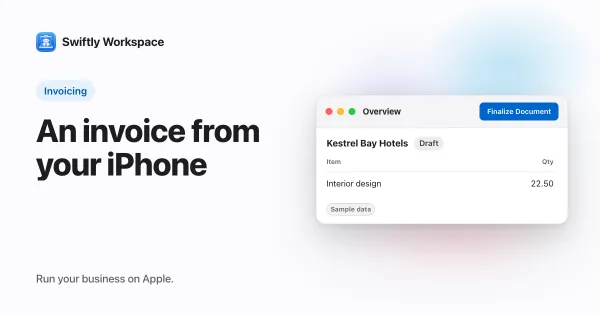
To share or print an invoice PDF on iPhone or iPad, open the finalized invoice from Finance, then Customer Documents, and tap the PDF button at the top (VoiceOver: Preview PDF). The PDF opens in a sheet with a share icon and a print icon.
On a Mac? See how to preview, save and print an invoice PDF on Mac. The same steps work for credit notes and proformas, which live in the same list.
Before you start
- A finalized document. The PDF button appears once a document is no longer a draft. Still drafting? Create and finalize the invoice beforehand.
- The look you want. The PDF uses your company's default Invoice Layout (Modern, Classic or Receipt), brand color and document language. The preview has no layout switch, so set these in advance (how the invoice layouts differ); how to choose an invoice layout on iPhone or iPad walks through it.
Steps
- Open the list. In the menu, tap Finance, then Customer Documents.
- Open the invoice. Tap the finalized invoice you want to send.
- Open the PDF. At the top of the sheet, next to the AI assistant button, tap the document icon (VoiceOver: Preview PDF). A sheet titled with the invoice number opens and shows Generating PDF… while the app builds the file on your device.
- Check it. Scroll through the pages: customer, lines, totals and payment details. A finalized invoice can't be edited, so if something is wrong, the usual fix is a credit note.
- Share it. Tap the share icon (VoiceOver: Share). The iOS share sheet opens, with options such as AirDrop, Messages, Save to Files or any app that accepts a PDF.
- Or print it. Tap the printer icon (VoiceOver: Print), choose a printer and the number of copies, then print.
Close the sheet with the close button at the top left (VoiceOver: Done). On iPad, the sheet opens full height; on iPhone, you can pull it up for more room.
Which documents have a PDF
| Document | PDF button | Where |
|---|---|---|
| Invoice | Once it is no longer a draft | Finance, Customer Documents |
| Credit note | Once it is no longer a draft | Finance, Customer Documents |
| Proforma | Once it is no longer a draft | Finance, Customer Documents |
| Any draft | Not shown | Finalize it, then come back |
A PDF is not an e-invoice
A shared PDF is a picture of the invoice: easy to read, but a customer's software can't import it as structured data. In some countries, invoices between businesses are moving to structured e-invoices. What to know about sending e-invoices from a phone or tablet and why a PDF is not an e-invoice explain the difference.
Once the customer pays, record the payment on iPhone or iPad so the invoice shows as paid.
Frequently asked questions
Why can't I see the PDF button on my invoice?
The invoice is still a draft. Finalize it from the ⋯ menu on its Details tab, and the button appears at the top of the sheet.
How do I save an invoice PDF to the Files app?
Open the PDF, tap the share icon and choose Save to Files in the share sheet. Pick a folder, on the device or in iCloud Drive, and tap Save.
Can I change the invoice layout in the preview?
Not on iPhone or iPad. The preview follows your company's default layout, brand color and language. Change those in your company settings, then open the preview again.
What does PDF Generation Failed mean?
The app couldn't build the file. The app loads your layout settings from the workspace before it builds the PDF. Close the sheet, check your connection and tap the PDF button again.
Run your business on Apple.
Create your account on the web, then set up your workspace in the app on your iPhone, iPad or Mac.
Create your account