How to create and finalize an invoice on iPhone or iPad
To create an invoice on iPhone or iPad in Swiftly Workspace, open Finance, then Customer Documents, tap + and choose New Invoice. Pick the customer, save the draft, add your lines, then choose Finalize when the invoice is ready.
The steps below take a few minutes, and less once your customers and items are in place. Working on a Mac instead? See how to create and finalize an invoice on Mac, which follows the same flow.
Before you start
- The customer exists. You pick the customer from a list. To add one, open Finance, then Customers.
- Your items exist. Each invoice line is based on an item, such as a service or a product. You find them under Finance, then Items.
Create and finalize an invoice in six steps
- Open the list. In the menu, tap Finance, then Customer Documents. You see your invoices, credit notes and proformas.
- Start a new invoice. Tap the + button at the top (VoiceOver calls it Add document) and choose New Invoice. A sheet titled New Invoice opens on its Details tab.
- Fill in the details. Under Customer, choose the customer. Document Type is already set to an invoice type. Check Currency, and leave Payment Terms at None if the customer's default terms apply.
- Save the draft. Tap the checkmark at the top (VoiceOver: Create document). The draft is saved and the sheet stays open. The other tabs, such as Lines, open now that a draft exists.
- Add the lines. Open the Lines tab and tap Add Line. In the Add Line Item sheet, choose the item under Select Item, enter the quantity and the price, choose a Tax Rate, then tap the checkmark (VoiceOver: Add line item). The line appears on the Lines tab. Repeat for every line.
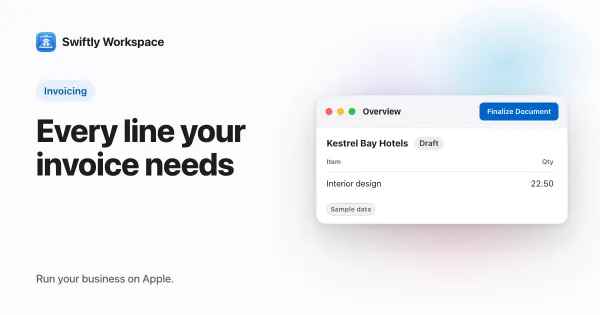
- Finalize. Go back to the Details tab, tap the ⋯ button at the top and choose Finalize. The Finalize Document alert explains that the invoice gets its number and can no longer be edited. Tap Finalize to confirm.
On iPhone, the record's tabs appear as a list you go back to between steps. On iPad, they sit in a sidebar inside the same sheet, so you can switch from Details to Lines in one tap.
What the draft is for
Every invoice in Swiftly starts as a draft, and a person finalizes it. Nothing goes out on its own. That gives you a moment to read the invoice the way your customer will: the right customer, the right lines, the right tax rate on each line, and payment terms that match what you agreed.
You can keep editing a draft, or delete it with Delete in the same ⋯ menu. Once you finalize, the invoice is numbered and locked. If something turns out wrong afterwards, the usual fix is a credit note, which you create from the same + button with New Credit Note.
Our invoice checklist lists what to look at before you finalize, and how invoice numbering works explains why the number arrives at that moment and not earlier.
After you finalize
The finalized invoice stays on the customer's record, next to their other documents and payments. When the customer pays, you record the payment and allocate it to the invoice; recording a payment on iPhone or iPad walks through that. If you want to see why keeping customers and invoices in one app saves time, read why a CRM with invoicing beats two separate tools.
Frequently asked questions
Why can't I tap Finalize?
Finalize stays grayed out while the draft has no lines. Add at least one line on the Lines tab, then open the ⋯ menu on the Details tab again.
Can I change an invoice after finalizing it?
No. A finalized invoice is locked so its number and amounts stay as the customer received them. Correct it with a credit note, then create a new invoice if needed.
Can I make a proforma the same way?
Yes. Tap + and choose New Proforma instead of New Invoice. The steps that follow are the same.
Which payment terms does a new invoice use?
If you leave Payment Terms at None, the invoice uses the customer's default terms. Choose other terms on the invoice when this one is different.
Run your business on Apple.
Create your account on the web, then set up your workspace in the app on your iPhone, iPad or Mac.
Create your account