Log time by asking: AI time entry with Apple Intelligence
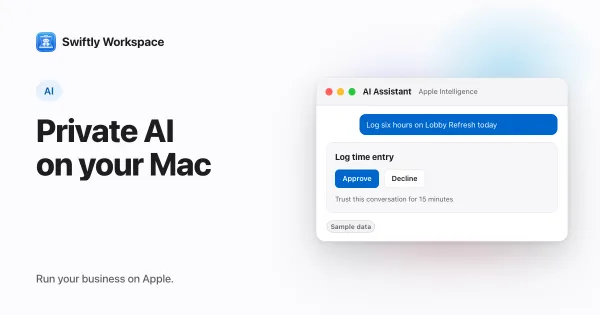
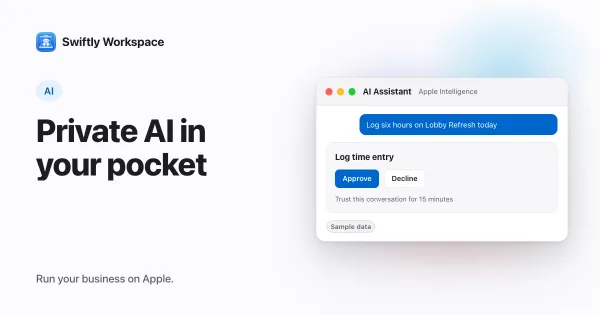
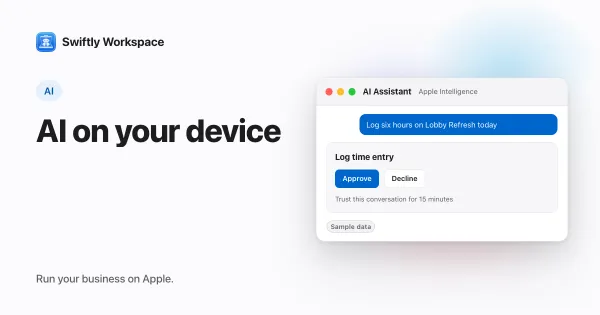
To log time with AI, tell an assistant running on Apple Intelligence what you did, for example three hours on a project yesterday, billable. In Swiftly Workspace it finds your timesheet and the project, shows the entry on a card, and saves it when you approve.
Time tracking fails in a familiar way: the work happens, the entry doesn't. Typing a sentence at the end of a meeting is easier than opening a timesheet, finding the right day and filling in five fields. Because the model runs on your iPhone, iPad or Mac, the sentence isn't sent to a cloud AI provider.
The assistant doesn't replace your timesheet. It fills it in for you, one approved line at a time, and the timesheet stays the place where you review the week, submit it and see what was approved.
What to say
A good request carries the same facts as a good time entry:
| Part | Example | Why it helps |
|---|---|---|
| Hours | "two and a half hours" | The one value the entry can't do without |
| Day | "yesterday", "on Monday" | Puts the line on the right date |
| Project | "on the Harbor Street project" | A name the assistant can look up |
| Work package | "under Design" | Optional; without it, the time counts as general project time |
| Billable or not | "not billable" | Keeps internal time out of what you bill |
| Note | "for the kickoff workshop" | Optional; tells a reviewer what the hours were for |
Put together: "Log two and a half hours yesterday on the Harbor Street project, under Design, billable, for the kickoff workshop."
You don't need special phrasing. Plain sentences work, and if something is missing or unclear, the assistant can ask you before it prepares the entry. Short, specific requests work better than long ones that mix several days and projects: log each block of work on its own.
How it works in Swiftly Workspace
- Start a conversation on Apple Intelligence. On a Mac, click Conversations in the sidebar, start a new conversation and check that the menu below the message field says Apple Intelligence. The step-by-step guides cover on-device AI on a Mac and on iPhone or iPad.
- Ask. Type the request, or speak it if dictation is available for your language.
- The assistant looks things up. It reads your recent timesheets and finds the project through the app.
- A card shows the entry. Before anything is saved, a card titled Log time entry shows the hours, the date, the project and whether the time is billable.
- You decide. Choose Approve to add the line to your timesheet, or Decline to leave it unchanged and rephrase.
What to know before you rely on it
- It adds to a timesheet you already have. The assistant adds a line to an existing timesheet that is still open for editing: a draft, or one that was rejected and returned to you. It doesn't create a new timesheet, so set up the period's timesheet in the app beforehand.
- Trusting a conversation. If you are logging a batch of entries, you can choose Trust this conversation for 15 minutes. Until the 15 minutes run out, new time entries in that conversation save without a card.
- Submitting always asks. You can also ask the assistant to submit your timesheet for approval. That always shows a card, even in a trusted conversation, and the card reminds you that lines can't be edited after submitting.
- No account or key. The model runs on your device, so there is no AI provider account to set up, and the prompt is not sent to a cloud AI provider.
- Supported devices. According to Apple, Apple Intelligence runs on iPhone 15 Pro or later, and on iPad and Mac models with M1 or later, with Apple Intelligence turned on in the device settings.
Habits that keep AI time entry accurate
- Log on the same day. A sentence typed while the work is fresh beats a reconstruction on Friday afternoon.
- Use the project's real name. Short nicknames are easy for colleagues and hard for a lookup. The name as it appears in the app works best.
- Say billable or not every time. It takes two words and saves a correction when the timesheet is reviewed.
- Read the card, not just the button. The card is the last check on the hours, the date and the project. A quick look catches "yesterday" landing on the wrong day around midnight.
- Review the week before you submit. Open the timesheet once a week and scan the lines the assistant added alongside your own.
For the bigger picture of on-device AI, see what on-device Apple Intelligence can do. If you fill in a whole week at once, batch time entry may suit you better, and voice and AI covers speaking to the assistant in more depth.
Frequently asked questions
Can AI fill in my whole timesheet?
It can add entries one request at a time, each shown to you before it is saved. For a full week, a batch entry screen is usually quicker, with the assistant handling the odd entry you forgot.
What if the assistant picks the wrong project?
Decline the card and say it again with the project's exact name. Unless you trusted the conversation, nothing is saved until you approve, so a wrong guess costs a few seconds.
Does logging time with AI need an internet connection?
The model runs on your device, but the time entry is saved to your workspace, and the assistant looks up your timesheets and projects there. So you need a connection to log the time.
Can I log time for a colleague by asking the AI?
The assistant works with your own timesheets. To enter time for someone else, use the timesheet screens, where your role decides what you can do.
Run your business on Apple.
Create your account on the web, then set up your workspace in the app on your iPhone, iPad or Mac.
Create your account