Talking to your business app: dictation and spoken replies
In Swiftly Workspace you can speak to Main Chat instead of typing: tap the microphone, talk, and your words are transcribed on the device, tidied by Apple Intelligence and sent. Replies can be read aloud, one at a time or every time.
Voice is useful wherever typing is awkward: walking between meetings, standing at a client's site, or simply when the question is longer than a thumb wants to type. It does not change what the assistant knows or does; it changes how you ask and how you hear the answer.
The three parts of voice
| Part | What it does | Where it runs |
|---|---|---|
| Dictation | Turns your speech into the message text | On your iPhone, iPad or Mac |
| Transcript polish | Fixes punctuation and capitalization and removes filler words before sending | On the device, with Apple Intelligence |
| Spoken replies | Reads the assistant's answer aloud | On the device, with the system voices |
Dictating a message
Open Main Chat (Conversations in the app). When dictation is available for your language, a microphone button sits in the message field (VoiceOver: Dictate message). Tap it and speak. While you talk, the words appear above the field as you say them; when you stop, the message is sent. Changed your mind? Cancel, and the message is discarded.
Speech recognition runs on your device, so your recording is not sent to a speech service. What the assistant receives is the text of the message, handled like a typed message.
Good prompts by voice are the same as good typed prompts, said out loud: "Which invoices for Lindqvist Design are still open?" or "How many hours did I log on the website project this week?" Name the customer or project, and say what you want back.
Transcript polish: from spoken to written
Spoken language is messy. People say "um", restart sentences and never say "comma". With Transcript Polish, Apple Intelligence cleans up the dictated text on your device before it is sent: it fixes punctuation and capitalization and removes filler words, and keeps your wording, names and numbers.
Polish needs Apple Intelligence, so it works on devices that support it and have it turned on. If it isn't available, or the cleanup fails, your words are sent as they were recognized. Each person can switch it off under My Account with Polish transcripts with Apple Intelligence. More on what runs on the device is in on-device AI with Apple Intelligence.
Hearing the answer
Every reply from the assistant has a speaker button (VoiceOver: Read message aloud). Tap it to hear that reply, and tap again to stop. To hear every reply as it arrives, turn on Read AI responses aloud in My Account, where you can also pick a Voice from the system voices and set the Speech rate.
If a reply is being read and you tap the microphone to ask a follow-up, the reading stops, so the two never talk over each other.
Which assistant answers
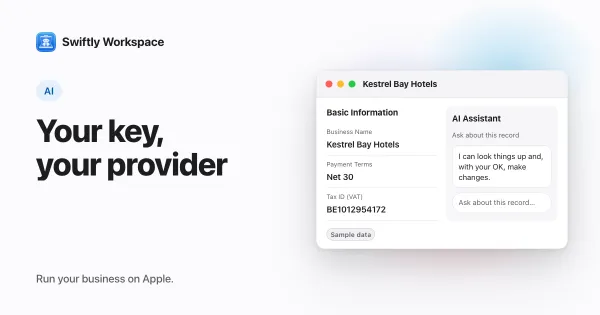
Voice works with whichever assistant you pick in Main Chat. That can be a cloud model from a provider your company connected with its own key, such as OpenAI or Mistral, or Apple Intelligence on your device when you would rather no outside AI provider sees your question. The microphone and the speaker behave the same either way. Bring your own AI key explains the cloud side, and asking questions about your own data shows what Main Chat can answer.
In the car
On iPhone, the same voice conversation is available through CarPlay, so you can ask about your day while driving. Asking about your business from the car covers how that works and what to keep in mind on the road.
What admins control
An admin decides which voice features the company uses, under Administration, then Voice. There are four switches, all on for a new company:
- Voice Input: let members dictate Main Chat messages with the microphone.
- Transcript Polish: clean up dictated transcripts with Apple Intelligence before sending.
- Voice Output: let members hear Main Chat replies read aloud.
- CarPlay: allow Main Chat voice features while connected to CarPlay.
When an admin turns off Transcript Polish or Voice Output, members see that setting disabled in My Account with a note saying the admin turned it off; with Voice Input off, the microphone does not appear. Per-person choices, like reading every reply or the voice, stay with each user.
Frequently asked questions
Why don't I see a microphone in the chat?
Either dictation isn't available on the device for the language you use, or your admin has turned off Voice Input. Type your message in the meantime, and ask an admin to check Administration, then Voice.
Is my voice recording sent to an AI provider?
No. Speech is recognized on your device, and the result is sent as text, like a typed message. With a cloud provider selected, that text goes to the provider; with Apple Intelligence selected, the answer is generated on the device, and no outside AI provider sees the text.
Can every answer be read aloud without tapping?
Yes, if you want it to. Turn on Read AI responses aloud in My Account and each new reply is read as it arrives. Leave it off and use the speaker button on the replies you want to hear.
Does voice work in languages other than English?
Dictation depends on on-device speech recognition for your language, and the microphone appears when it is available. Spoken replies use the voices installed on your device, and you can pick one in My Account.
Run your business on Apple.
Create your account on the web, then set up your workspace in the app on your iPhone, iPad or Mac.
Create your account