How to use on-device Apple Intelligence on iPhone or iPad
To use on-device Apple Intelligence in Swiftly Workspace on iPhone or iPad, open Conversations, tap New Conversation, check that the chip below the message field says Apple Intelligence, and ask your question. The model runs on your device, and any change it suggests waits for your approval.
You do not need an AI account or key for this. Working on a Mac instead? See how to use on-device Apple Intelligence on Mac, which follows the same idea with Mac windows.
Before you start
- A supported device. According to Apple, Apple Intelligence runs on iPhone 15 Pro, iPhone 15 Pro Max and iPhone 16 models and later, and on iPad mini (A17 Pro) and iPad models with M1 or later.
- Apple Intelligence turned on. Turn it on in your device's Settings, under Apple Intelligence & Siri, and give the model time to download. Set your device and Siri to the same supported language.
Ask your workspace a question in five steps
- Open Conversations. In the menu, under Quick Access, tap Conversations. You see your earlier conversations.
- Start a new one. Tap New Conversation at the top (the square and pencil). An empty chat opens with a message field that reads Ask anything.
- Check the provider. Below the message field, a small chip names the AI provider. Make sure it says Apple Intelligence; if it does not, tap the chip and choose it. If Apple Intelligence is off, still downloading or not supported on your device, you cannot pick it in that menu.
- Ask. Type a question such as "Which projects did I log time on this week?" and send it. If dictation is available for your language, you can tap the microphone and say it instead. The assistant looks up customers, projects or your timesheets through the app and answers.
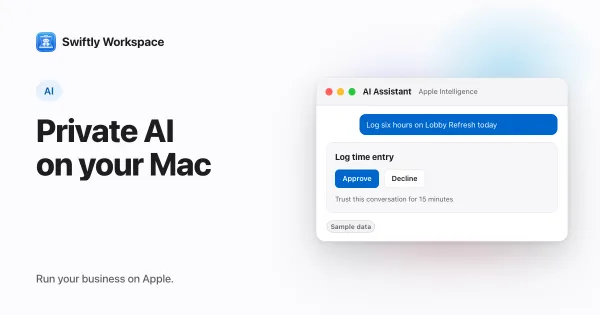
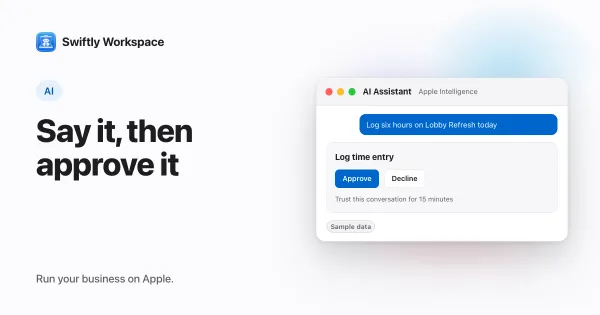
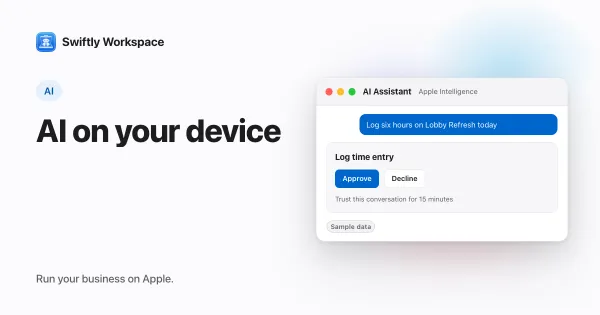
- Approve or decline changes. Ask for a change, such as "Log six hours on the Lobby Refresh project today", and an approval card shows what will change. Tap Approve to save it or Decline to drop it. Nothing changes until you approve.
Once you send a message, the conversation keeps its provider, and a small lock appears on the chip. To switch providers, start a new conversation. On iPad, the conversation list stays on the left while you chat.
Trusting a conversation for routine changes
If you are working through a batch of small changes, the approval card offers Trust this conversation for 15 minutes. Turn it on, and routine changes in that conversation, such as logging time or updating a customer's details, go ahead without a card until the time is up. Submitting a timesheet, recording a payment and finalizing a document still ask every time.
What works well on the device
The on-device model is smaller than the large cloud models, so it shines at short, concrete jobs:
- Find a customer and read back their details.
- Log time on a project, then check the week's total.
- Update a phone number or an address on a customer.
Keep each request to one task, and name the customer or project the way it appears in the app. Our guide to logging time with on-device AI goes deeper on the time-tracking side, and Apple Intelligence for business explains what runs on the device and why.
Your records stay in your Swiftly workspace, so the same customers and projects are there when you pick up your Mac; see keeping iPhone, iPad and Mac in sync. If you are weighing Apple's server-side option as well, our explainer on Private Cloud Compute covers how it differs.
Frequently asked questions
Why can't I choose Apple Intelligence in the provider menu?
It is grayed out when Apple Intelligence is turned off in Settings, still downloading, or not supported on your iPhone or iPad. Turn it on, wait for the download to finish, then start a new conversation.
Can I change the provider in the middle of a conversation?
No. A conversation keeps the provider it started with, because the earlier messages belong to that model. Start a new conversation to use a different one.
Does on-device AI cost anything?
No. It uses the model that comes with your device, so there is no AI key to add and no AI bill.
Is the microphone button missing for me?
The microphone appears when on-device dictation supports the language you use. If your language is not supported yet, type your message instead.
Run your business on Apple.
Create your account on the web, then set up your workspace in the app on your iPhone, iPad or Mac.
Create your account