Blog

CRM

Practical guides to running your business on Mac, iPad and iPhone: invoicing, projects, time tracking and working with the AI assistant.

  1. Daylite alternatives: native CRM for Mac, iPhone and iPad

    Daylite is a strong pick for an Apple-based team that wants mail, calendar and CRM in one native app. If you also need invoices, projects and approved timesheets, Swiftly Workspace is the closest native alternative; HubSpot, Pipedrive and Zoho CRM suit sales-led teams.
  2. Address autocomplete for faster customer entry

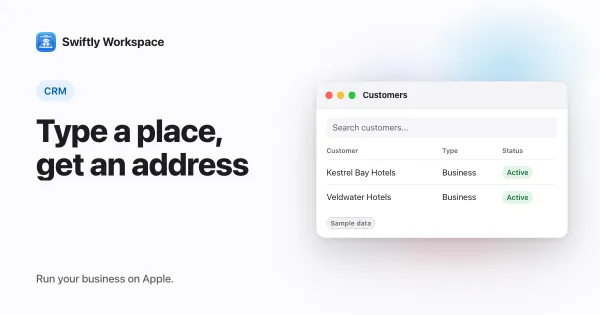
    In Swiftly Workspace, the magnifying glass in a customer or vendor address form opens Search Address. Type part of an address, a business name or a place, pick a suggestion, and the street, city, state or province, postal code and country fill in for you to check and save.

  3. Customer-specific prices: one item, a rate per client

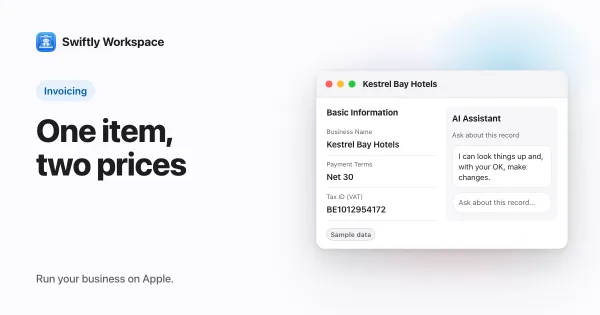
    Customer-specific pricing records the price you agreed with one customer for one item, optionally for a quantity range and a period. In Swiftly Workspace you keep these prices on the customer's Special Pricing tab, and that customer is charged the special price on their invoices.

  4. Large customer lists on iPhone, iPad and Mac

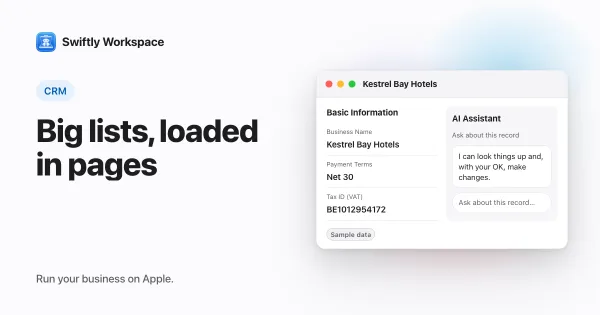
    Swiftly Workspace loads a long customer list in pages of 100 and shows the rows as each page arrives, with a Loaded 300 of 2,400… counter until the list is complete. Search by name, VAT number or phone, sort the columns, and filter by type, lifecycle stage or status.

  5. How to add a customer with contacts and addresses on Mac

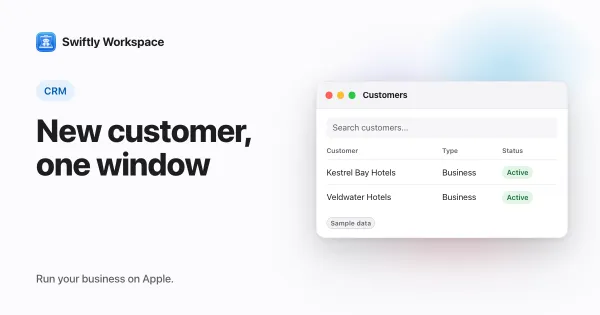
    On a Mac, open CRM, then Customers, and click + (or press ⌘N). Fill in the New Customer window and click the checkmark; the window becomes the customer's own, where Addresses and Contacts in its sidebar let you add an address and a contact person.

  6. How to add a customer with contacts on iPhone or iPad

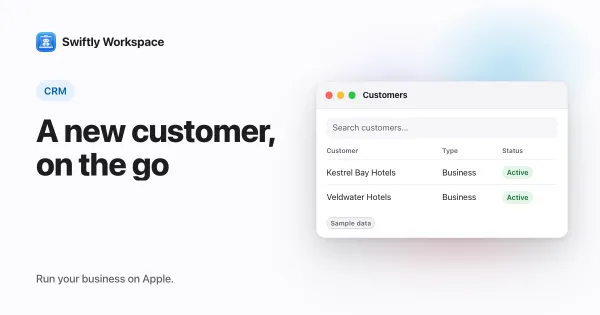
    On iPhone or iPad, open CRM, then Customers, and tap +. Fill in the New Customer form, tap the checkmark to save, then add an address on the Addresses tab and a contact person on the Contacts tab of the same sheet.

  7. A consultant's week in one workspace: from call to invoice

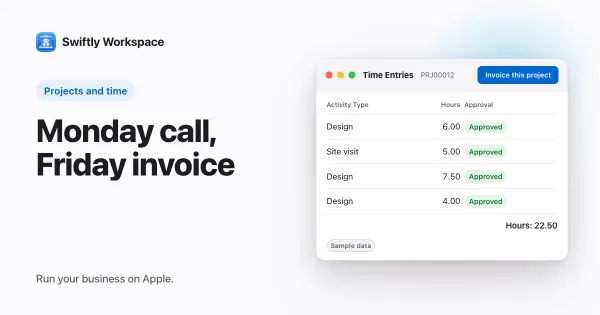
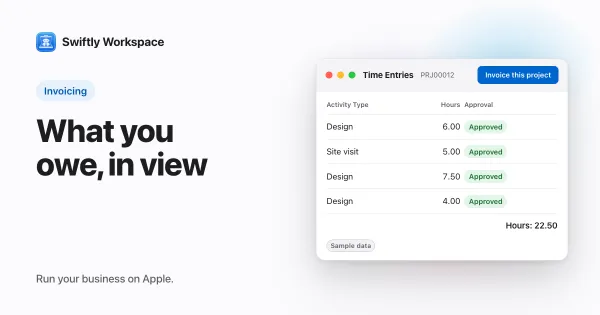
    Software for consultants should let you run the whole week in one workspace: add the client and the project after the call, log hours against it, submit the week for approval, turn approved hours into a draft invoice, send the PDF and record the payment. Swiftly Workspace works this way on iPhone, iPad and Mac.

  8. Who changed this customer? Using change history

    A record's change history tells you who changed a customer. In Swiftly Workspace, the History tab on a customer lists its edits with the field, the old and new value, the person and the time, so you can answer the question without asking around.

  9. Catching bad email addresses before you invoice

    Catching a bad email address before you send an invoice takes three checks: that it is well formed, that its domain has a mail server, and that it doesn't belong to a disposable mail service. That catches most typos, but no outside check proves a person reads the mailbox.

  10. Tracking supplier bills next to customer invoices

    Track supplier bills the way you track customer invoices: one record per bill, with the supplier's invoice number, due date and what has been paid. In Swiftly Workspace, bills are vendor documents under Finance, and vendor payments are allocated to them.

  11. Clean customer data before import: duplicates, VAT, emails

    Before importing customers, work in a copy of the file: give every customer a stable ID, merge duplicates, put VAT numbers in one format with their country prefix, trim and lower-case email addresses, and use one country code style. Then import a small sample before the rest.

  12. Supplier records: bank details, tax numbers and terms

    A good supplier record holds the supplier's legal name, VAT or tax number, address, a contact for invoices, payment terms and bank details. Keep suppliers in their own list next to your customers, and confirm any bank change before you save it.

  13. Customers, contacts and addresses: B2B CRM data structure

    In a B2B CRM, the customer is the company you invoice, the people you deal with are its contacts, and each address is its own record, marked for billing or shipping. Company facts such as the legal name and VAT number live on the customer; personal details, on the contact.

  14. Build a product and service catalog: units, categories, tax

    A product and service catalog is the list of what you sell, each entry with a name, a type, a unit of measure, a category, a list price and a tax rate. Set it up once and every invoice line starts from the same facts instead of retyped text.

  15. Configure your forms: hide the fields you never use

    Configure each form to show the fields your business uses, require the few that must be filled, and give sensible defaults to the rest. In Swiftly Workspace, the Configure tables set Visible, Required and Default Value for every field, separately for each company.

  16. How to check an EU VAT number with VIES

    To check an EU VAT number, enter it with its two-letter country prefix in VIES, the European Commission's VAT lookup. A valid answer means the number is registered for trade between EU countries. An invalid answer is a reason to ask the customer before you send an invoice.

  17. CRM for small service businesses: just the essentials

    A small service business needs a CRM that keeps one clean record per customer, with contacts, addresses, notes and the invoices you sent them. Pipelines, scoring and campaign tools can wait until you have a sales team that uses them.

  18. Running a small agency on one app: clients, time, invoices

    A small agency can run on one app when clients, projects, timesheets and invoices share the same records: hours are logged against a client's project, approved, then turned into a draft invoice. Swiftly Workspace works this way on iPhone, iPad and Mac.

  19. Why a CRM with invoicing beats two separate tools

    A CRM with invoicing in the same app keeps one record per customer, so invoices, payments and project hours all point at the same data. Swiftly Workspace works this way on iPhone, iPad and Mac.

  20. Tracking customer cases and follow-up tasks: a simple system

    A simple case system has two parts: one case per customer issue, with an owner, a status and a history, and one task with a due date for every promise. Both link to the customer record, the statuses stay few, and open cases are reviewed weekly so nothing waits on someone who forgot.

  21. Purchase orders for small businesses: when and how

    Use a purchase order when you buy above an agreed limit, from a new supplier or for a specific job. It states what you are buying, how much, at what price and by when, and you match the supplier's invoice against it before paying.

  22. Planning deliveries and routes: a guide for small businesses

    Plan deliveries by grouping stops by area and time window, sequencing them into a sensible loop within vehicle and driver limits, and giving each driver a clear stop list. Capture proof of delivery at every stop and review failed stops daily.