How to add a customer with contacts and addresses on Mac
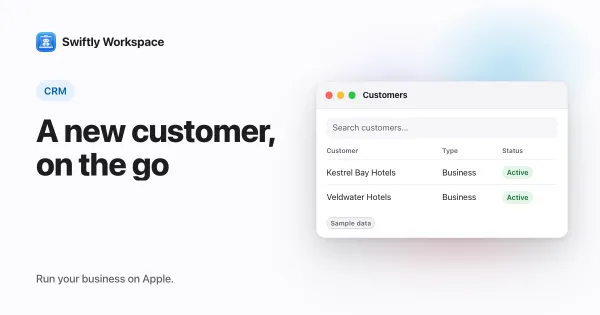
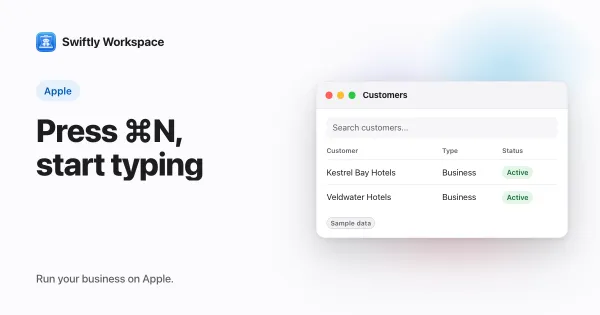
To add a customer on a Mac in Swiftly Workspace, open CRM in the sidebar, then Customers, and click + in the toolbar or press ⌘N. Fill in the New Customer window and click the checkmark. The window then becomes the customer's own, with Addresses and Contacts in its sidebar.
It takes a couple of minutes per customer. On the go? Adding a customer on iPhone or iPad follows the same order with the iPhone's buttons.
Three ways to start
| Where you are | What to do |
|---|---|
| The Customers list | Click + in the toolbar (tooltip: Add a new customer) |
| Anywhere in CRM | Press ⌘N |
| Anywhere in the app | Choose New Customer from the File menu |
⌘N follows what you are looking at: in CRM it starts a customer. In Vendors, Projects and Finance it starts that area's main record; anywhere else it starts the top record in the File menu's list. More shortcuts are in Quick Create and keyboard shortcuts on Mac.
Add a customer in five steps
- Open a New Customer window. Use one of the three ways above. The window opens as a single pane with no sidebar yet.
- Fill in the essentials. Under Customer Type, choose Business or Individual. In Identity, enter the Business Name (or Full Name) and the Phone Number, plus the VAT / Tax ID if your company shows it. Status and Payment Terms come prefilled; change them if this customer is different.
- Create the customer. Click the checkmark in the toolbar (tooltip: Create customer). If a required field is still empty, the checkmark shows a warning triangle, and clicking it lists what is missing. Once saved, a short Success message appears and the same window turns into the customer's window, with Basic Information, Addresses, Contacts and more in its sidebar.
- Add an address. Choose Addresses in the sidebar and click + in the toolbar (tooltip: Add a new address). A New Address window opens. Pick the address type and fill in Address Line 1, the postal code and the city, or click the magnifying glass (Search Address) to look the address up. Turn on Default Billing Address if invoices go here, then click the checkmark (tooltip: Add address).
- Add a contact person. Choose Contacts in the sidebar and click + (tooltip: Add a new contact). In New Contact, enter the person's name and an email address or phone number; at least one of the two is required. Turn on Primary Contact for your main contact, then click the checkmark (tooltip: Add contact).
If you change your mind before saving, the cancel button next to the checkmark (tooltip: Cancel creation) closes the window and nothing is stored.
Why the window starts as one pane
Addresses, contacts and documents hang off a customer, so they can be added once the customer exists, not before. The new-customer window therefore starts with just the fields that make a customer, and the sidebar arrives with the save. If your company requires extra fields for a new customer, such as a credit limit, they show up in that same pane so the save never stalls on a field you can't reach.
Which fields you see depends on your company's setup: an admin can hide fields, make them required, or give them a default value. Configuring forms per company explains those choices, and structuring CRM data for B2B helps you decide what belongs on the customer, the contact person or the address.
Working with the customer afterwards
The customer now shows in the Customers list. Double-click it to open its window again, or Control-click and choose View Profile; each customer opens in a window of its own, so you can keep two side by side (more in working with several windows on a Mac). When it is time to bill them, creating an invoice on a Mac picks up from here.
Frequently asked questions
Does ⌘N always create a customer?
In CRM it does. In Vendors, Projects and Finance it starts that area's main record, for example a project in Projects; anywhere else it starts the top record in the File menu's list. To create a customer from anywhere, choose New Customer from the File menu.
Where are Addresses and Contacts in a new customer window?
They appear after the save. Both belong to a customer that doesn't exist yet, so click the checkmark to create the customer, and the window switches to the full customer view with both sections in its sidebar.
Can I add several contacts to one customer?
Yes. Each click on + in the Contacts section opens another New Contact window. Mark one of them as Primary Contact so everyone knows who to call.
Run your business on Apple.
Create your account on the web, then set up your workspace in the app on your iPhone, iPad or Mac.
Create your account