Who changed this customer? Using change history
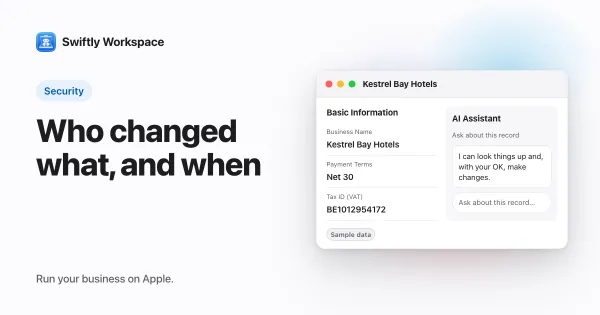
A record's change history tells you who changed a customer. In Swiftly Workspace, the History tab on a customer lists its edits with the field, the old and new value, the person and the time, so you can answer the question without asking around.
Customer records drift. A billing address gets replaced by a delivery address, a VAT number loses a digit, a payment term quietly changes from 30 days to 60. Usually there is a good reason, but when an invoice goes to the wrong place, you want the facts fast. A record's change history gives them.
What change history answers
| Question | Where the history helps |
|---|---|
| Who changed the billing email? | The entry names the person who saved the edit |
| What was the address before? | The old value sits next to the new one |
| When did the payment terms change? | Each entry carries its date and time |
| Was it one edit or several? | The list shows each change in order |
| Did someone delete a record? | The deleted record's last values are kept and marked |
Using it in Swiftly Workspace
- Open the customer. On a Mac, open the customer's window; on iPhone or iPad, open the customer.
- Choose the History tab. On the Mac it shows a Change History panel. A customer nobody has edited yet shows No History Yet, because the history records edits, not the creation of the record.
- Read the entries. Each one names the field, then shows the old value, an arrow and the new value, with the person and how long ago it happened. On the Mac, hold the pointer over the time to see the exact date and time. If a reason was recorded with the change, it appears too.
- Search. Use Search history to narrow the list to a field, a person or a value, such as a postal code you are looking for.
Vendors, documents, payments, projects and timesheets have the same tab.
Deleted records
Deleting a customer doesn't erase its history: the final values remain, labeled Deleted. Because the customer's own tab is gone with it, admins find those entries in Administration, under All Change Logs.
Who can see what
- On the record. Anyone who can open a customer can read its history. It is there to read: nobody can edit or delete an entry.
- Across the workspace. All Change Logs shows the logged changes across the workspace, and admins can filter it by record type, field, person or date range. The default Standard role for new members doesn't include it.
For how roles split this kind of access, see roles and field-level permissions. For the wider case for logging changes, and what a good log entry contains, see audit trails for small businesses.
When to look at the history
Most teams open a record's history in a handful of situations:
- An invoice went to the wrong place. Start with the email and address fields. The entry shows whether the value was wrong from the start or changed recently, and by whom.
- A customer says their details were correct. The old value settles it politely, without anyone having to rely on memory.
- A number looks off on a payment or invoice. The same tab on documents and payments shows which field moved and when.
- Someone new takes over an account. A quick read of the history tells them what changed recently and who to ask about it.
- Your accountant has a question. A dated entry with a name is a better answer than "I think it was last month".
In each case, the history turns a question about people into a question about facts. That keeps the conversation short and friendly, which matters as much as the answer.
It also changes how people work. When everyone knows edits carry their name, records tend to get edited with a little more care, and a colleague who spots an odd value can see who to ask instead of guessing. The point is clarity, not blame: most changes in a customer record are routine updates that someone made for a good reason, and the history shows that too.
Habits that make the history more useful
- One login per person. A shared account turns every entry into "someone". Named users make the history worth reading.
- Correct, don't recreate. Fix a wrong customer by editing it. Deleting and re-adding splits its story across two records.
- Check the fields that move money. A glance now and then at changes to billing emails, VAT numbers and bank details catches mistakes early. Checking those values when they change helps too: see catching bad email addresses and checking EU VAT numbers.
- Keep the structure clear. When contacts and addresses are organized well, edits land where you expect them. Structuring B2B customer data covers how.
Frequently asked questions
Can I undo a change from the history?
The history shows what changed; it doesn't roll anything back. Read the old value from the entry and edit the record to restore it. Your correction then appears in the history as its own entry.
Does change history show who created a customer?
No. The history records edits made after a record exists, and a record's deletion, but not its creation.
Can an admin delete entries from the change history?
No. Nobody can edit or delete history entries in the app, admins included, which is what makes the history worth trusting.
Run your business on Apple.
Create your account on the web, then set up your workspace in the app on your iPhone, iPad or Mac.
Create your account