AI-assisted lookup mapping when you import data
AI-assisted lookup mapping spots which import columns hold values from your reference lists, such as a customer type, and flags each value for you to match. In Swiftly Workspace the AI Mapping Assistant in Data Import does this, on the device or with your own AI provider key.
Text fields import easily: a name is a name. Reference values are harder. Your old tool may call a customer group "Wholesale", "WHS" or "Trade", while your new one has a list with "Wholesaler" in it. Every such value has to be matched to an entry in the new list, and on a large file that matching is the slow part of a migration.
What a lookup is
A lookup is a column whose value must point at an entry in a list your company keeps, rather than free text. Typical examples on a customer are the customer type, the status, the industry and the payment terms. In Swiftly's Data Import, every distinct value found in such a column appears in Lookups. You match it to an entry from your own list, or choose Map to blank to leave it empty, and Commit stays unavailable until every value is dealt with. The import template guide explains which columns are lookups.
The AI Mapping Assistant helps you find those columns and their values. It does not choose the entries for you.
How to use the AI Mapping Assistant
- Upload your file. In an import session, upload your CSV or XLSX file. The assistant needs your column names, so it becomes available after the upload.
- Open the AI pane. On a Mac, open the session's inspector and choose the AI segment. On iPhone and iPad, open the AI tab. The pane is headed AI Mapping Assistant.
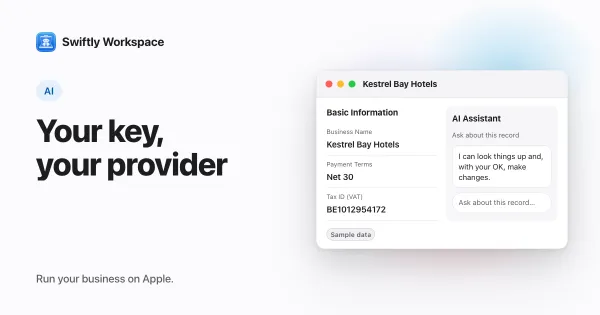
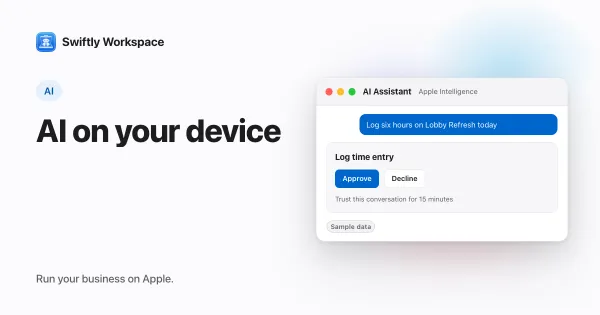
- Choose the provider. Under Provider, Apple Intelligence is selected when your device supports it. The other choice is the cloud option, which uses your company's own AI provider key. The differences are in the table below.
- Ask for suggestions. Choose Suggest Mappings. The assistant looks at your column names and some sample values and works out which columns hold reference values. Each value it finds becomes a row marked Needs Verification, listed under AI Proposals and in Lookups.
- Match each value. In Lookups, pick the matching entry from your own list for each value, or tick Map to blank. Picking an entry confirms the row. The Accept button under AI Proposals confirms a row as it stands, so pick the entry before you accept.
- Validate and commit. Run Validate, fix what it reports, then Commit. Nothing reaches your live records before that.
On the device or in the cloud
| Apple Intelligence | Cloud option | |
|---|---|---|
| Where the suggestion is made | On your iPhone, iPad or Mac | By your company's default AI provider |
| What is sent | The sample isn't sent to a cloud AI provider; the suggestions are saved with your import session | Your column names and up to 20 sample rows, with email addresses, IBANs, VAT numbers and phone numbers replaced by placeholders |
| Key needed | No, on a device that supports Apple Intelligence | Yes, your company's own provider key |
| Record types | Customer imports | The lists of the record type you are importing |
For a customer import, start on the device. For vendors, items, documents or projects, use the cloud option. If your company has no usable provider key, the cloud option can't answer; bring your own key, explained covers how keys work, and on-device AI with Apple Intelligence covers the devices that support it.
A second check: Scan Plausibility
The same pane offers Scan Plausibility. It asks the chosen provider to classify each staged row as looking real, suspicious or fake, which can help you catch test rows, placeholder names and junk before they reach your records. The findings are informational: they are shown in the pane and not saved.
What AI mapping does not do
- It doesn't save anything. Suggestions are rows to review. Your live records change when you commit.
- It doesn't add entries to your lists. If a value has no match, add the entry to your list (or map the value to blank) and match it again.
- It doesn't replace a clean file. Fewer spellings of the same value mean fewer rows to match. Cleaning your data before an import pays off here, and choosing between CSV and XLSX avoids a few encoding surprises.
You can also skip the assistant entirely: every lookup can be matched by hand in Lookups. The step-by-step import guide for Mac walks through a whole session.
Frequently asked questions
Is my customer data sent to an AI provider during an import?
With Apple Intelligence, the sample isn't sent to a cloud AI provider. With the cloud option, your column names and up to 20 sample rows go to your company's AI provider, with email addresses, IBANs, VAT numbers and phone numbers replaced by placeholders before anything is sent.
Can AI map CSV columns on its own?
It can suggest, not decide. Each suggestion arrives as a row marked Needs Verification, and you pick the matching entry before the import can be committed. That keeps a wrong guess from landing in your records.
What does Needs Verification mean in an import?
It marks a lookup value the AI flagged and a person has not confirmed yet. Like any value still waiting for a match, it keeps Commit unavailable until you pick an entry, map it to blank, or accept it as it stands, which leaves no entry chosen.
Do I need an AI key to import data?
No. The import itself works without AI, and you can match every value by hand. A key is needed for the cloud option of the AI Mapping Assistant; Apple Intelligence works without one on supported devices.
Run your business on Apple.
Create your account on the web, then set up your workspace in the app on your iPhone, iPad or Mac.
Create your account