What business data does an AI assistant send to the provider?
It can be, once you know what is sent: a cloud AI assistant sends the provider your question plus the records it looked up. In Swiftly Workspace that goes to your company's own connected provider; with Apple Intelligence on the device, the text isn't sent to a cloud AI provider.
Whether that is safe depends less on the AI and more on three things: which provider receives the data, what that provider does with it, and how much of your data the assistant pulls in. This guide goes through each, with the specifics for Swiftly Workspace.
What goes into a request
A language model can't read your database. To answer "which invoices are overdue?", the assistant looks up the records and passes them to the model with your question. So a request usually holds:
- Your message, and the conversation so far, so the model can follow it.
- The records it looked up: the customers, invoices, payments or projects that answer the question.
- Its instructions, which tell it how to behave, plus any notes an assistant remembers for you.
What it does not hold is everything else: the assistant fetches what the question needs.
Feature by feature in Swiftly Workspace
| Where you use AI | What is sent | Where it goes |
|---|---|---|
| Conversations (Main Chat) | Your message, the conversation and the records looked up to answer | Your company's connected provider |
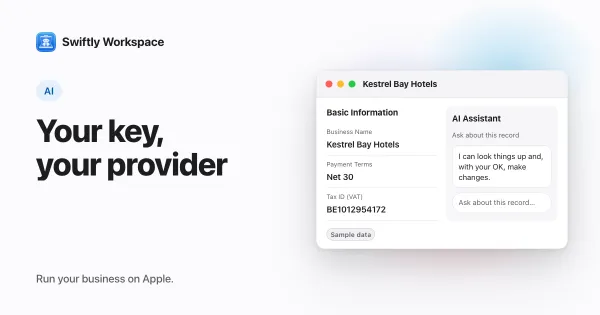
| A record's assistant | Your message, the record's name, and the details it looks up | Your company's connected provider |
| Import mapping, cloud option | Up to 20 sample rows, with email addresses, IBANs, VAT numbers and phone numbers replaced by placeholders | Your company's connected provider |
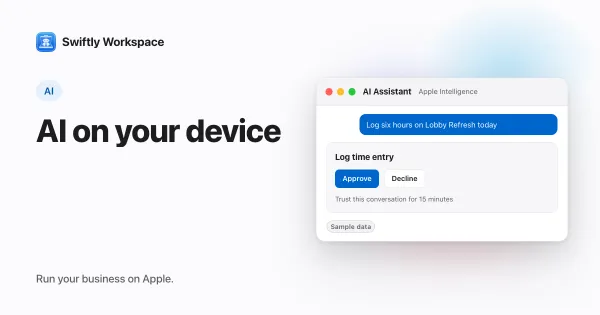
| Anything on Apple Intelligence | Processed on the device | Not sent to a cloud AI provider |
| Dictation with Voice Input | Recognized on the device | Not sent to a cloud AI provider |
For cloud AI, the request leaves from Swiftly's server, not from your iPhone, iPad or Mac: the apps never call a provider directly. The server uses your company's own key, which it stores encrypted, so the provider bills your account. A company can connect providers such as OpenAI, Gemini, Grok, Mistral, Cohere, DeepSeek or Perplexity; bring your own AI key explains how that works.
The privacy page puts it this way: the text you provide and the workspace context needed to answer go to the AI provider configured for your workspace, content goes to that provider and no other, and it is not used for advertising or sold.
On-device AI: what changes
With Apple Intelligence, the model runs on your iPhone, iPad or Mac, so your question and the records it reads are processed there instead of by a cloud AI provider. No provider key is needed. The conversation itself is kept in your workspace, like any other conversation, so you can find it again later; what changes is that no cloud AI provider is involved. How on-device AI works on Apple devices covers which devices support it.
Questions to ask about any AI provider
- Does it train on API data? Each provider's own API terms say whether requests are used to train models and how long they are kept. Read them on the provider's site, not a summary.
- Is there a processing agreement? In the EU, a service that processes personal data on your behalf generally needs a data processing agreement. Check that the provider offers one.
- Where is it, and who can reach the data? Location and access rules matter for some sectors. Choosing an AI provider walks through the trade-offs.
- What does the output contain? An invoice preview in a chat is built from records the assistant looked up, so those records were part of the request. AI previews you can check shows what those previews are and are not.
What to keep out of any AI request
Whichever provider you use, some data never needs to reach a model. A few rules of thumb:
- No secrets. Never paste passwords, bank logins or API keys into a chat, even to ask for help with them.
- Less identifying detail. When a question works without a name, use a customer number instead.
- Extra care for sensitive categories. In the EU, health data and other special categories of personal data generally need extra protection, so think twice before sending them to any AI service.
- A short team rule. Agree which AI tools may be used and which data may go into them, and write it down where everyone can find it.
- Check the provider's settings. Retention and training options are set in the provider's own console; review them when you connect a key, and again from time to time.
Habits that keep exposure low
- Ask narrow questions. "Unpaid invoices for this customer" pulls in fewer records than "summarize all our customers".
- Use on-device AI for sensitive work. When a question touches data you would rather not send out, ask it on Apple Intelligence.
- Check what an assistant remembers. Remembered notes travel with requests; how assistant memory works shows how to review and remove them.
For the wider privacy questions small businesses ask, see GDPR questions for small businesses. The cloud import option is described in AI-assisted lookup mapping.
Frequently asked questions
Do AI providers train on API data?
It depends on the provider, and terms change over time. Many providers publish separate rules for their API, often stricter than for their consumer apps. Read each provider's current API data policy on its own site, and check the retention settings in its console.
Can I use AI on business data without sending it to a cloud provider?
Yes, with Apple Intelligence on a supported iPhone, iPad or Mac. The text is processed on the device and isn't sent to a cloud AI provider, and no provider key is needed.
Does the assistant send my whole customer list?
No. It looks up the records a question needs and sends those. A broad question can still pull in many records, so keep questions specific when the data is sensitive.
Who can see the AI key my company entered?
It is stored encrypted on Swiftly's server and used there to call the provider. The apps on your devices never call the provider directly.
Run your business on Apple.
Create your account on the web, then set up your workspace in the app on your iPhone, iPad or Mac.
Create your account