AI previews you can check: invoice and table artifacts
An artifact is a preview the AI shows beside its answer in Conversations: an invoice, credit note or proforma, a payment receipt, a table or a report. Open, download or copy it; it is a view, not a record. Opening, downloading or closing one changes nothing in your workspace.
Chat answers are easy to read and hard to reuse. A list of overdue invoices buried in a paragraph has to be retyped before it is useful. Artifacts solve that by giving substantial answers their own panel, in a shape you can check at a glance and take with you.
The kinds of artifacts you will see
| Artifact | When it appears | Where the content comes from | Download as |
|---|---|---|---|
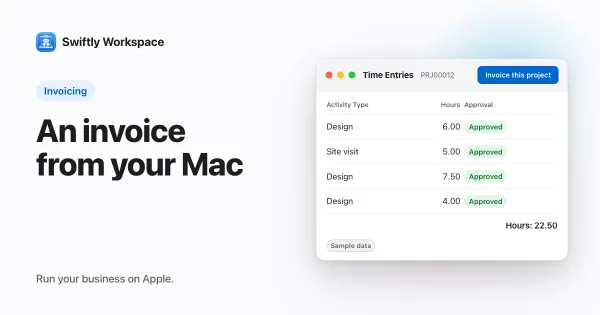
| Invoice, credit note or proforma | You ask about a specific document | The document the assistant looked up | |
| Payment receipt | You ask about a specific payment | The payment the assistant looked up | |
| Table | The answer has rows and columns: a list of invoices, hours per project, a comparison | Written by the AI from what it looked up | Text file |
| Report | A longer write-up, such as a summary of a customer's year | Written by the AI from what it looked up | Text file |
The difference in the third column matters. For a document preview, the assistant's tool returns the record's own data and the app builds the preview from it, so the number, customer, lines and totals are the ones stored in your workspace. A table or report is composed by the AI model, which makes it flexible and also fallible. Treat it like a colleague's quick summary: useful, and worth a check before it goes into an email.
Opening and using an artifact
- Ask in Conversations. For example: "Show me invoice 2026-041" or "Make a table of unpaid invoices by customer". AI prompts for service businesses has more ideas.
- Open the card. The reply contains a card for the artifact. Click or tap it. On a Mac and on iPad it opens beside the conversation; on iPhone it opens as a sheet.
- Check it. An invoice or payment preview is drawn as a PDF on your device. A table or report shows as formatted text.
- Take it with you. Download saves a document preview as a PDF, and a table or report as a text file in Markdown, which most notes and documentation tools read. On iPhone and iPad, Download opens the share sheet. For tables and reports, Copy puts the text on the clipboard.
Artifacts stay in the conversation. Reopen it next week and the cards are still there, which makes a conversation a handy place to keep a recurring analysis.
An artifact is not a record
It is tempting to treat an invoice preview in chat as the invoice. It isn't. The artifact is a picture of the data at the moment the assistant looked it up:
- Opening, downloading or closing it saves nothing and sends nothing to anyone.
- It doesn't update itself. If someone changes the invoice afterwards, an older artifact in the conversation still shows what it was. Ask again for a fresh one.
- Editing happens in the record. To change, finalize or send an invoice, open it from your invoice list, where you see it exactly as it stands. How to create and finalize an invoice on Mac shows those screens.
Keeping that line clear is what makes artifacts safe to use freely. You can ask for as many previews and tables as you like without any risk of changing your books by looking.
Checking an AI table before you share it
- Count the rows. If you asked for every unpaid invoice, compare the count with your invoice list filtered the same way.
- Spot-check two totals against the records they came from.
- Watch the period. "This quarter" can mean calendar or fiscal; say which you mean in the question.
- Ask for the source. A follow-up like "which invoices make up that total?" turns a summary into something you can verify.
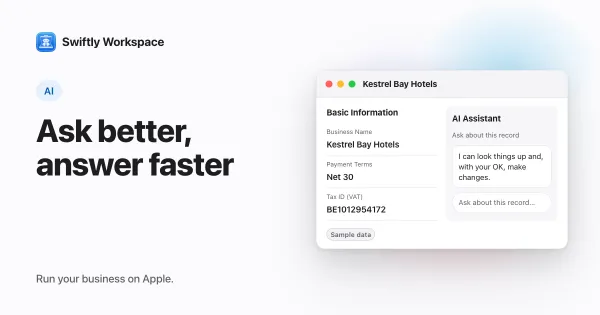
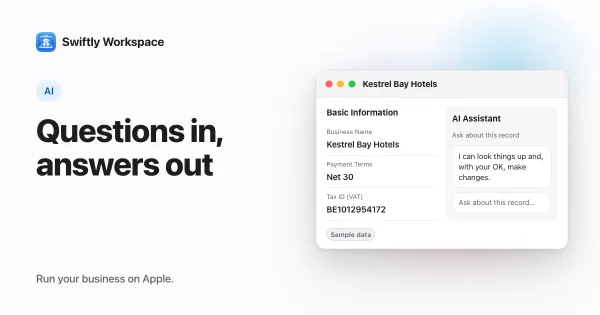
For a wider view of what the chat can answer, see an AI chat over your own business data. If you want help on one record instead, the assistant inside a record window is the better fit; the AI assistant in every record compares the two, and how approval cards work explains how changes are handled there. What travels to the AI provider when you ask is covered in what data is sent to the AI.
Frequently asked questions
Does an AI artifact save anything to my workspace?
No. An artifact is a preview. Opening, downloading or closing it doesn't create or change a record, and it doesn't send anything to a customer.
Can I export a table the AI made?
Yes. Download saves it as a text file in Markdown, and Copy puts it on the clipboard so you can paste it into a document or an email.
Is the invoice preview in chat the same as the invoice?
It shows the invoice's data as it was when the assistant looked it up, drawn as a PDF on your device. For the current version, or to change, finalize or send it, open the invoice itself.
Why did I get a text answer instead of a preview?
Short answers stay as plain text. Ask for a specific document, or for "a table", and the assistant is more likely to return an artifact.
Run your business on Apple.
Create your account on the web, then set up your workspace in the app on your iPhone, iPad or Mac.
Create your account