Your business on iPhone: what to do between meetings
An iPhone handles the short jobs that keep a small business moving: send an invoice, record a payment, log hours, add a customer or ask a quick question about your figures. In Swiftly Workspace each of those takes a minute or two; long admin sessions still suit a Mac.
The time between meetings is usually short and broken up: ten minutes in a waiting room, a train ride, the walk back to the car. That is not the moment for month-end work, but it is plenty for the small tasks that pile up if they wait until evening. The trick is knowing which tasks fit a phone, and having them two taps away.
Five jobs that fit a phone
| Job | Where on iPhone | Typical time |
|---|---|---|
| Send an invoice right after the work | Finance, then Customer Documents | A couple of minutes |
| Record a payment that just came in | Finance, then Customer Payments | About a minute |
| Log the hours from this morning | Projects, then My Timesheets | About a minute |
| Save a new customer you just met | CRM, then Customers | About a minute |
| Check a figure before a call | Conversations | Seconds |
The iPhone menu groups everything under Quick Access, Workspace, Settings and Account. The + at the top of the menu (Quick Create) starts a new record from wherever you are: New Customer, New Project, New Customer Document, New Customer Payment and more, limited to what you are allowed to create and the modules your company uses.
Invoice while the job is fresh
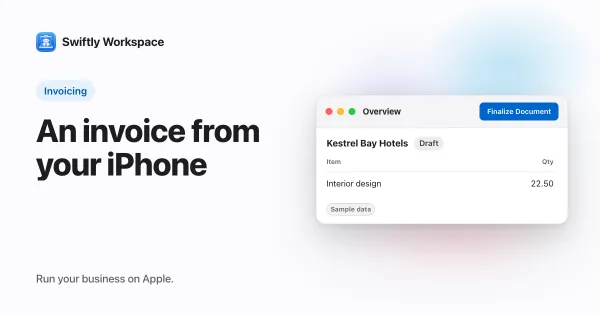
The best moment to invoice is right after the work, when the details are still in your head. Open Finance, then Customer Documents, tap + and choose New Invoice. Pick the customer, save the draft, add the lines and finalize it from the ⋯ menu. Creating an invoice on iPhone or iPad walks through every tap.
Once the invoice is finalized, tap the PDF button at the top of the invoice (VoiceOver: Preview PDF) to check it, then share it from the same sheet, for example through Messages or AirDrop. Sharing an invoice PDF from your iPhone covers the details.
Record a payment the moment you see it
When a transfer lands, open Finance, then Customer Payments, and tap +. Enter the customer, the amount and the date, save, then open the payment and choose Allocate from the ⋯ menu. Auto-Match suggests the open invoice it most likely pays; check it and save. Doing this on the spot means your list of open invoices is right when you next look at it.
Log hours before you forget them
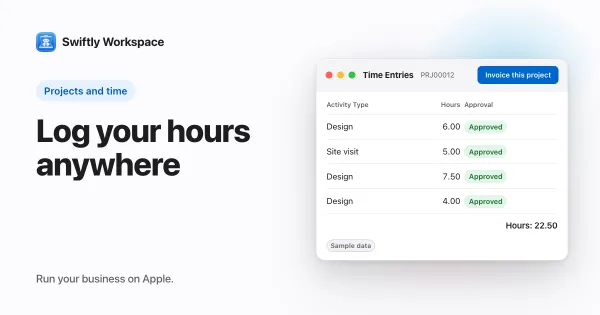
Hours logged the same day are more accurate than hours rebuilt on Friday. Open Projects, then My Timesheets, open this week's timesheet and add an entry. Since the August 2026 update you can also open the project itself and add the time on its Time Entries tab. Filling in and submitting a timesheet on iPhone shows the whole flow, up to sending the week for approval.
Save a new contact while you still have the card
Met someone worth keeping? Open CRM, then Customers, and tap + (VoiceOver: Add customer). The New Customer form asks for the essentials; once it is saved you can add their address and contact people in the same sheet. Adding a customer on iPhone or iPad goes step by step.
Ask instead of searching
Conversations, under Quick Access, is an AI chat over your own workspace. Ask "Which of Lindqvist Design's invoices are still open?" and it looks up the answer in your invoices and payments, which is faster than scrolling two lists on a small screen. It uses a provider your company connected with its own key, such as OpenAI or Mistral, or Apple Intelligence on the iPhone. With Apple Intelligence picked, the answer is generated on the device and the text isn't sent to a cloud AI provider.
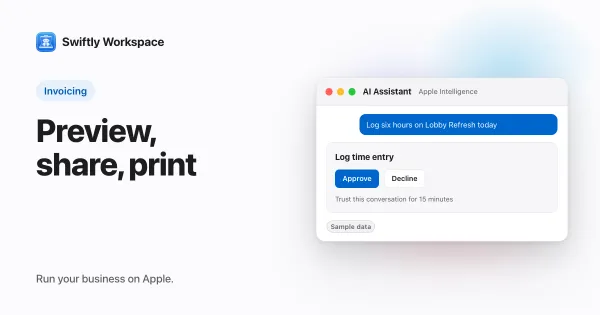
Typing on a phone is the slow part, so tap the microphone and say the question instead, and have the reply read aloud if you prefer. Talking to your business app explains dictation and spoken replies. With Apple Intelligence you can also say what you worked on, such as two hours on a project this morning, and it adds the time to your open timesheet once you approve the card it shows.
On the road
On the road, the same voice conversation runs through CarPlay: you ask, and the answer is spoken back. Asking about your business from the car explains how it works and what to keep in mind while driving.
What to leave for the desk
A phone is not the right tool for everything, and it helps to be honest about that:
- Several records side by side. Comparing two invoices or working across windows is a Mac strength; on iPhone you see one record at a time.
- Putting your IBAN on an invoice. The bank details for the payment code on an invoice are added on a Mac.
- Long sessions. Importing a customer list, reviewing a month of payments or setting up a project with many phases goes faster with a keyboard and a big screen.
Because records live on your company's workspace server, nothing needs to be copied over. What you save on the iPhone shows on the Mac and the iPad the next time they load it. If an iPad sits between the two for you, running your business from an iPad covers that middle ground.
Frequently asked questions
Can I run a small business from my iPhone alone?
For the daily tasks, largely yes: invoicing, payments, hours and customers all work on iPhone. Many owners still keep a Mac or iPad for setup work and longer admin sessions, where a bigger screen saves time.
What is the fastest way to create a record on iPhone?
Use the + at the top of the menu. It lists the records you can create, such as a customer, a project or a payment, so you don't have to find the right list before you start.
Which iPhone does the app need?
Swiftly Workspace runs on iOS 26 or later. On-device AI with Apple Intelligence additionally needs an iPhone that supports Apple Intelligence; cloud AI through your company's own provider key does not.
Do I have to sync the iPhone with my Mac?
No. Both apps read from your company's workspace, so the same customers, invoices and hours appear on each device when it loads them. Sign in with the same account on each one; keeping data in sync across devices explains how.
Run your business on Apple.
Create your account on the web, then set up your workspace in the app on your iPhone, iPad or Mac.
Create your account