Using Swiftly Workspace in 14 languages
Swiftly Workspace can run in 14 languages and regional variants, including Dutch, French, German, Spanish, Italian, Portuguese and Polish. Each person picks their own under My Account, then Profile, then Language, on iPhone, iPad or Mac.
A team that works across a language border rarely shares one favorite language. A bookkeeper in Ghent, a project lead in Liège and a consultant in Kraków can all open the same workspace, see the same records, and read every button in the language they think in.
The 14 languages
Every one of them is complete: each text on every screen has a translation in that language.
| Language | Regional variants | Shown in the list as |
|---|---|---|
| English | British, Canadian | English, English (United Kingdom), English (Canada) |
| Dutch | Belgian | Nederlands, Nederlands (België) |
| French | Belgian, Canadian | Français, Français (Belgique), Français (Canada) |
| German | Belgian | Deutsch, Deutsch (Belgien) |
| Spanish | none | Español |
| Italian | none | Italiano |
| Portuguese | none | Português (Portugal) |
| Polish | none | Polski |
Each language appears under its own name, so a colleague who doesn't read English can still find theirs. A regional variant changes the words that differ from one country to the next and keeps the rest. Belgian Dutch, for example, uses Belgian wording where it differs and standard Dutch everywhere else. Belgian Dutch was announced in August 2026, and all 14 were complete with the October 2026 update.
The list may also show a language marked Coming Soon. Those translations aren't finished yet, so stick to the 14 above for daily work.
How to change the language
- Open My Account and choose Profile.
- Open the Language menu and pick a language. Follow device language is the default and uses the language your iPhone, iPad or Mac is set to.
- On iPhone or iPad, close and reopen the app. The note reads Language will change when you reopen the app.
- On a Mac, choose Relaunch to switch at once, or keep working and the new language applies the next time you open the app.
Your choice is saved with your profile, so your other devices pick it up too, though there the change can take a second restart of the app. If you use Swiftly on an iPhone and a Mac, you set it once. For more on how one account behaves across devices, see how syncing across iPhone, iPad and Mac works.
What changes, and what stays the same
- Changes: menus, buttons, labels, messages and the help text in forms.
- Stays as typed: your own data. A customer name, an invoice line description or a project note appears exactly as someone entered it.
- Stays in English: the names of the built-in roles that come with every workspace.
- Set separately: the language of your invoices and other PDFs. That is a company setting for the documents your customers read, explained in brand color and default document language.
Because each person chooses for themselves, switching your own language never changes what a colleague sees.
Tips for a team that works in several languages
- Agree on how you write shared data. Interface text follows each person's choice, but descriptions, notes and item names don't. Many mixed teams pick one language for records that customers or colleagues will read, and keep personal notes in their own.
- Name things clearly. A short, plain item or project name reads well for everyone, whichever language their menus are in.
- Pick the regional variant that matches the country. A team in Brussels may prefer Belgian French or Belgian Dutch, a team in Montreal Canadian French. The difference is in the details, and those details are what people notice.
- Mention the language in support requests. If you send a screenshot to a colleague or to support, say which language you use, so labels can be matched quickly.
- Keep documents separate in your head. Your own interface language and the language on your invoices are independent, so a colleague can work in Polish while the invoices go out in the document language the company set.
Try it before you sign up
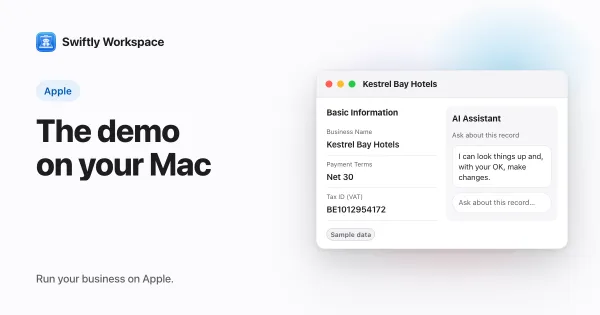
To look around a full workspace without creating an account, see how to try the demo on a Mac. The system requirements list the devices Swiftly runs on, and what is new this autumn rounds up the October 2026 update.
Frequently asked questions
Can I use a business app in Dutch, French or German?
Yes. Swiftly Workspace runs in Dutch, French and German, with Belgian variants of each, and also in Spanish, Italian, Portuguese and Polish, alongside three versions of English.
Does everyone on my team have to use the same language?
No. The language belongs to each person's profile. One colleague can work in Polish while another works in Belgian French, in the same workspace and on the same records.
Is there a Flemish version of the app?
Yes. Pick Nederlands (België) in the Language menu. It uses Belgian wording where it differs from the Dutch used in the Netherlands.
Why didn't the language change straight away on my iPhone?
The app applies a new language when it starts. Close it and open it again, and the menus appear in the language you picked.
Run your business on Apple.
Create your account on the web, then set up your workspace in the app on your iPhone, iPad or Mac.
Create your account