How to explore the demo workspace on Mac
To explore the demo on a Mac, open the app, click Try the demo in the sign-in window, type a name and click Start exploring. The sample company opens in its own window; when you want your own, choose Create Real Account from the company menu.
The demo is a shared sample company with customers, projects and invoices, and it needs no email address or password. This tour shows the Mac way of working with it. On iPhone or iPad? See how to explore the demo workspace on iPhone or iPad.
Start the demo
- Open the app. The welcome screens include a demo page. If you skipped them, the sign-in window has a Try the demo link below the sign-in form.
- Click Try the demo. The Explore the demo sheet opens.
- Type a name in Your name.
- Click Start exploring, or press Return. The sample company opens in a workspace window of its own.
When the demo is available, that is all it takes. A countdown chip in the window's toolbar shows how long the demo has left. Click it to see the banner, You're exploring a demo workspace, with Sign up to keep Workspace and Dismiss.
Open records side by side
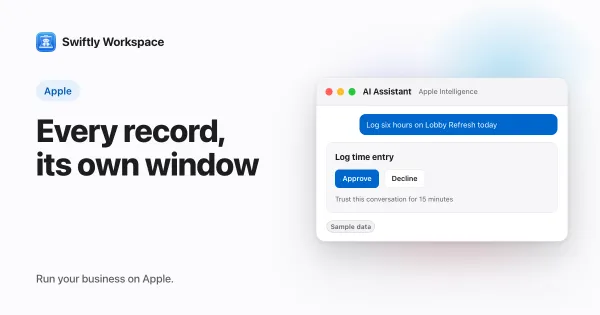
The Mac app is built around windows, so the demo is a good place to try that:
- Customers. In the sidebar, click CRM, then Customers. Double-click a customer, or Control-click it and choose View Profile; it opens in its own window. Open a second one and put them next to each other.
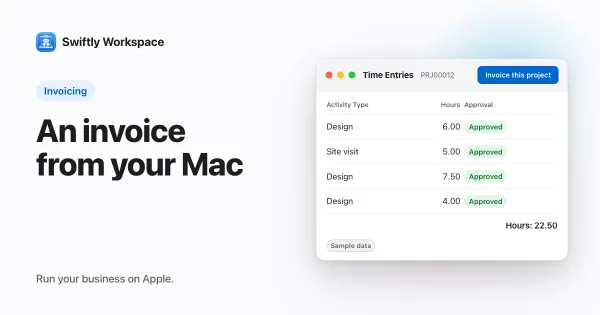
- Invoices. Click Finance, then Customer Documents, and open an invoice. To see how a document is put together, click + and choose New Invoice to start a draft, as in creating an invoice on Mac.
- Projects. Click Projects, then Projects in the next column, and open one. Its window lists the Phase and Work Packages in its sidebar.
Keeping a customer, its invoice and a project open at once is the Mac's strength; working in several windows on the Mac explains how to make the most of it.
You join with the Standard role: full access to the business data, without the company's administration. Everyone shares this one company, so others may see what you add. Use made-up names and figures. Swiftly Workspace comes in 14 languages; using it in your language covers which ones.
Create a real account
- Click Sign up to keep Workspace in the countdown banner, or click the company name at the top of the sidebar and choose Create Real Account.
- Sign up. A sign-up sheet opens over the demo, with your demo name filled in.
- Set up your company. You get a fresh company of your own. Nothing from the demo comes with you, and the demo keeps running until your new account is active.
Curious how the shared demo company is run? Trying a business app without signing up explains it.
Frequently asked questions
Do I need to download anything else to try the Mac demo?
No. The demo is part of the Mac app itself. Install the app from the Mac App Store, open it and start the demo from the sign-in window.
Can I close the demo window and keep going?
Closing a record's window is fine; open it again from its list. To stop exploring, close the workspace window. The demo lasts up to seven days.
What is the countdown in the toolbar?
It shows how long your demo has left. Click it to open the banner with the sign-up button, or dismiss the banner for the rest of the session.
Run your business on Apple.
Create your account on the web, then set up your workspace in the app on your iPhone, iPad or Mac.
Create your account