Default roles for new members: open or locked down?
A default role decides what a new team member can do on day one. Swiftly Workspace opens the business data and keeps administration closed: new members get the Standard role, with full access to records such as customers, invoices, projects and timesheets, but not to roles, members or company-wide settings.
Every business that invites people into its software makes this choice, whether it notices or not. Get it wrong one way and new colleagues sit idle waiting for access. Get it wrong the other way and an intern can change who is an admin.
Two ways to start a new member
| Aspect | Open by default | Locked down by default |
|---|---|---|
| Day one | The person can work straight away | The person sees little until someone grants access |
| Admin effort | Low at the start; tighten for the few who need it | Higher; every newcomer needs a decision |
| Risk | People can see more than their job strictly needs | People share logins or ask for broad access to get unstuck |
| Fits | Small teams where most people touch most records | Teams with clear separation, or sensitive data per department |
Security guidance often recommends least privilege: give each person what their job needs and no more. That is the right goal. In a team of eight where everyone invoices, logs time and talks to customers, though, "what the job needs" is nearly everything, and a locked-down start mostly produces friction. The useful line to draw is between doing the work and running the company.
What the Standard role includes
Standard gives a member create, read, change and delete rights on the business records in the workspace, along with every field on them. That covers customers and their contacts and addresses, items, invoices, credit notes and payments, projects and timesheets. When a new area of the app arrives, it joins Standard too, unless it is about administering the company.
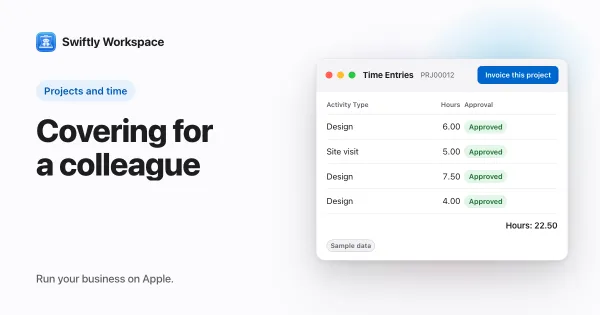
Members on Standard can also set up timesheets for teammates, for example when preparing next week for the whole team. Working inside a colleague's timesheet is a different matter, covered below.
What Standard leaves out
Standard deliberately excludes the governance of the workspace, including:
- People and access: roles, who belongs to the company, and which roles they hold.
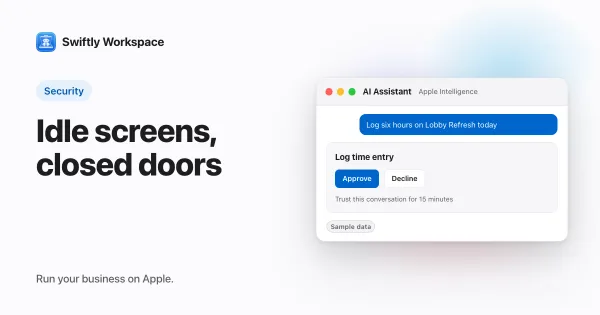
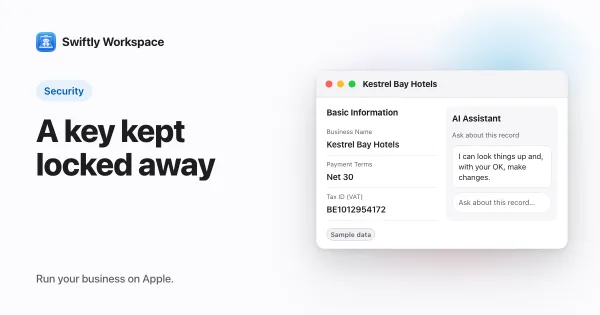
- AI setup: AI agents and how requests are routed to them, the settings for the tools the AI may use, and the company's AI provider keys.
- Company-wide settings: the auto-logout policy, which modules are switched on, voice settings, notification settings and record validation settings.
- Oversight: the workspace-wide view of every change log, and managing a teammate's timesheet on their behalf.
Each of these changes the rules for everyone, which is why they sit with admins. The auto-logout policy is a good example: a member shouldn't be able to switch it off for the whole company, as auto-logout policies explains. AI provider keys are another; how AI provider keys are stored covers who can touch them. And entering hours inside someone else's timesheet is kept for people who are given that permission on purpose, described in logging time on behalf of a teammate.
The other roles
- Admin has full access to the data and to the administration Standard leaves out. Sending invitations stays with the company owner, who keeps full access in any case.
- Member starts with no access to data until an admin grants it. It is the locked-down starting point, for when you want one.
- Custom roles are yours to define, down to individual fields. How roles and field-level permissions work walks through them.
Roles live under Administration, then Roles. One thing to know before you design them: permissions add up. A person's access is everything their roles and direct grants allow together, and an extra role never takes anything away. So a narrower role for someone has to take Standard's place, not sit next to it.
When to move someone off Standard
- Sensitive details they don't need, such as banking details or credit limits, for someone in a purely operational job.
- Temporary help, such as a student or contractor who needs a few records for a few weeks.
- An outside bookkeeper or partner who should see documents but not change customers or projects.
For everyone else, Standard is a sensible start. Keep the admin group small, check now and then who holds which role, and use the record history to see who changed what; change history on customer records shows how that works. Which modules are switched on also shapes what people see, as module toggles explains.
Frequently asked questions
What permissions should a new employee have?
Enough to do their job from day one without changing how the company is run. In practice that usually means access to the business records they work with, and no access to user management, security settings or integrations.
What is the difference between an admin and a standard user?
In Swiftly, both work with the same business data. An admin can also manage roles and members and change company-wide settings such as auto-logout, modules and AI setup; a member on Standard can't.
Can a member on the Standard role invite other people?
No. Invitations are sent by the company owner, and managing members and their roles is part of the governance Standard leaves out.
Is allow-by-default access a security risk?
It is a trade-off. It shows people more data than strictly needed, in exchange for fewer shared logins and fewer stalled newcomers. Keeping administration closed limits the damage a mistake can do.
Run your business on Apple.
Create your account on the web, then set up your workspace in the app on your iPhone, iPad or Mac.
Create your account